The Assess Checklist menu option is only available for users who have the expert role assigned.
If a checklist has a required field (red asterisk), you cannot assign a pass or fail grade until all required fields are completed.
You cannot edit a submitted checklist unless an administrator unsubmits it.
From the Student Portal navigation bar, click Assess Checklists. The Assess Checklists page opens. On the Assess Checklists page, you can:
View checklists you are responsible for assessing or have accessed
Open a checklist for a student and assess as the student performs checklist tasks
Assign a checklist to a student To access this page, your user ID must have the expert role assigned. If you are using Checklist Expert membership groups, you only see those checklists associated with that membership group. Searching and filtering
You can search by user or assignment.
Click to show/hide filters.
You can filter by status (All, Not Started, In Progress, Completed).
You can filter to show immediate subordinates or all subordinates.
You can sort by User, Assignment, Date Completed, Date Modified, and Status in either ascending or descending order.
Once set, filters remain set until you change them.
(If applicable) Search and filter to limit results.
For the user and assignment you want to assess, click the Assignment link. The checklist opens.
Assess the student as checklist tasks are demonstrated.
If you are:
Not finished assessing the checklist and want to come back later, click . The checklist status shows as In Progress on the Assess Checklist page.
Completely finished assessing the checklist, click Pass or Fail to indicate whether the student passed or failed. Note that:
A failed checklist is considered to be incomplete. On the Assess Checklist page, its status shows as Failed and there is no date in the Completed column.
A passed checklist is considered to be complete. On the Assess Checklist page, its status shows as Completed and there is a date in the Completed column.
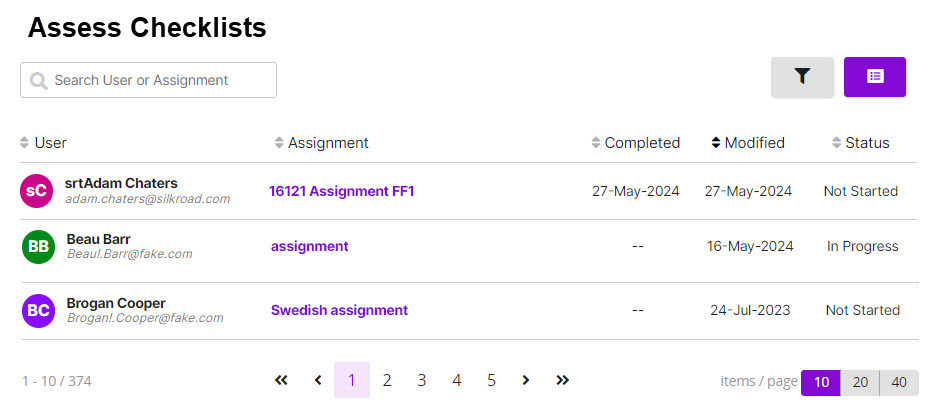 On the Assess Checklists page, you can:
 to show/hide filters.
 . The checklist status shows as In Progress on the Assess Checklist page.