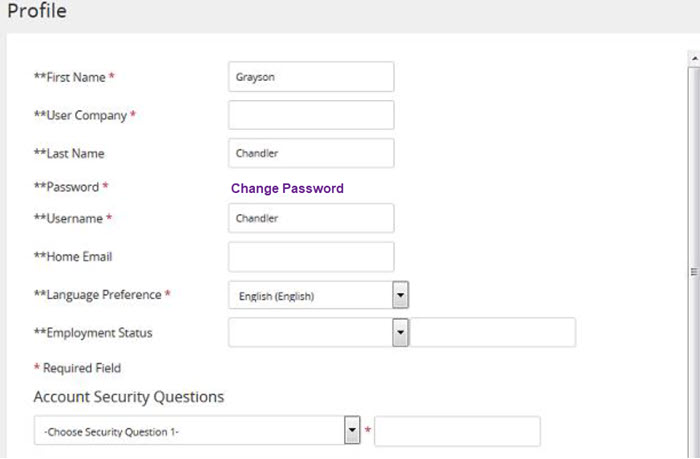
From the header, click your avatar, and then click Profile. The Profile page opens. The Profile page provides details about your user account in Rival Learn, including your:
First and last name
Company
User name, password information, and security questions
Language preferences Your current student group memberships are also listed along with available student groups you can join. If a student group requires an authorization code to join, you can enter it here as well.
Click Change Password.
On the Edit Password window, enter your current password.
Enter your new password and confirm it.
Click Submit. The Edit Password window closes.
On the Profile page, click Submit. The password change is effective on your next login.
 The Profile page provides details about your user account in Rival Learn, including your: