Learning Journey
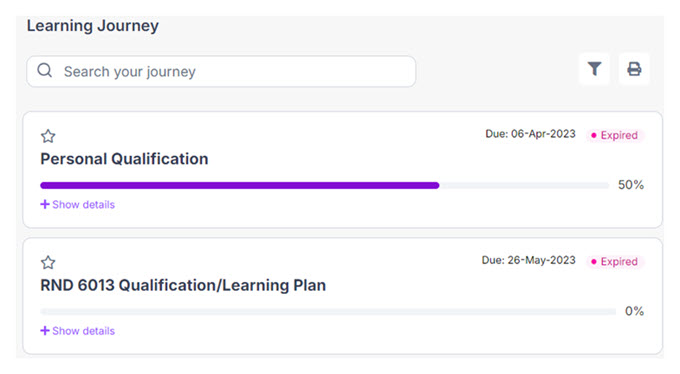
A Learning Journey shows courses assigned to you. Learning Journeys consist of courses, activities, content, competencies, requirements, assignments, and so on. Completing them supports the development of job skills and knowledge.
Learning Journeys are sorted by Next Due Date by default. They are listed in order of decreasing urgency: Expired, Not Met, Due, Met.
You can "star" or mark a Learning Journey as a favorite. It will appear first on the page.
Click  to generate a Learning Journey report.
Searching and filtering
- Click
 to show/hide filters.
 - You can filter by All, Due, Completed, Not Completed or Favorites; All Categories, No Categories, or a specifically selected category.
- You can sort by Next Due Date, Mastery Date, or Status in either ascending or descending order.
- Once set, filters remain set until you change them or select Clear all filters.
Progress bar, dates, and links
Each Learning Journey has a progress bar that indicates its overall status.
Learning Journeys with a due date display the date until Met. If the status is Met, the mastered date shows.
Each Learning Journey item is a link. Click to view details.
Statuses and icons
| Status | Description | Technical description |
|---|---|---|
| Met | Student has completed/passed the content within the time frame. | Certification has a Mastery Date Greater than (Activation Date or Reactivation Date) AND (less than the Expiration Date or Recertification Date) |
| Not Met | Student has NOT completed/passed the content but has until the due date to complete them. | Certification has no Mastery Date AND CURRENT DATE is greater than Effective Date AND less than Expiration Date |
| Due | Student has content that is due. | Certification has no Mastery Date AND CURRENT DATE is equal or greater than (Effective Date or Activation Date) OR Certification mastery date is less than (Activation Date or Reactivation Date) AND CURRENT DATE is equal or greater than (Activation Date or Reactivation Date) |
| Expired | Student has NOT completed/passed the content within the due date. | Certification has no Mastery Date and Current Date is greater than Expiration Date OR Certification has a Mastery Date less than (Activation Date or Reactivation Date) and CURRENT DATE is greater than (Expiration Date or Recertification Date) |
Icons indicate status for individual content:
| Icon | Status |
|---|---|
 | Expired |
 | Not Met |
| Due |
 | Started |
 | Met |
Categories
If a Learning Journey has categories assigned, they appear in gray "bubbles".