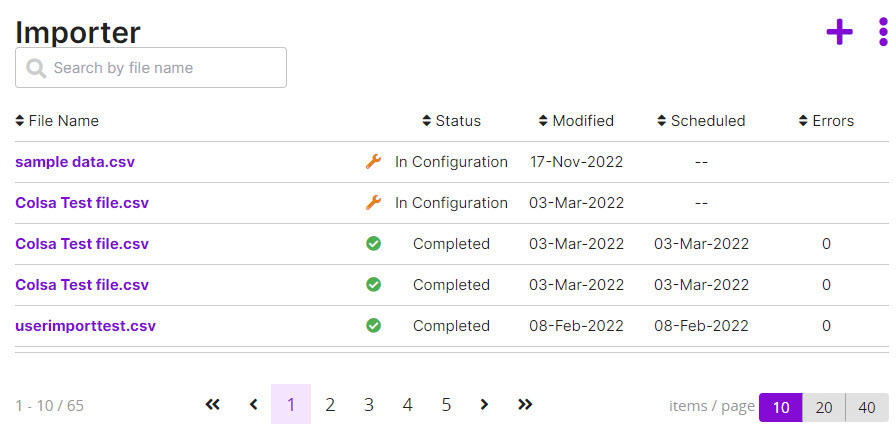
From the Student Portal from the navigation bar, click Administration. Click Importer. Or From the Administration Portal, click Enterprise. Under the Configuration section, click HR Imports. Click Importer. Click Launch Importer. The Importer page opens.
For the import you want to view, click its link in the File Name column. If the import has a:
Completed status, import results are shown, including who uploaded the import, date scheduled, date started, date completed, and number of errors and warnings.
In configuration status, the Configure Import Mapping page opens. You can continue the mapping process, validate, and schedule the import.