Shopping Cart
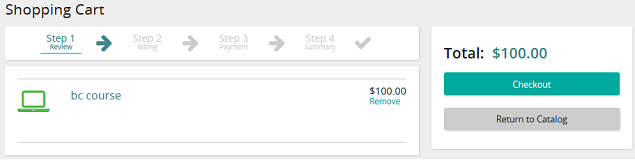
The Shopping Cart lists the course catalog items that you added to your cart for purchase along with the total amount of your purchases. The shopping cart has the following steps or pages:
- Step 1: Review
- Step 2: Billing
- Step 3: Payment
- Step 4: Summary
Step 1: Review
This page shows the course catalog items you choose for purchase along with total cost. You can also search for catalog items using the Search for catalog items search box. The typical workflow consists of verifying all the catalog items for purchase are listed and the total purchase price is accurate. After that, you go to the Billing page. You can even return to the course catalog if you are not ready to check out.
Step 2: Billing
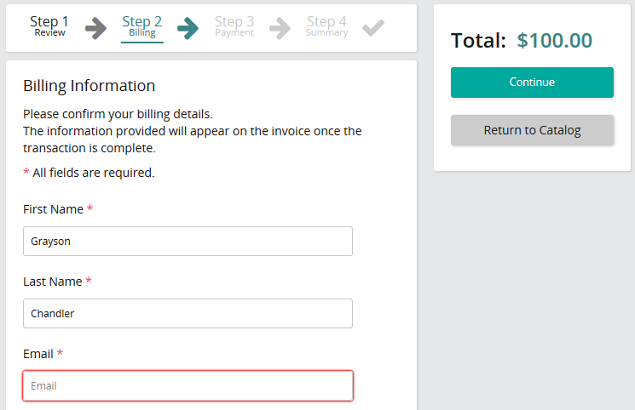
This page shows your billing information. Rival Learn automatically populates fields using information from the Contact Information section in Student Properties (Learning>Plan>Students) if available.
Typical workflow consists of verifying billing information and making changes if necessary. After that, you go to the Payment page. You can also return to the review step or course catalog.
Step 3: Payment
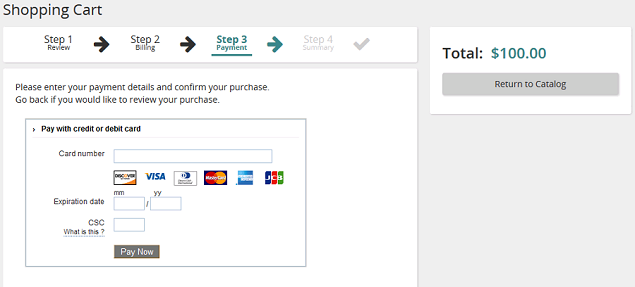
Depending on your site's PayPal account, you may have two payment options: To pay with:
- PayPal, click the Checkout with PayPal button and proceed.
- Credit card, enter your credit card information, and click the Pay Now button to complete your purchase.
Tip: You can also go back to previous steps and even return to the course catalog.
Step 4: Summary
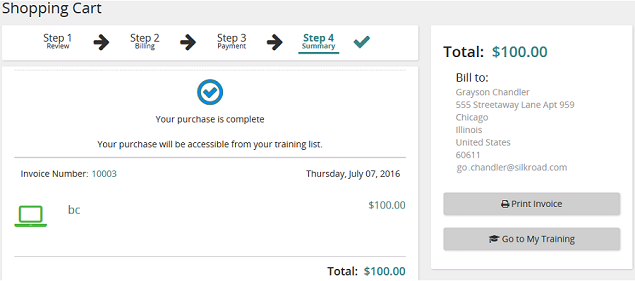
The Summary page is the confirmation of your purchase. You can print an invoice, return to the course catalog, or go to your My Training page.