Dashboard
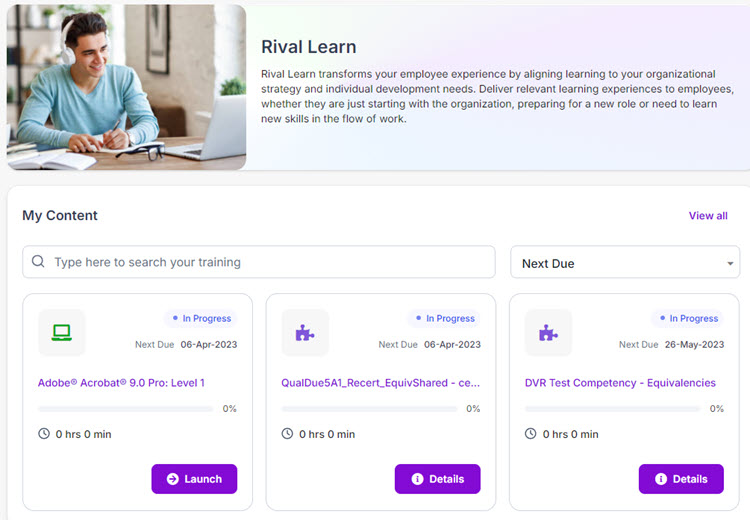
The dashboard is the first page you see after logging in. It shows the content (training) assigned to you. Use this page to view and launch training.
If you have no training assigned and the Course Catalog is available, the Go To Catalog button appears instead. Click to open the Course Catalog to select training.
Buttons, links, and options

Type text to search for specific training. As you type, results appear in the panel.
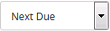
Select how to display training on this page. Options are by Next Due, Status, or Last Accessed.
Note: The view order remains set, even after you leave this page or log off, until you change it.
Go to Catalog
Displays the Course Catalog so you can search for and select training content.
Note: You only see this button if you have no training to complete.
Launch
Launches the training content.
Opens your My Training page and shows all your active training.
Popular Content
Shows training content that's getting a lot of attention.