From the Student Portal navigation bar, click My Training. My Training page opens. My Training page shows all your training in one place. View your active, mandatory, and historical training records here. You can also:
Search for specific training
Launch and complete online courses
Enroll in in-class courses pushed to you by your supervisor
Cancel enrollment in in-class courses You can identify the type of training by its icon: When you access this page for the first time, the Active tab is selected by default and active training appears in the data grid. Click other tabs to see historical records or active and historical training records combined. Buttons, links, and options Filters the data in the grid based on what you type in the box. Click a tab to view training information.
This icon:
Represents:
Assignment
Online course
In-class course
Competency
Active: Shows in-progress (active), scheduled, and upcoming online courses and training.
History: Shows completed, expired, and canceled training.
All: Shows all training from the Active and History tabs combined.
Certificates: Shows all certificates of all content types Note: The selected tab remains the default as you leave this page or log out until you change it. (Sort) Click a column heading to toggle the sort order (ascending/descending). You can set a different sort order on each of tab (Active, History, All). The sort order persists as you move from tab to tab or log out until you change it. Name column link Click a link in the Name column to open the Training Details page. From there you can view details about the in-class course or online course and perform various actions. (Actions) Click to perform an action. Actions vary based on the training type and whether training is active or historical. Potential actions:
Launch: Launches an online course or assignment.
Remove: Removes a self-registered course from the Training page.
Details: Navigates to the Training Details page.
Prerequisites: Navigates to the Prerequisite section on Training Details page.
Schedule: Navigates to the In-Class Courses section on Training Details page. Click to add a training record to your training history.
Click the History tab. Training history records are displayed.
In the data grid beside a completed online course, click and then click Certificate. Depending on your browser, the certificate is displayed in a viewer or downloaded to your computer.
If certificate is:
Displayed in a viewer, use the viewer's print button to print.
Downloaded to your computer, open the certificate in a pdf viewer and use the print button to print.
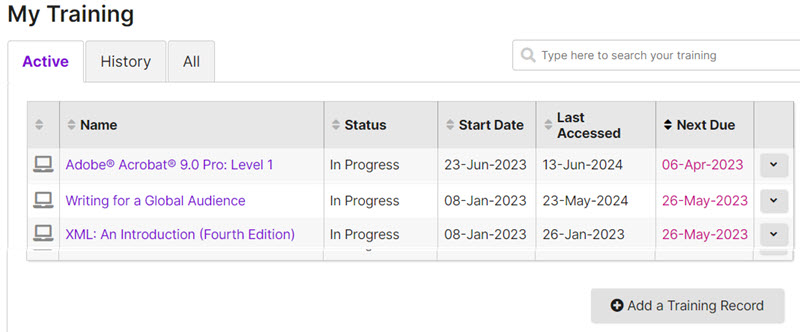 My Training page shows all your training in one place. View your active, mandatory, and historical training records here. You can also:
 Filters the data in the grid based on what you type in the box.
  Click a tab to view training information.


 (Sort) Click a column heading to toggle the sort order (ascending/descending). You can set a different sort order on each of tab (Active, History, All). The sort order persists as you move from tab to tab or log out until you change it. Name column link Click a link in the Name column to open the Training Details page. From there you can view details about the in-class course or online course and perform various actions.
  (Actions) Click to perform an action. Actions vary based on the training type and whether training is active or historical. Potential actions:
 Click to add a training record to your training history.