Customizable text overview
You can customize text that appears on the Job List page on your Candidate Experience career site(s). Customizing gives you the chance to use terminology that you prefer.
Here's what you can customize.
- Navigation bar links
- Jobs link
- My Account link

- Open Submission link

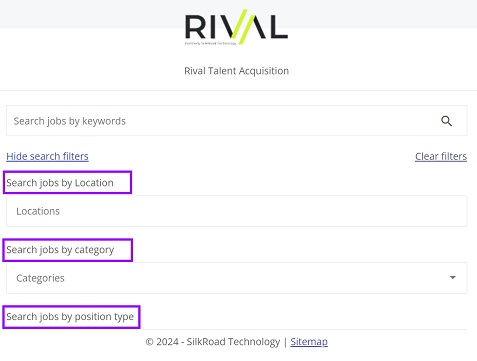
- Filter labels
- Search jobs by location filter label
- Search jobs by category filter label
- Search jobs by position type filter label
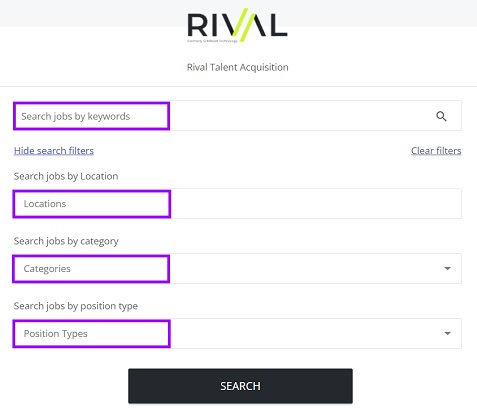
- Placeholder text
- Search jobs by keyword filter placeholder text
- Locations filter placeholder text
- Categories filter placeholder text
- Position Types placeholder text
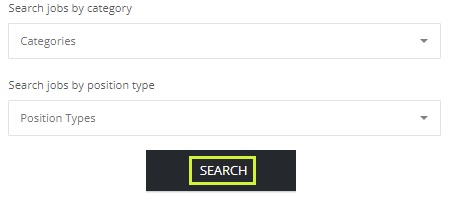
- Search button text
Key info
- Customized text is saved as draft until you publish it.
- Published customized text is considered live.
- You can create customized text per locale.
Good to know
- Draft customized text can be edited.
- Published (live) and archived customized text cannot be edited.
- You can clone existing live and archived text, make edits, and then publish to replace the live version. (Click
 to view, then clone.)
  (add),
  (edit),
  (clone draft),
  (publish),
  (delete draft), (view live, archived),
  (archive)
- Archiving live customized text inactivates it, and it does not appear on the career site.