Customize the Open Submission link text
- The Open Submission link text appears near the bottom of the Job List page (if open submission is enabled on your career site). The link is a way a candidate can submit their resume without it being linked to a specific job.
- From the Career Site List page, click
 beside a career site.
 - From the Career Site Settings page, click Customizable Text. The Customizable Text page opens.
- Click Open Submission Text. The Manage Open Submission Text page opens.
- Click
 .
. - In the Custom Text box, enter custom text. Click
 and then paste the link (URL) a candidate clicks to submit their resume. Here's an example: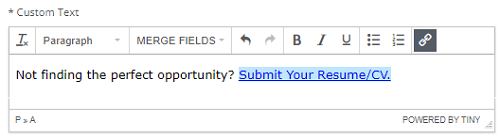
Tip: The Custom Text box is a Rich Text Editor. You can do a lot of things here, including formatting, selecting styles, adding bullets, and so on. You can also add merge fields. To add merge fields, click
 and select one.
 - Click Save.
Note: Custom text is not live until you publish it.