EEO statement
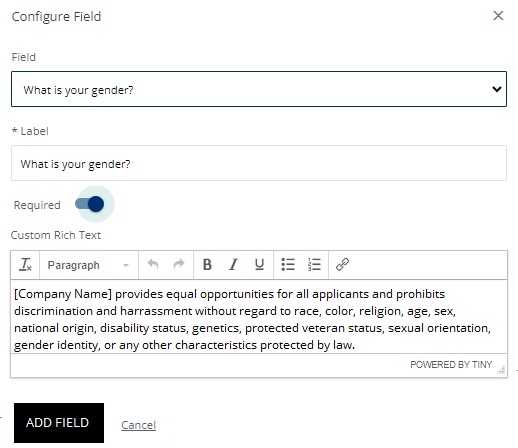
You can add an EEO statement to your configurable application form by using the Custom Rich Text field. This statement appears on the same page with EEO gender and/or race/ethnicity questions. Applicants see the statement when they apply for a job.
The EEO questions are:
- What is your gender?
- What is your gender? (incl. non-binary option)
- What is your race/ethnicity?
Each EEO question has a Custom Rich Text field. Here's an example for the gender question:
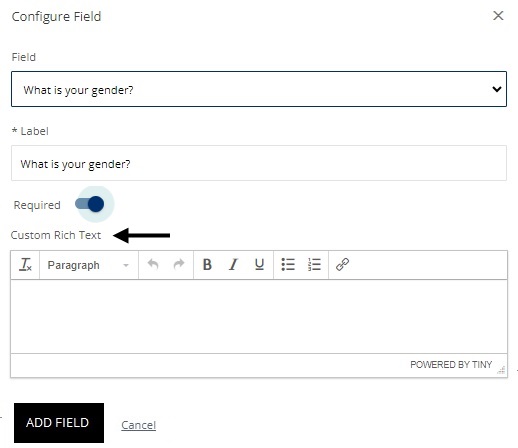
For the question that will appear first on the EEO page on the configurable application form, add the EEO statement in the Custom Rich Text field:
On the configurable application form, make sure the EEO question containing the EEO statement is first on the page (so that the EEO statement appears at the top of the page):
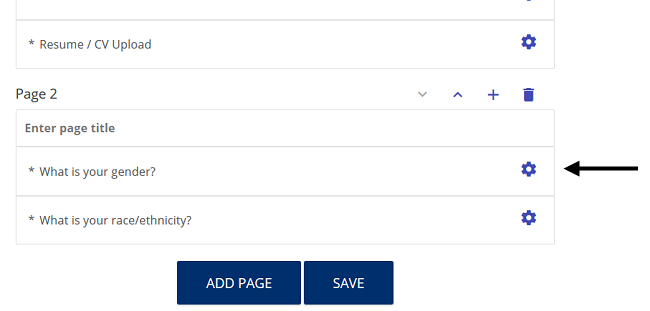
Best practice: Note that the EEO questions should be presented on a page by themselves. By configuring the form this way, EEO questions (and EEO statement) do not appear when the setting to display the EEO fields on the job level is set to No. This eliminates an empty page from displaying.