General settings
General settings control various aspects of how Candidate Experience and career sites function.
Settings
Active
Controls whether the career site is active or not. An active career site is accessible by the URL. An inactive career site is not accessible (applicants cannot access it). (Inactive is the default.)
Enable Job Alert
Controls whether a Create Job Alert link is displayed to a job seeker when running a job search. A job seeker can click that link and create an alert that sends them an email with the latest jobs that match specified search criteria. (Disabled is the default.)
- Enable Ability to Share Jobs
Note: This option is not available for internal career sites.
Controls whether social media content sharing options are available for jobs on the Job Details page.
If enabled, four social media content sharing options appear in a floating bar at the top of any Job Details page—underneath the job title. There is also a + icon. When clicked, additional social media options are shown.
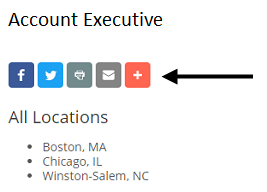
If disabled, the social media content sharing options do not appear at the top of the Job Details page. (Default setting)
Hide Company Name On The Job List Page
If enabled, company name does not display on the Job List page. If disabled, the company name displays on the Job List page underneath the banner image. (Disabled is the default.)
Tip: This setting does not affect any other locations in Candidate Experience where the company name is displayed.
Enable reCAPTCHA
This setting controls whether reCAPTCHA is enabled on the last page of application forms. reCAPTCHA is a Google service that helps protect websites from spam and abuse by distinguishing between humans and bots.
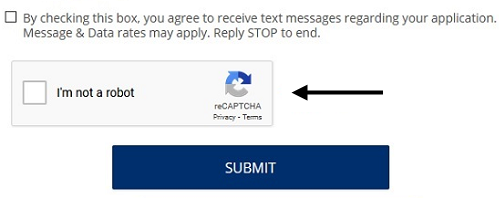
If enabled, reCAPTCHA appears on the last page of application forms. A candidate must check the box to acknowledge and submit their resume.
If disabled, reCAPTCHA is not enabled and the check box is not shown. (Default setting)
Company Name
Enter your company name. It appears on the Jobs List page and in emails.
Company Tagline
Enter your company tagline. (Tagline is a slogan describing your company.) It appears under the company name on the Jobs List page.
Portal Name
Enter a name for the career site. This name is displayed internally in places like the Career Site List page and header text of settings.
URL Portal Code
WARNING: The URL Portal Code should not be changed after it is initially set up. Changing it will break external links.
This is the portion of the Candidate Experience URL that identifies the career site you are configuring, and it is the last part of the career site URL.
For internal Candidate Experience career sites, this code is pre-populated with the internal key from the legacy internal career site.
Default Portal Language
Select a default language for the career site. It controls:
Language the career site displays in for applicants who arrive on the career site using a browser language not available in Candidate Experience
Language that is displayed by default on the page where the following pages are configured: presubmission text, fee agency presubmission text, application form, fee agency application form, Job Details page, and Fee Agency Job Details page
Language in which any email coming from Candidate Experience is sent if the applicants who arrive on the career site using a browser language not available in Candidate Experience
Language that the system attempts to fall back on in cases where the browser language of the job seeker does not match any activated languages of the career site
Recent Jobs Snippet
You can copy the code snippet and embed that into your corporate website. The most recent jobs are displayed on your corporate website.