Indeed Integration
User Guide can be found here.
How to Enable the Integration
- From the Career Site List page, click the gear icon to go to Career Site Settings.
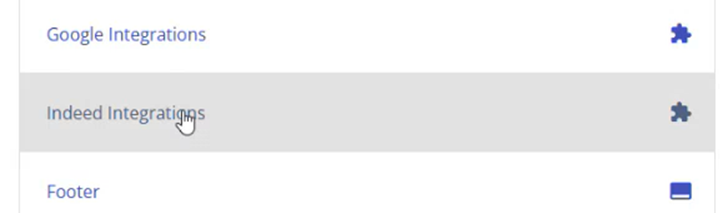
- Select Indeed Integrations from the settings menu.
Pre-Enablement Checklist
Before enabling, review the following:
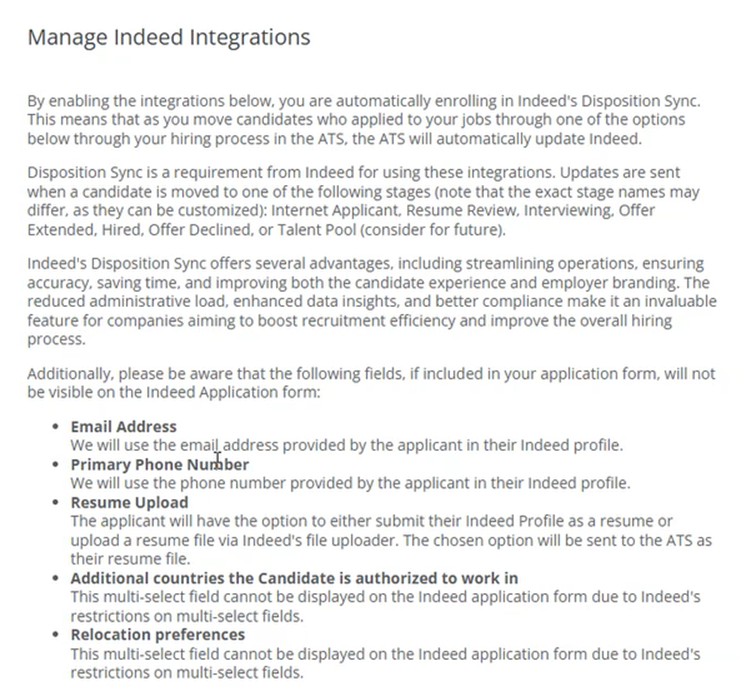
- Disposition sync behavior: Understand how candidate status updates are sent back to Indeed.
- Imported fields: Review which candidate profile fields are pulled from Indeed applications.
- Field limitations: Multi-select fields are not supported by Indeed. You may need to modify your CX application form accordingly.
Available Toggles
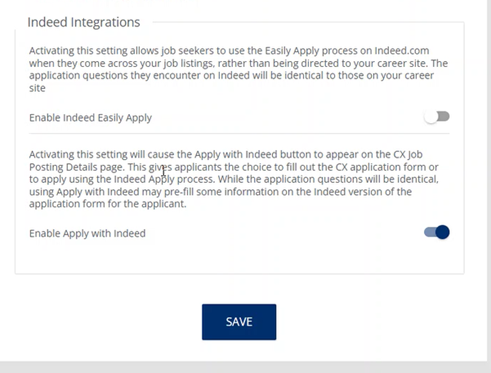
Both are OFF by default. Admins can enable one or both:
- Enable Indeed Easily Apply Allows candidates to complete their application directly on Indeed, rather than being redirected to your CX Career Site.
- Enable Apply with Indeed Adds an "Apply with Indeed" button on your CX Career Site, enabling candidates to use their saved Indeed profile to apply.
Changes made here take effect immediately after saving.
Integration Behavior by Career Site Type
CX Career Sites with Redirect Enabled
- No action is required. If you previously had Apply with Indeed and/or Easily Apply enabled, those settings are retained.
- Behavioral changes and new functionality:
- The Indeed application form now mirrors your CX application form fields (excluding unsupported field types).
- Candidates from Indeed can opt in to SMS messaging if enabled in your environment.
- All integration settings are now accessible via self-service in the Admin Portal.
Legacy Career Sites
- Apply with Indeed and Easily Apply are no longer supported on legacy career sites due to the deprecation of Indeed’s previous integration.
- Rival Support will assist with the transition to a CX Career Site.
- Clients migrating now will see both integration toggles set to OFF by default. They must manually toggle their preferred settings as part of their CX setup process.