Add a picture to an email signature
- You add a picture—like a logo—to your email signature. It will be inserted at the bottom of your outgoing Track emails.
- From the header, click your user avatar.
- Click My Settings.
- Click the Track tab.
- Scroll down to the Email Signature box.
- Click
 .
.
- A box appears that requires a picture URL:

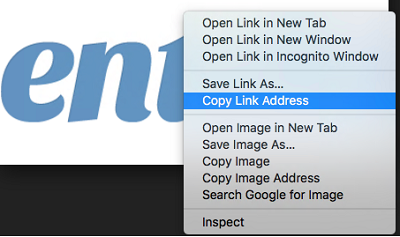
- Search on Google for an image of your logo or find a logo on your website. Right-click the image to copy the link address.
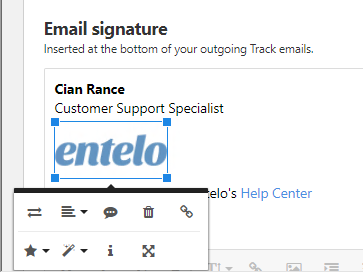
- Adjust the formatting of the image within the signature by clicking the picture:
- Click Save.