Two-Way Integration with Greenhouse
Creating a Greenhouse API key
Navigate to the Greenhouse "API Credentials" page (https://app.greenhouse.io/configure/dev_center/credentials) and click "Create New API Key".
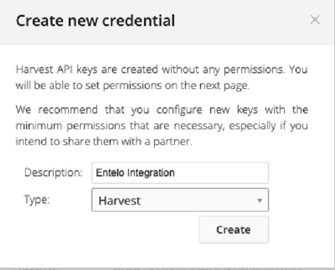
In the "Create new credential" box that appears enter "Entelo Integration" as the description and choose "Harvest" as the type.
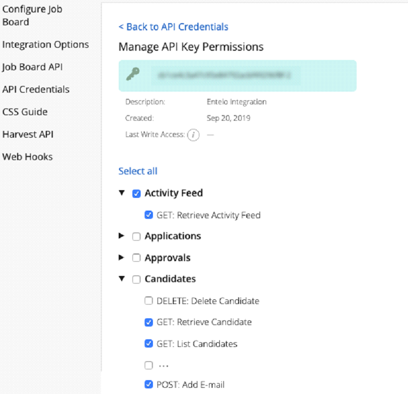
After hitting the "Create" button you will be brought to a page that allows you to specify the level of access this API key will provide. You should only enable the permissions that are absolutely necessary for the features you wish to use.
- Activity Feed > GET: Retrieve Activity Feed will allow recent activity such as time of last reach to candidate via Greenhouse to appear in Greenhouse-specific data alongside Rival Search profiles.
- Candidates > GET: List Candidates will enable an additional Rival Search filter to allow you to include or exclude your Greenhouse candidates.
- Candidates > GET: Retrieve Candidate will allow Greenhouse-specific data to appear alongside Rival Search profiles and will display a link directly to that candidate’s Greenhouse page.
- Candidates > POST: Add Email will allow emails sent as part of an Track conversation to appear in the candidate’s Greenhouse activity feed.
Adding your Greenhouse API key to Rival Search
- Navigate to your organization’s Integration page: https://www.entelo.com/organizations/<your-org-id>/settings
Tip: If you don’t already have a Greenhouse integration you’ll need to create one.
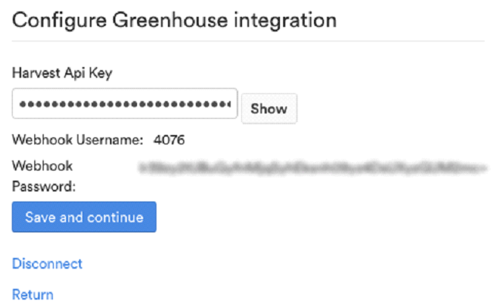
- Once your integration is created you can navigate to the "Credentials" page (https://www.entelo.com/organizations/<your-org-id>/integrations/v2/greenhouse/settings) to add your Harvest (Greenhouse) API key. This page will provide you with the webhook username and password that you’ll need when you create your Greenhouse webhooks.
Creating the Greenhouse webhooks
"Webhooks" allow Greenhouse to send a secure message directly to Rival Search whenever changes occur with your Greenhouse candidates. To configure your Greenhouse webhooks, first navigate to the "Web Hooks" page in the Greenhouse developer center (https://app.greenhouse.io/web_hooks). You should be brought directly to the form for creating a new webhook.
The following settings will use the same values for every webhook you create:
Endpoint URL: https://greenhouse-webhooks.entelo.com/gh
Secret key: entelogh
Error recipient email: <leave empty>
Advanced Settings
Username: <webhook username from the Greenhouse integration page on Rival Search>
Password: <webhook password from the Greenhouse integration page on Rival Search>
Additional settings: <leave blank>
Maximum attempts: 25
Disabled?: No
Each of the following features will be enabled automatically when you create a webhook with the given value for the "When" field:
- When I create new Greenhouse candidates I want to automatically attempt to link them to Rival Search profiles:
Name this webhook: new_prospect_application
When: Candidate has submitted application
- When I delete a candidate from Greenhouse I no longer want that candidate to appear in my "show only Greenhouse candidate" searches:
Name this webhook: delete_candidate
When: Delete candidate
- When I modify the name or email address of a candidate in Greenhouse I want to make another attempt to match the candidate with a Rival Search profile:
Name this webhook: update_candidate
When: Candidate or Prospect updated
- When I modify fields from application such as who is a recruiter and/or coordinator for given application, I want that data to be visible on Rival Search profiles in my Greenhouse-specific data
Name this webhook: application_updated
When: Application updated
IMPORTANT STEP: After completing all steps above, you will need to visit https://contacts.entelo.com/ to finalize the ingestion of your organization's Greenhouse contacts.
You've now successfully setup 2-Way Integration with Greenhouse for your organization.