Is my organization on Outlook365 or Exchange?
Here’s how you check if you are on Outlook365 or Exchange on the Windows and Mac Outlook desktop apps, respectively. This information is necessary so that we can set you up on the right email integration for Rival Search. For assistance, contact Support.
Windows Outlook Desktop App
First, make sure your Outlook desktop app is open/running.
On the bottom right of your screen, click the caret icon ("show hidden icons").
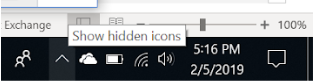
This should open a window with a couple of app icons, including the Microsoft Outlook one. If you don’t see this icon, please make sure your Outlook desktop app is running/open by selecting it from your applications.
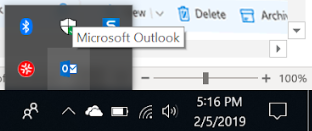
While holding CTRL, right-click on the Microsoft Outlook icon shown above. This will bring up a list of actions. Select "Connect Status"
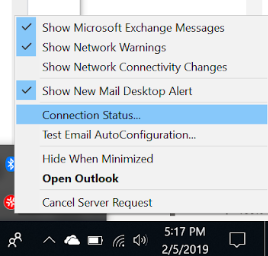
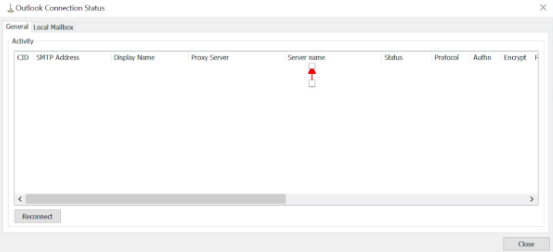
This will open a Outlook Connection status window.
Look at the Server Name column (my example below is blank for privacy purposes).
If it includes "office365.com", it’s Office365. The image above is an example of that.
If the link doesn’t include "office365.com", ie it is on some other email server (this name will vary org to org) it’s likely Exchange.
Mac Outlook Desktop App
Go to your Outlook app

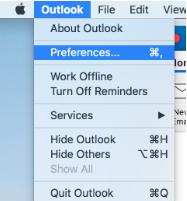
Click Outlook > Preferences
Click Accounts > Advanced
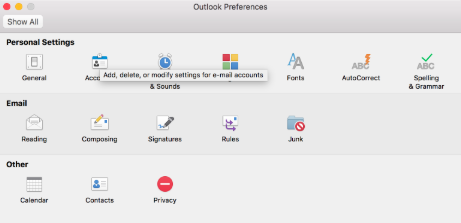
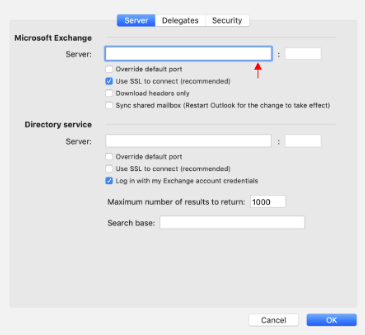
See "Server:" (my example below is blank for privacy purposes)
If the link includes "office365.com", it’s Office365
If the link doesn’t include office365.com, ie it is on some other email server (this name will vary org to org) it’s likely Exchange.