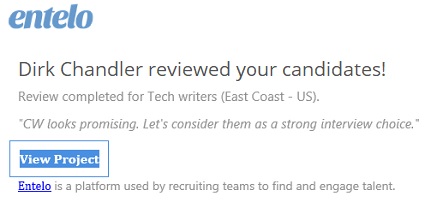
When you are sent a review to complete, you receive an email with a unique link to the review and a notification in the system. You can choose to initiate the review process by either method.
The email link does not require you to log into the system.
A review can be completed on a mobile device and desktop applications.
Click the link in the review request email. Or From the header, click . In the notifications list, click the review request notification.
Review the candidate's profile.
Do one of the following:
Click to approve the candidate.
Click to reject the candidate and select a reason.
In the Notes box, type a note that describes your thoughts about the candidate:
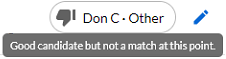
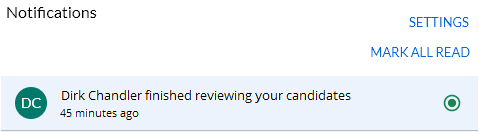
Click Finish. The system sends an email to the review originator, letting them know the review is complete: A notification is also available in the system: If a candidate is approved, a tag appears beside their name on the Projects Detail page. It shows a thumbs up icon, reviewer's first name, and last name initials. Example: If a candidate is rejected, a tag appears beside their name on the Projects Detail page. It shows a thumbs down icon, reviewer's first name, rejection reason, and last name initials. If the reason for the rejection was Other, you can hover over the tag to view the reason. Example:
 . In the notifications list, click the review request notification.
 to approve the candidate.
 to reject the candidate and select a reason.
 A notification is also available in the system:
  If a candidate is approved, a tag appears beside their name on the Projects Detail page. It shows a thumbs up icon, reviewer's first name, and last name initials. Example:
  If a candidate is rejected, a tag appears beside their name on the Projects Detail page. It shows a thumbs down icon, reviewer's first name, rejection reason, and last name initials. If the reason for the rejection was Other, you can hover over the tag to view the reason. Example: