Integrating Jobvite Engage with Rival Search
In order to export a profile in to Jobvite Engage, you will need to be issued an API key and a secret key by the Jobvite Customer Success Team. You can file the request here: http://www.jobvite.com/support/ or contact your dedicated Jobvite Customer Success Manager.
Once you have received your API key and your secret key, you can either set the integration up yourself (instructions below) or contact your Customer Success Manager to set this up for you.
If you have your API key and secret key, you'll want to use the following steps to set up your integration.
First, click on your profile icon in the upper right corner, then Organization>Integrations.

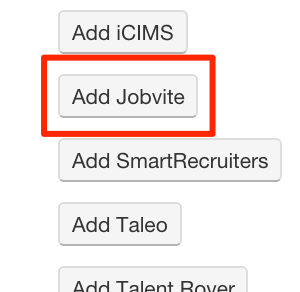
From there, click Add Jobvite.
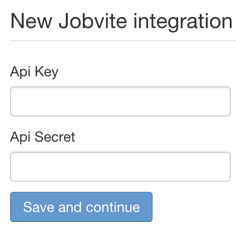
You will then be redirected to the page to enter your API key and secret key.
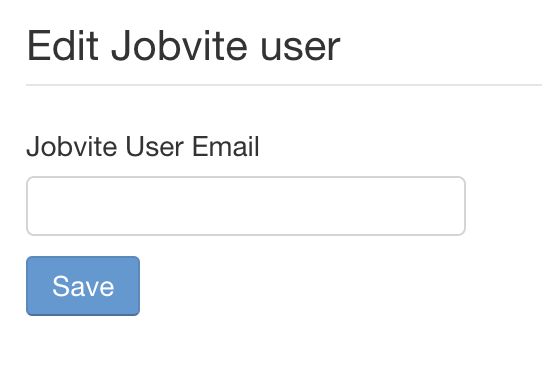
Lastly, you'll have to add the user email that you're using on the Jobvite account.
Once you click Save, you're all set! You will now be able to export candidates seamlessly to Jobvite, as you can see in the images below.
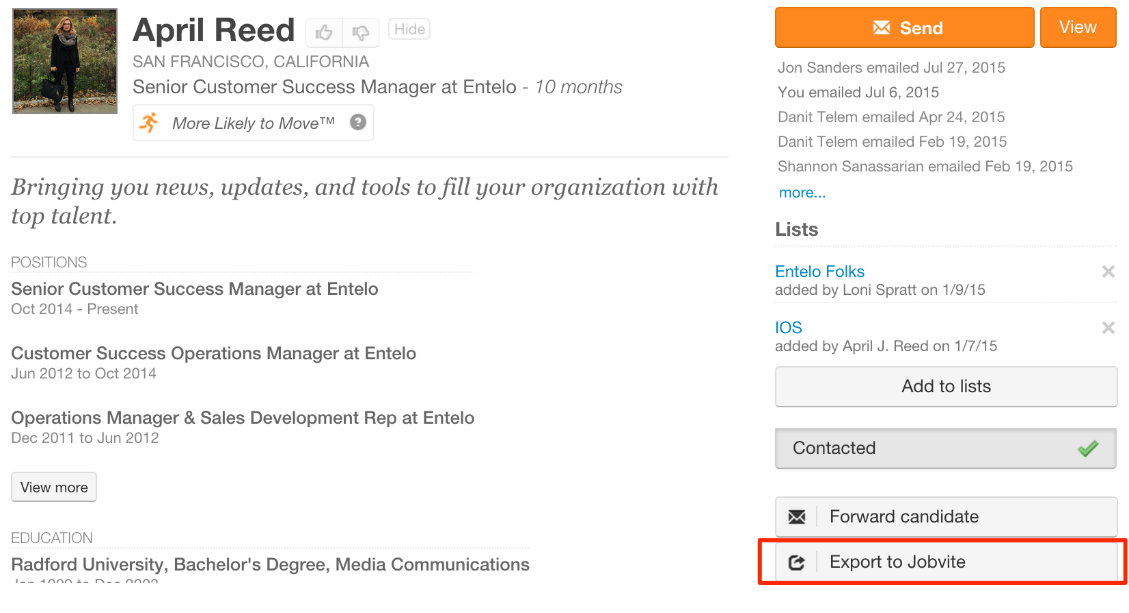
Once the candidate is exported, the status will change to In Jobvite.

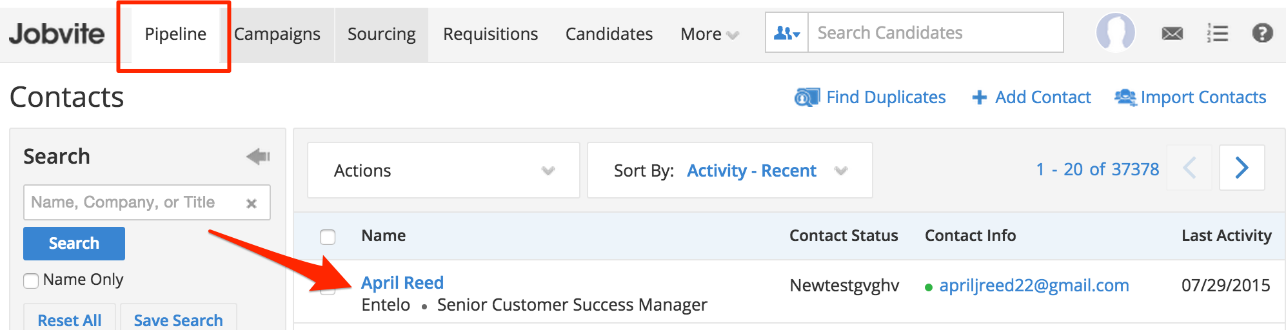
To view the candidate in Jobvite, simply log in, and click Pipeline. You'll see your most recent export(s) at the top.