Send at Best Time
When crafting an email, the system automatically selects the send time which will yield the highest open rate.
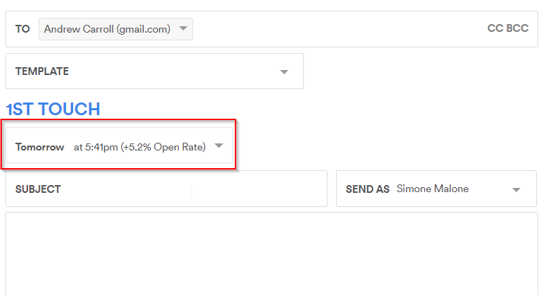
To send at the suggested time, click Send.
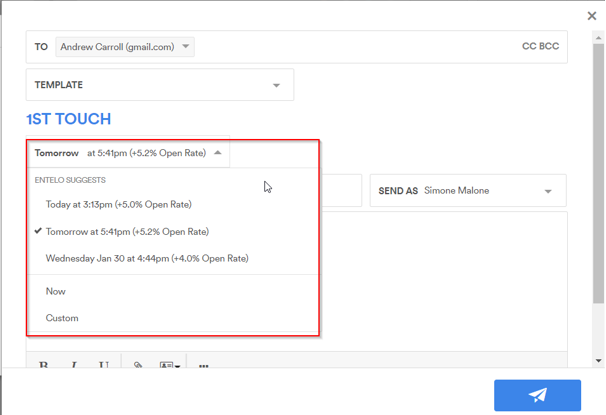
If would like to send it sooner or later, the system suggests the three best times for you to choose from, or you can choose exactly when to send your email.
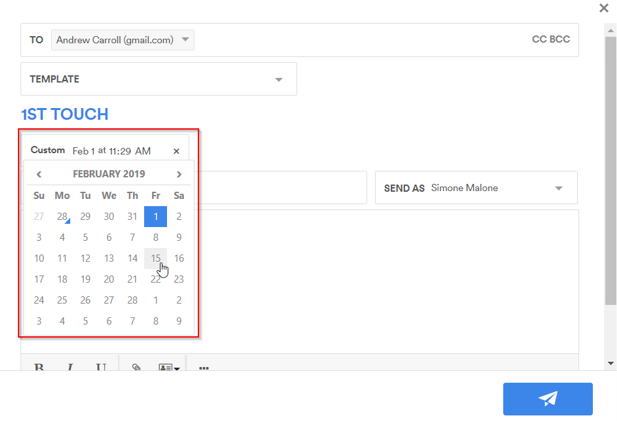
Select a date by clicking the date and adjust the time with the up and down arrows.
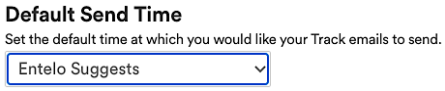
By default, the system sends the email at the time our data suggests. If you want to change the default send time, you can do so (see below).
At the bottom of the page, there is a drop-down box that lets you select Entelo Suggests, Now, or Tomorrow. Once selected, click Save Settings and start sending emails.
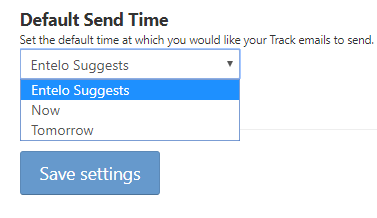
Changing your Default Send Time
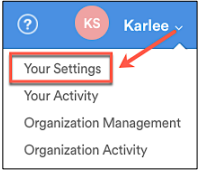
- Go to the upper right corner and click on the drop-down next to your name
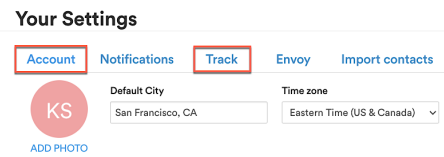
- Your Settings > Account to change to your time zone
- Your Settings > Track to change the Default Send Time