Create, deactivate, and reactivate Users (Org Admin only)
Creating and De-activating Recruiters
Org Admin access now allows you to easily deactivate users, reactivate users, and create new Recruiter user credentials without having to contact our customer success team.
Tip: The Add User to Empty Recruiter Seat option only allows for creating new users with the Recruiter role. You cannot add Envoy Users, Hiring Managers, Lite Users, or any other user roles except for Recruiter.
You will not see this option if all of your recruiter seats are filled.
Creating A New User
- Go to "Organization Management" on your settings menu.
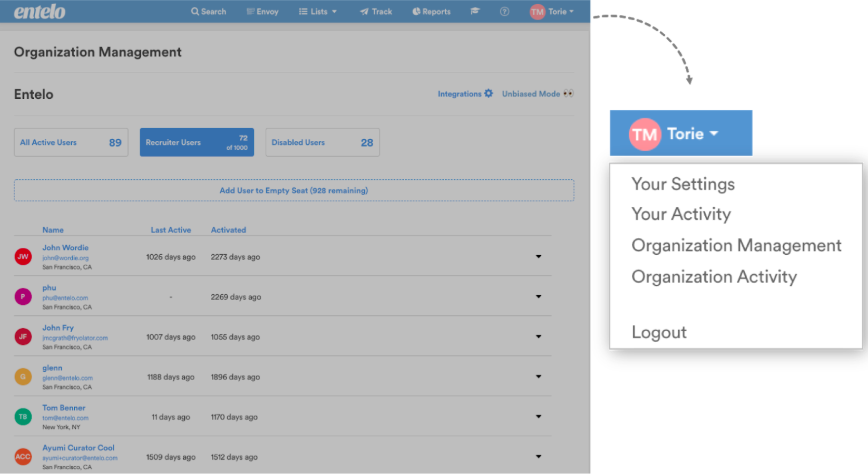
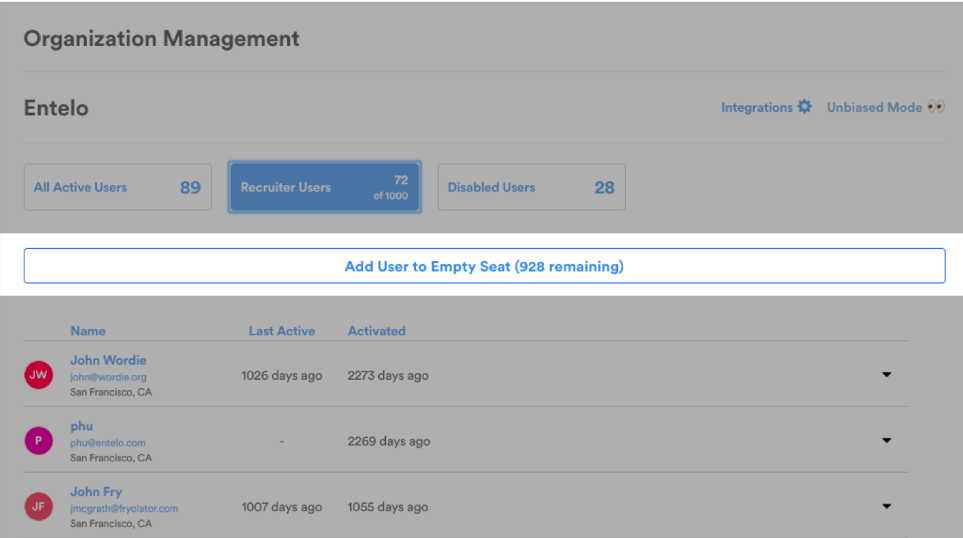
- Select Add New User.
Note: You will not see this option if all of your recruiter seats are filled.
- Enter in their name, email, location, and a profile picture (not required) then click Add.
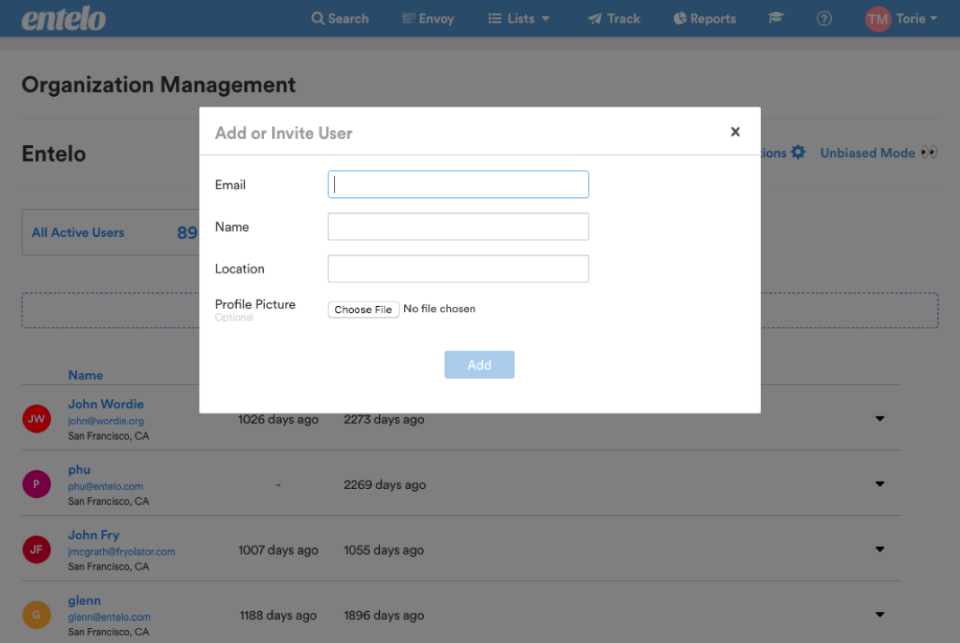
Note: Please make sure that the Default City field is in the City, State format i.e San Francisco, California.
Using Remote, Virtual, Home Office, Everywhere, Anywhere, or even a state only or country only should be avoided in Default City.
You are all set!
New users will automatically get an email prompting them to complete our 12-minute Rival Search Basics training module. Once they have completed the training, they will have access to the Rival Search platform (Training is required to get full access to Rival Search).
Important tips when creating new users:
- We encourage you to let users know they should be expecting an invite to Rival Search and that they will be required to complete a brief training module before they get started on the platform. However, they will receive an invite and three reminders from our team to complete the training.
- If the users have used Rival Search in the past at a different organization, and you would like them to have access without training, please reach out to your customer success manager or contact Support.
Deactivating A User
- Go to the "All Active users" or "Recruiter Seats" tabs at the top of your Organization Management page.

- Find the user you wish to deactivate and click on the arrow to your right to select "Disable User".

- Users will immediately lose access to Rival Search until you re-activate their credentials.
Reactivating A Deactivated User
- Go to the "Disabled Users" tab at the top of your Organization Management page.

- Find the user you wish to reactivate, and click on the arrow to your right to select "Activate User"

Important tips when reactivating users!
- If you are reactivating an existing user, they will not have to complete training and will have immediate access to the platform.
- If you don’t see the button to reactivate a user you are currently using all your available seats, deactivate a user and the option to add another will appear when you refresh the page.
If you would like to add a new Hiring Manager, Lite User, Recruiting Manager, Org Admin, or Envoy Seat User, please contact your Customer Success Manager.
Please include the following information to add a new user:
- New User's First & Last Name:
- New User's Email:
- New User's Location:
Please include the following information to remove a user:
- User's First & Last Name:
- User's Email: