Select and run a saved search
You can select and run a saved search from the Home page or Search Builder.
Option 1: From the Home page
- From the navigation bar, click Dashboard. The Home page opens.
- Click the Saved Searches tab.
- Click a saved search. The Search Builder opens and shows the search results. The Search Builder is part of the new UI redesign. It helps you build quality searches via filters, auto-completes, and intelligent suggestions. Let's look at some key elements of the Search Builder.
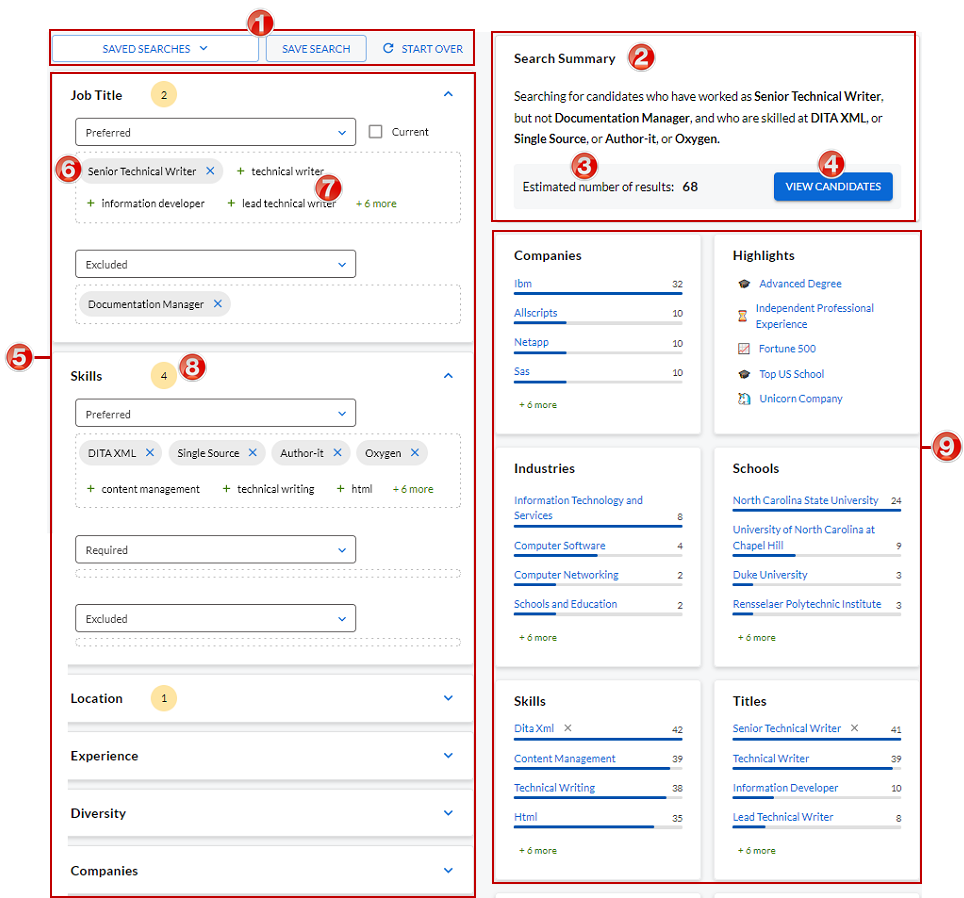 Search results After you build a search string and click View Candidates, search results appear on the right side of the page. Here are some key elements: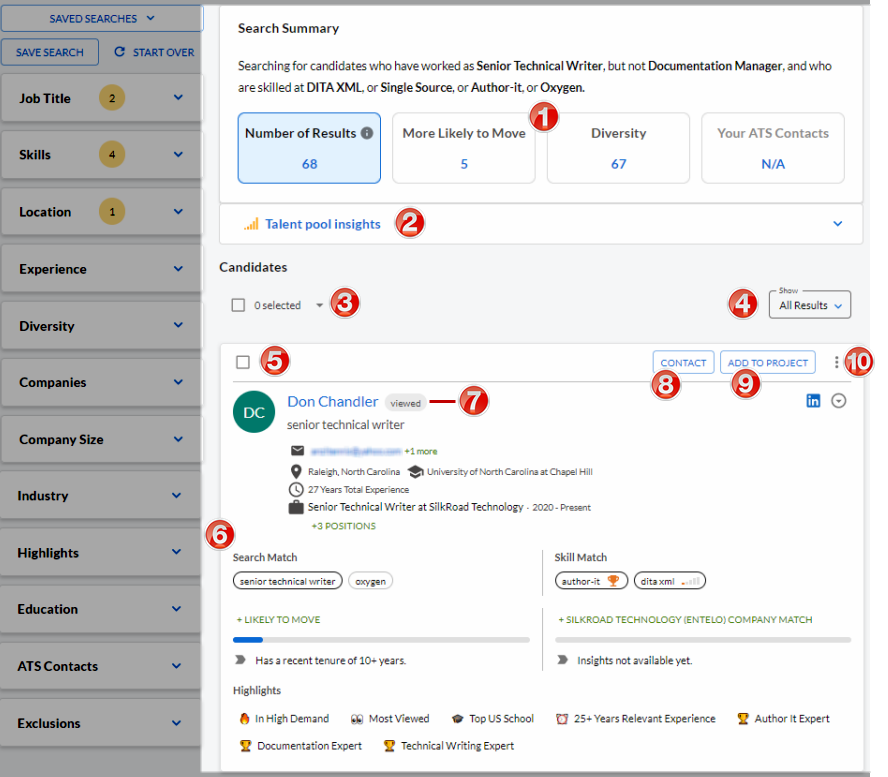
Name Description 1 Saved Searches, Save Search, Start Over buttons Click:
- Saved Searches to view and select from a list of saved searches.
- Save Search to save the current search as a saved search to be selected later.
- Start Over to clear the current search criteria and start over.
2 Search Summary Shows the search string you built (in easy-to-read text) 3 Counter Estimated number of candidates in search results 4 View Candidates Click View Candidates to view candidate profiles based on your search query 5 Filters and settings Select the filters/settings to build a search 6 Selected criteria Shaded chip is criteria you selected 7 Intelligent suggestions Non-shaded chips are intelligent suggestions derived from machine learning and artificial intelligence 8 Bubble count Shows the number of selections made within a filter 9 Talent pool insights System-generated insights based on the talent pool from the search results.
Tip: Click an insight to add it as a filter for the search.
Name Description 1 Interactive boxes Shows a count of number of results, more likely to move, diversity, and ATS contacts. Click a box to dig deeper into those results. 2 Talent pool insights System-generated insights based on the talent pool from the search results.
Tip: Click an insight to add it as a filter in the search query.
3 Multiple select Click to select all profiles on the current page, the first 500 profiles, or None. 4 Filter Click to show all results or exact results only. 5 Select profile check box Click to select a profile to perform an action on it. 6 Search results Profiles that meet the search criteria appear in this panel. 7 Action tag Action tags identify actions taken on a profile. Here are some tags:
- Viewed: Indicates the profile has been viewed. If you hover over this tag, the system tells you when the profile was last viewed.
- Contacted: Indicates the candidate has been contacted. If you hover over this tag, the system tells you when the candidate was last contacted.
- Exported: Indicates the profile has been exported.
8 Contact button Click this button to contact the person. 9 Add To Project button Click this button to add the person to a project. 10 Action icon Click  to perform an action on the profile. Actions include view emails, set a reminder, report duplicate profile, and export to an integrated third-party system.
Option 2: From the Search Builder (no filters selected)
- From the Search Builder in the Saved Searches panel, click a saved search. The Search Builder is part of the new UI redesign. It helps you build quality searches via filters, auto-completes, and intelligent suggestions. Let's look at some key elements of the Search Builder. Search results After you build a search string and click View Candidates, search results appear on the right side of the page. Here are some key elements: The search results are shown.
Name Description 1 Saved Searches, Save Search, Start Over buttons Click:
- Saved Searches to view and select from a list of saved searches.
- Save Search to save the current search as a saved search to be selected later.
- Start Over to clear the current search criteria and start over.
2 Search Summary Shows the search string you built (in easy-to-read text) 3 Counter Estimated number of candidates in search results 4 View Candidates Click View Candidates to view candidate profiles based on your search query 5 Filters and settings Select the filters/settings to build a search 6 Selected criteria Shaded chip is criteria you selected 7 Intelligent suggestions Non-shaded chips are intelligent suggestions derived from machine learning and artificial intelligence 8 Bubble count Shows the number of selections made within a filter 9 Talent pool insights System-generated insights based on the talent pool from the search results.
Tip: Click an insight to add it as a filter for the search.
Name Description 1 Interactive boxes Shows a count of number of results, more likely to move, diversity, and ATS contacts. Click a box to dig deeper into those results. 2 Talent pool insights System-generated insights based on the talent pool from the search results.
Tip: Click an insight to add it as a filter in the search query.
3 Multiple select Click to select all profiles on the current page, the first 500 profiles, or None. 4 Filter Click to show all results or exact results only. 5 Select profile check box Click to select a profile to perform an action on it. 6 Search results Profiles that meet the search criteria appear in this panel. 7 Action tag Action tags identify actions taken on a profile. Here are some tags:
- Viewed: Indicates the profile has been viewed. If you hover over this tag, the system tells you when the profile was last viewed.
- Contacted: Indicates the candidate has been contacted. If you hover over this tag, the system tells you when the candidate was last contacted.
- Exported: Indicates the profile has been exported.
8 Contact button Click this button to contact the person. 9 Add To Project button Click this button to add the person to a project. 10 Action icon Click to perform an action on the profile. Actions include view emails, set a reminder, report duplicate profile, and export to an integrated third-party system.
Option 3: From the Search Builder (one or more filters are selected)
- From the Search Builder, click Saved Searches. The Search Builder is part of the new UI redesign. It helps you build quality searches via filters, auto-completes, and intelligent suggestions. Let's look at some key elements of the Search Builder. Search results After you build a search string and click View Candidates, search results appear on the right side of the page. Here are some key elements:
Name Description 1 Saved Searches, Save Search, Start Over buttons Click:
- Saved Searches to view and select from a list of saved searches.
- Save Search to save the current search as a saved search to be selected later.
- Start Over to clear the current search criteria and start over.
2 Search Summary Shows the search string you built (in easy-to-read text) 3 Counter Estimated number of candidates in search results 4 View Candidates Click View Candidates to view candidate profiles based on your search query 5 Filters and settings Select the filters/settings to build a search 6 Selected criteria Shaded chip is criteria you selected 7 Intelligent suggestions Non-shaded chips are intelligent suggestions derived from machine learning and artificial intelligence 8 Bubble count Shows the number of selections made within a filter 9 Talent pool insights System-generated insights based on the talent pool from the search results.
Tip: Click an insight to add it as a filter for the search.
Name Description 1 Interactive boxes Shows a count of number of results, more likely to move, diversity, and ATS contacts. Click a box to dig deeper into those results. 2 Talent pool insights System-generated insights based on the talent pool from the search results.
Tip: Click an insight to add it as a filter in the search query.
3 Multiple select Click to select all profiles on the current page, the first 500 profiles, or None. 4 Filter Click to show all results or exact results only. 5 Select profile check box Click to select a profile to perform an action on it. 6 Search results Profiles that meet the search criteria appear in this panel. 7 Action tag Action tags identify actions taken on a profile. Here are some tags:
- Viewed: Indicates the profile has been viewed. If you hover over this tag, the system tells you when the profile was last viewed.
- Contacted: Indicates the candidate has been contacted. If you hover over this tag, the system tells you when the candidate was last contacted.
- Exported: Indicates the profile has been exported.
8 Contact button Click this button to contact the person. 9 Add To Project button Click this button to add the person to a project. 10 Action icon Click to perform an action on the profile. Actions include view emails, set a reminder, report duplicate profile, and export to an integrated third-party system. - From the Saved Searches list, click a saved search. The search results are shown.