Importing Contacts
File Format and File Size
Import Contacts now supports the following formats:
- Mac Excel
- Comma Separated Values (.csv)
- Tab Delimited Text (.txt)
- CSV UTF-8 (Comma delimited) (.csv)
- UTF-16 Unicode Text (.txt)
- Windows Excel
- CSV (Comma delimited) (*.csv)
- Text (Tab delimited) (*.txt)
- CSV UTF-8 (Comma delimited) (*.csv)
- Unicode Text (*.txt)
Options for uploading contacts
You have several options on how to use the contacts you upload to Rival Search. You can select from the following options:
- Mark as contacted: When you upload your file, any matched profiles will be marked as Contacted. Any unmatched rows from your file will be emailed back to you and will not be marked as Contacted in the system.
- Remove from contacted: You also have the option to upload a file of contacts to ensure that they are not displayed as Contacted in the system. Any unmatched rows from your file will be emailed back to you.
- Include in Envoy blacklist: For an existing Envoy customer, the default option of uploading contacts is to include the matched profiles in a "do not contact" list that is specific to Envoy jobs only. In other words, these matched profiles will NOT be contacted through Envoy.
- Remove from Entelo Envoy blacklist: An existing Envoy customer can also remove profiles from the Envoy "do not contact" list by uploading a file and selecting "remove from Entelo Envoy blacklist."
Data Privacy
Information uploaded to the system is, under no circumstance, used to create new profiles or augment an existing profile with the information in your file. The system will email you back any contacts that were not matched to profiles, as well as any rows that errored out in the upload process.
Types of contacts that can be uploaded
You can upload any file in the acceptable formats listed above by downloading your candidates from your Applicant Tracking System. You can also upload the personal LinkedIn contacts that you can download from LinkedIn by going to:
- Privacy & Settings. ...
- Click the Account tab near the bottom of the page.
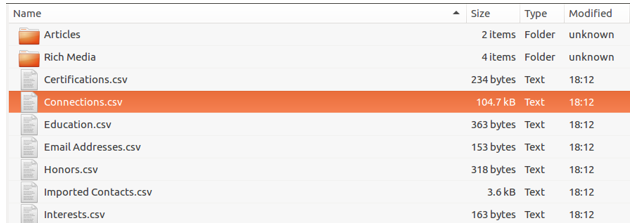
- Click Request an archive of your data under the Helpful Links section. When you receive your files from LinkedIn, you will notice that they send you over a dozen files. Please select the Connections.csv file for best results:
Note: We don't recommend uploading the CSV extracted from your LinkedIn Recruiter Inbox - currently the data exported is insufficient to make a match when uploaded to the system.
Providing label information
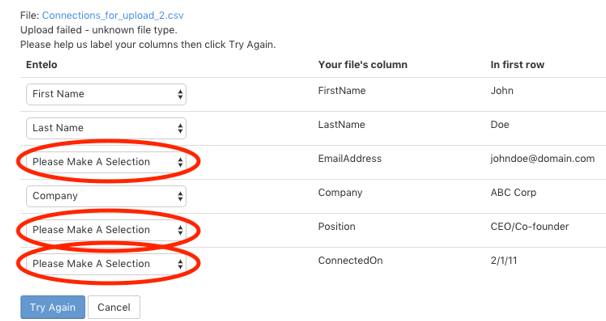
When you first upload your contacts file, the system will attempt to recognize what type of data (email, first name, etc.) each column contains. To ensure that each column header is interpreted correctly, you may be prompted to provide the names of each column. Please select the appropriate header for each of your columns or specify "Other". You can also specify "Ignore This Column" if the column contains information that is not useful to identify a contact.
Errors
Occasionally the system may not be able to upload the entire file or specific rows from the file. The whole file can error out if the file is too large, or if the file is in a CSV format that is not UTF-8 compatible. In that case, please try breaking your file into smaller files (less than 10,000 rows each) or in the case of a formatting failure, try exporting the file and saving it as a CSV file that is UTF-8 compatible. In case specific rows error out, we will email you the row numbers of your file that we could not process. You can try uploading the file again after you fix any formatting issues, such as non-latin characters and syntax.