Connecting Track to Exchange
You will begin by granting the service account created by your Exchange Administrator the "Reviewer" permission level. Here are the steps necessary, on Windows and macOS.
Outlook for Windows
- Right-click on the Inbox folder
- Select "Properties"
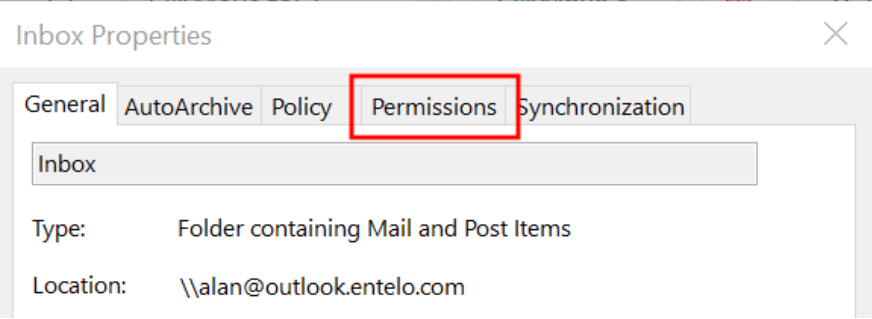
- Select the "Permissions" tab
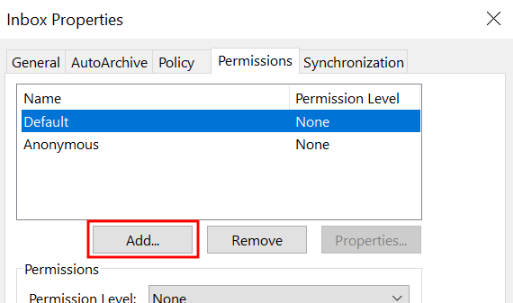
- Click "Add"
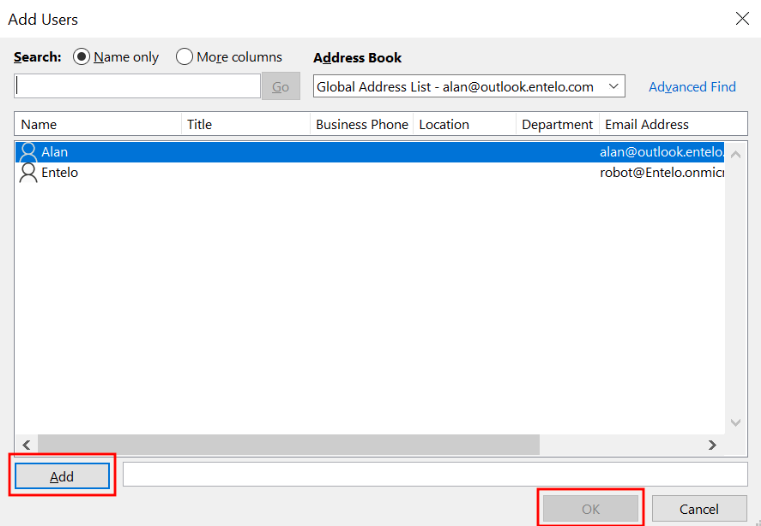
- Search for and select the service account, click "Add", then click "OK"
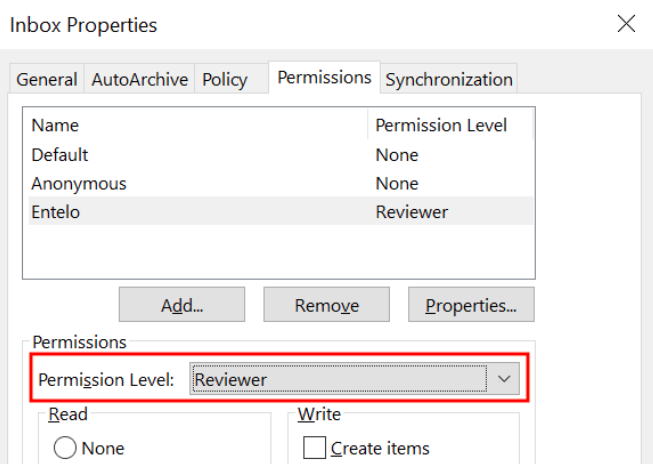
- Select "Reviewer" from Permission Level
- Click "OK".
Outlook for macOS
- In Outlook, right click on the Inbox folder
- Select "Sharing Permissions"
- Click Add User
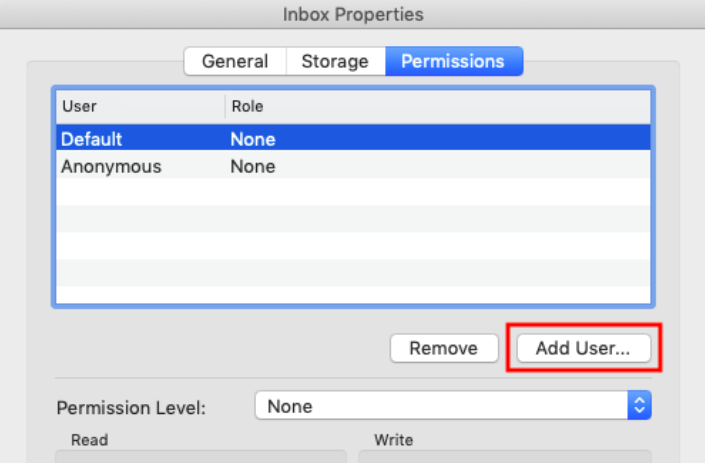
- Search for the service account name, and click "Add"
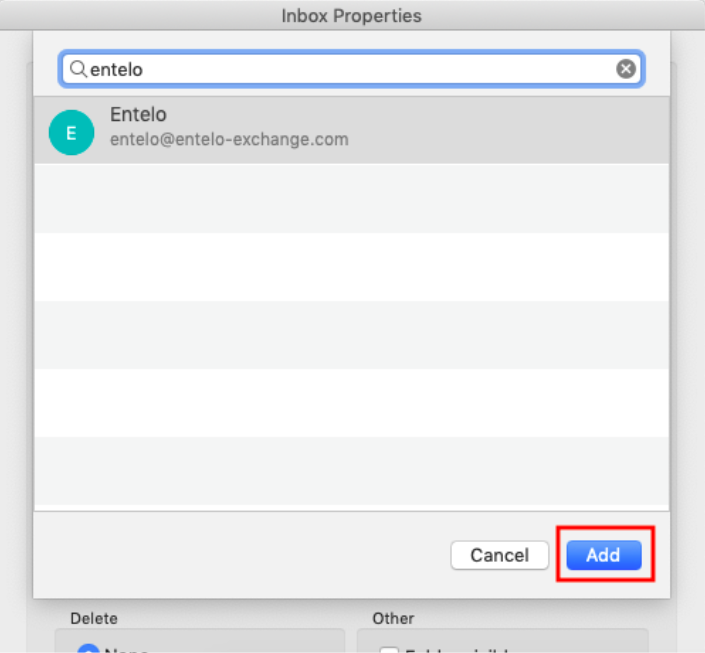
- Select "Reviewer" from the Permission Level dropdown
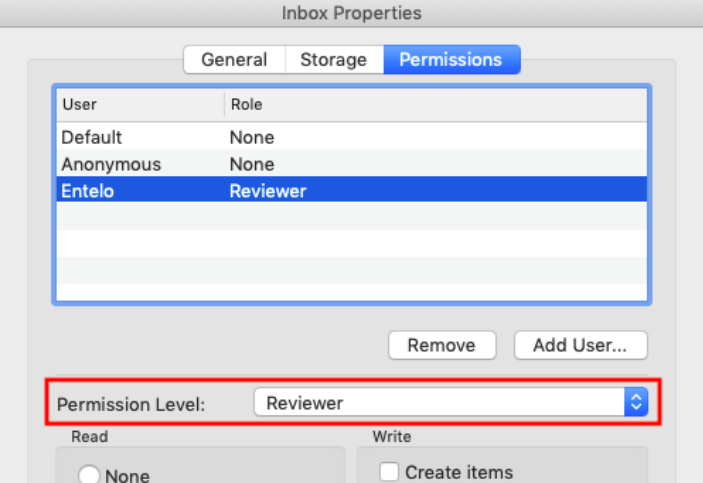
- Click "OK".
Permissions
Rival Search requests the following permissions:
- Reviewer (read access)
Here's why we need these permissions:
- We use the reviewer permission in order to periodically check to see if candidates have replied to one of your Rival Search emails. If we detect a reply, we cancel any automated follow-ups that may have been scheduled to go out at a later date.
Note: Rival Search does NOT read any of the emails in your inbox. Rather, we search the email headers for messages "in-reply-to" the original message you sent through Rival Search. Once we find such a message, we double-check that the From address is the candidate's email address, then record the fact that we've seen a reply. We do not look at the subject or body of the reply (or any other email in your Inbox).