Create a search using the new Search Builder
- It's a good idea starting with a broad search and then narrow it down after you evaluate your talent pool.
- From the dashboard, click
 . Or From the navigation bar, click Search. The Search Builder opens. The Search Builder is part of the new UI redesign. It helps you build quality searches via filters, auto-completes, and intelligent suggestions. Let's look at some key elements of the Search Builder.
 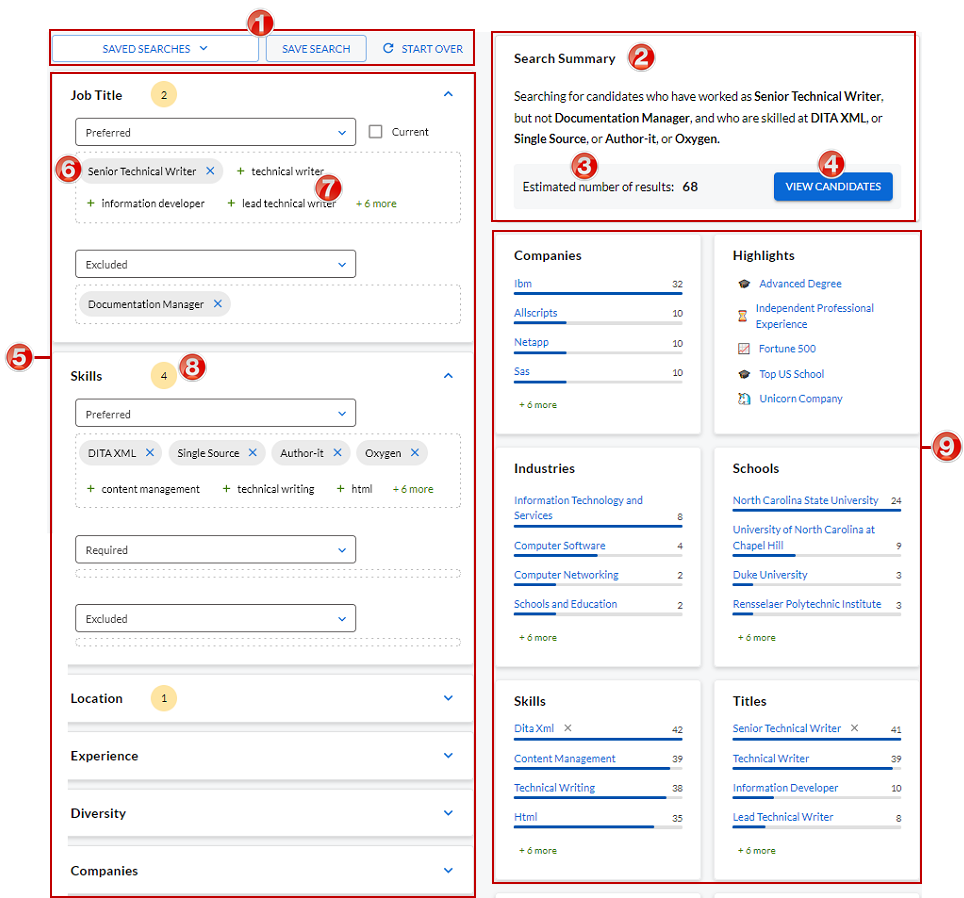 Search results After you build a search string and click View Candidates, search results appear on the right side of the page. Here are some key elements: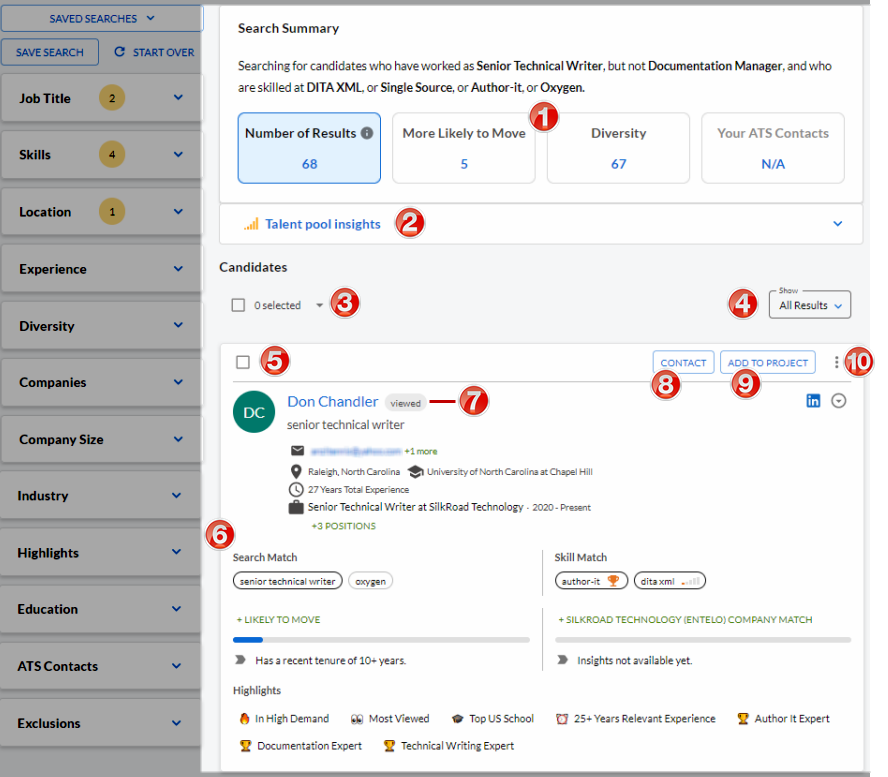
Name Description 1 Saved Searches, Save Search, Start Over buttons Click:
- Saved Searches to view and select from a list of saved searches.
- Save Search to save the current search as a saved search to be selected later.
- Start Over to clear the current search criteria and start over.
2 Search Summary Shows the search string you built (in easy-to-read text) 3 Counter Estimated number of candidates in search results 4 View Candidates Click View Candidates to view candidate profiles based on your search query 5 Filters and settings Select the filters/settings to build a search 6 Selected criteria Shaded chip is criteria you selected 7 Intelligent suggestions Non-shaded chips are intelligent suggestions derived from machine learning and artificial intelligence 8 Bubble count Shows the number of selections made within a filter 9 Talent pool insights System-generated insights based on the talent pool from the search results.
Tip: Click an insight to add it as a filter for the search.
Name Description 1 Interactive boxes Shows a count of number of results, more likely to move, diversity, and ATS contacts. Click a box to dig deeper into those results. 2 Talent pool insights System-generated insights based on the talent pool from the search results.
Tip: Click an insight to add it as a filter in the search query.
3 Multiple select Click to select all profiles on the current page, the first 500 profiles, or None. 4 Filter Click to show all results or exact results only. 5 Select profile check box Click to select a profile to perform an action on it. 6 Search results Profiles that meet the search criteria appear in this panel. 7 Action tag Action tags identify actions taken on a profile. Here are some tags:
- Viewed: Indicates the profile has been viewed. If you hover over this tag, the system tells you when the profile was last viewed.
- Contacted: Indicates the candidate has been contacted. If you hover over this tag, the system tells you when the candidate was last contacted.
- Exported: Indicates the profile has been exported.
8 Contact button Click this button to contact the person. 9 Add To Project button Click this button to add the person to a project. 10 Action icon Click  to perform an action on the profile. Actions include view emails, set a reminder, report duplicate profile, and export to an integrated third-party system.
 - In the Job Title box:
- Click the Preferred drop-down, type a job title and click to select it. The system generates intelligent suggestions using machine learning and artificial intelligence. To select, click them or drag and drop into the drop-down.
- (Optional) Select the Current check box if you want search results only to include people who currently hold the job title(s) you selected.
- (Optional) If you want to exclude job titles from the search, click the Excluded drop-down, type a job title and click to select it. Do this for each job title you want to exclude.
- In the Skills box:
- Click the Preferred drop-down, type a skill and click to select it. The system generates intelligent suggestions using machine learning and artificial intelligence. To select, click them or drag and drop into the drop-down.
- (Optional) If you want a skill to be required, click the Required check box, type a skill and click to select it.
- (Optional) If you want to exclude skills from the search, click the Exclusions check box, type a skill and click to select it.
- Click View Candidates. Search results appear on the right side of the page. The results are broad so you will likely want to narrow the results by using filters (next step).
- Use any combination of the following filters and settings to narrow your results. Expand the Advanced panel to access these filters: Location Sourcing by location is a great way to hone in on talent in specific cities, countries, and U.S. states. City The city filter is set to your default city—which is set in Your Settings profile. The Miles from location toggle is set to 50 miles. You can change this if you want. You can also add cities, exclude cities (select the Exclude check box) or open the search to all cities (select the Everywhere check box). Country To include talent based on country, select a country or countries from the Country drop-down. You can also exclude based on country (select the Exclude check box). U.S. State To include talent based on U.S. state, select a state or states from the States drop-down. You can also exclude based on state (select the Exclude check box). Highlights To filter based on highlights, select a highlight or highlights. Diversity To source candidates from underrepresented groups, select a diversity type or types. Education You can filter profiles by educational degree, school name or country. Make selections from the drop-downs. Experience Use the toggles to filter based on years of experience and months at the current job. Companies To source candidates who work or have worked at specific companies, select those companies from the Preferred drop-down. Company Size To filter based on company size, select a range. You can select multiple ranges. Industry To filter by industry, select one or more industries. Expand the Settings panel to access these settings: ATS Data (If two-way integration with your ATS is enabled) Select the Include ATS Data check box to include profiles that are in your ATS in search results to see additional insights and gather more information on those candidates. Tags You can filter search results by tags. To include profiles with a specific tag or tags, select those tags from the Preferred drop-down. To exclude profiles with a specific tag or tags, select those tags from the Excluded drop-down. Projects You can filter search results by projects. The available project filters include all public projects and your private projects (but not the private projects of others). To include profiles that are in a specific project or projects, select those projects from the Preferred drop-down. To exclude profiles that are in a specific project or projects, select those projects from the Excluded drop-down. Exclusions Use exclusions filter to avoid the same candidates you or your team are already targeting for the roles. The exclusion options are:
Tip: To only show candidates who currently work at the specific companies you selected, select the Current check box.
To exclude candidates from specific companies, select those companies from the Excluded drop-down.
- Exclude viewed
- Exclude contacted by you
- Exclude contacted by org
- Exclude recruiters
- Exclude founders As you select filters and settings, search results change and become more narrow and focused.