Projects overview
Projects are a way to organize candidates into a group. For example, you could create a project for candidates in a certain region who have certain skills. After candidates are added to a project, you can perform actions on them such as adding and removing tags, sending for review, resurfacing, and more.
Private vs public
When you create a project, you can make it private or public. A private project can only be viewed and accessed by the person who created it. A public project can be accessed by all licensed users in your organization to view and take action on the profiles.
Stages
Projects have stages. Stages are a way to segment and filter candidates so you can quickly identify candidates who need additional attention. When you open a project, you'll notice the stages at the top of the page. Click a stage to filter and view candidates who are at that stage.

The stages are:
- Total: The total number of candidates in the project.
- Uncontacted: Candidates who have not been contacted.
- Contacted: Candidates who have been contacted.
- Replied: Candidates who have replied after being contacted.
If you are in an org with Track enabled, candidates move to the different stages automatically when you contact them through Track. If you are not Track-enabled, you can still mark candidates as contacted manually.
Tags
Tags are a way to organize candidates within a project. Think of it as a way to create a subset of candidates within a project so you can easily filter. For example, you may want to create a tag to identify the top five candidates in a project or perhaps a tag for candidates with an advanced degree. It's up to you.
Integration with Track
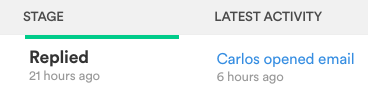
Projects are more powerful if you have Track enabled. When you send a Track message, the system automatically detects and displays scheduled messages, follow-ups, and replies. By using projects and Track, you can get a comprehensive view of your pipeline.