Change the default mail client
With Track Lite, Rival Search users without a Track integration can still use Track Insights to craft email messages and automatically paste them into their default email client using a mailto link. For more information about Track Lite, please see Track Lite FAQ.
If you would like to change your default email client, please follow the instructions below.
Desktop Mail App in Windows (Outlook for Windows, Windows Mail, etc.)
Windows 10:
- Go to Control Panel. Search for and select "Default Programs".
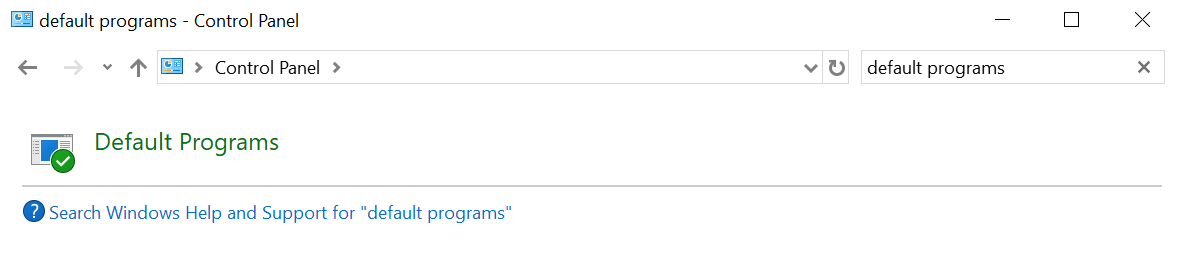
- Select "Set your default programs" or "Associate a file type or protocol with a program".
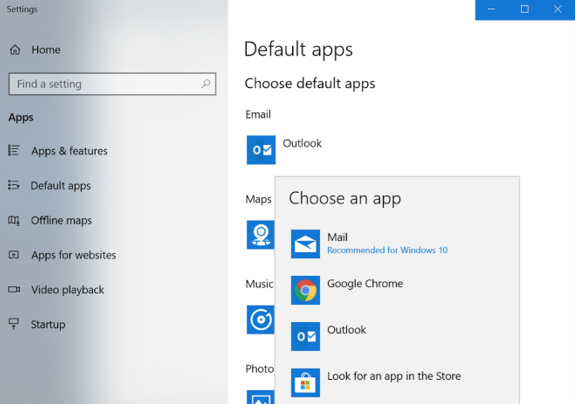
- Under "Choose default apps", select the app under "Email". Select the app you wish to set as your default. If you do not see your app here, make sure to download it onto your computer first.
External Link: Windows 7 or 8
Desktop Mail App in Mac OS (Outlook for Mac, Apple Mail, etc.)
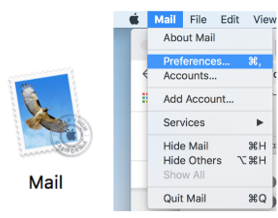
- Open your Mail app (see Applications folder). Once the Mail app is open, in the top left, select Mail > Preferences.
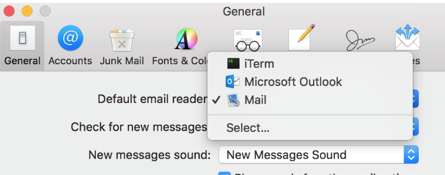
- Under Default email reader, select the app you would like to set as your default. You can click Select… to choose from other options you may have downloaded into your applications.
Mail Client in Chrome Browser (Gmail, Yahoo, etc.)
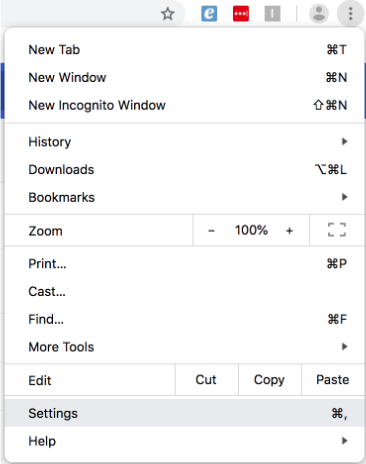
- Open your Chrome browser. In the top right, click the three-dots next to the URL bar. Click Settings.
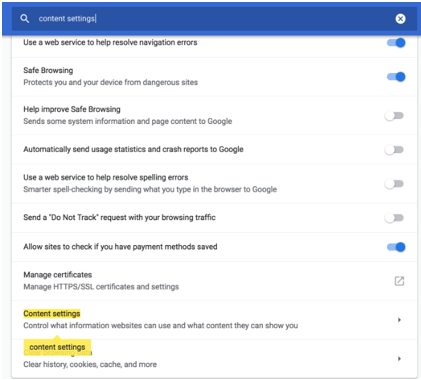
- In Settings page, search for Content Settings. Or, click Advanced at the bottom of the page, and look under Privacy and Security. Click Content Settings.
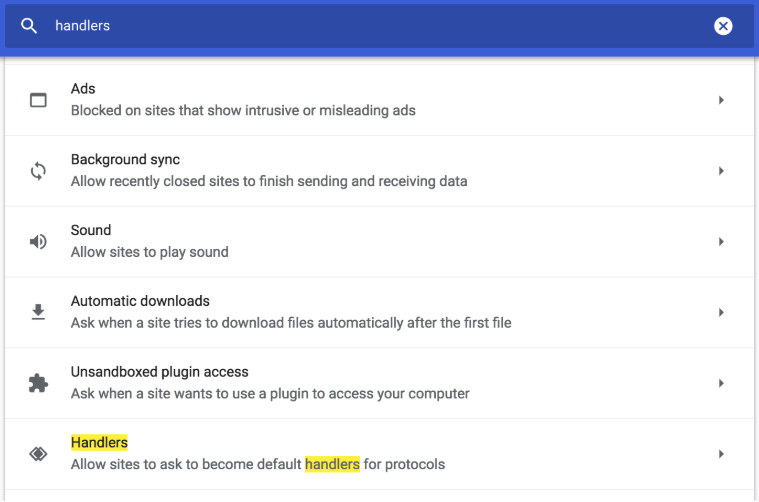
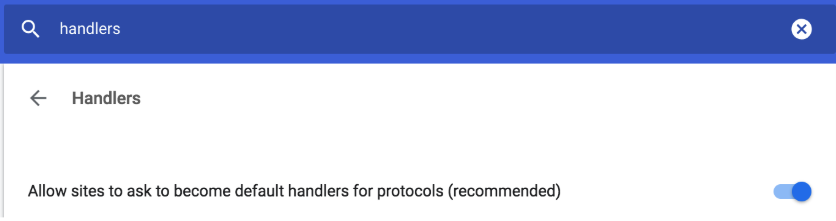
- In Content Settings, click Handlers. Toggle the switch on (Allow sites to ask to become default handlers for protocols). You may a "Blocked" list under the toggle - if so, make sure your email client is removed from that list. Alternatively, if you have set this up in the past, the toggle might already be toggled on and you may see your email client under the "email" list. If so, make sure your email client has the word "default" under it. If it doesn't, click the three dots next to it, and select "default".
- Go to your preferred email client and click the two diamonds icon in the URL bar. Select Allow. (If you do not see the two diamonds icon, repeat steps 1-3 once more.)
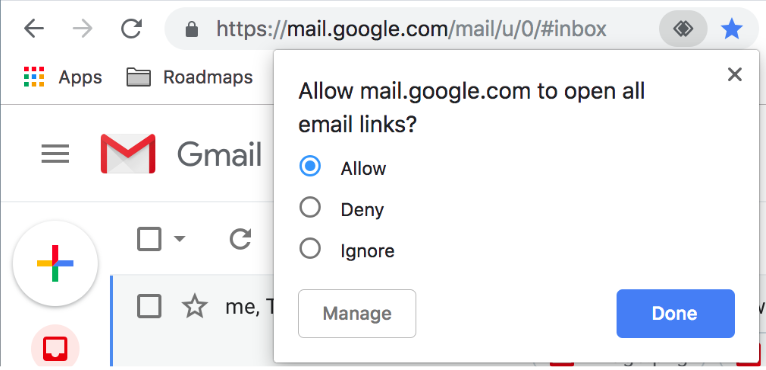 Now, all mailto links in your Chrome browser will open to that email client.
Note: For Gmail, if you're logged into multiple Gmail accounts, mailto links will open in your primary Gmail account. You can set a different primary account by logging out of all of your Gmail accounts and adding your desired primary account first followed by all other accounts.