Integrating Taleo Business with Rival Search
To integrate Rival Search with your Taleo Business Edition (TBE) account, see the following steps:
Step 1
Make sure that your Rival Search organization and associated org admin user have been created as part of your Rival Search Onboarding Process. If you do not have that set up, please contact your Customer Success Manager/Executive or Support.
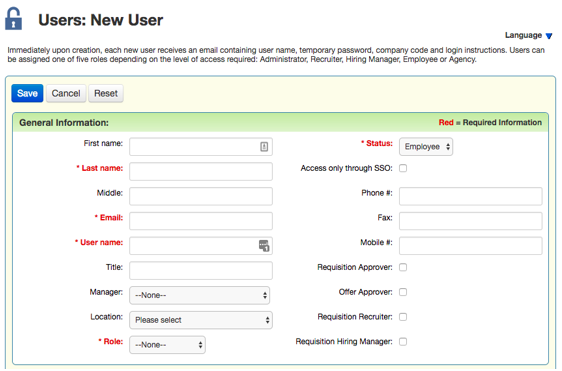
Once you have your Rival Search admin account, ask your TBE Administrator to create an Rival Search account within Taleo Business Edition account to initiate the integration. We recommend the following:
- First Name: Entelo
- Last Name: Rival Search
- Email: Any email that can be accessed by your Taleo Administrator (they’ll need to receive the email to confirm the account)
- Username: entelosearch
- Role: Administrator
- Status: Employee
- Password: Set up by your Taleo Administrator
Once you've created a new user, you will receive an email containing the Company code, along with login instructions. You will need this company code for later steps.
Step 2
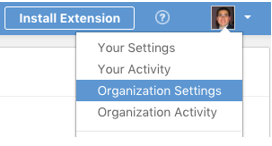
Once you have created an Rival Search User account in TBE, login to Rival Search. Click on your name in the top right corner and select Organization Settings under your profile:
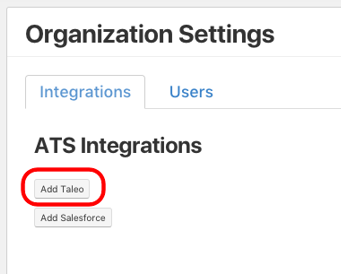
Under ATS Integrations, click on the Taleo button:
You will be directed to the following screen to configure your TBE integration:
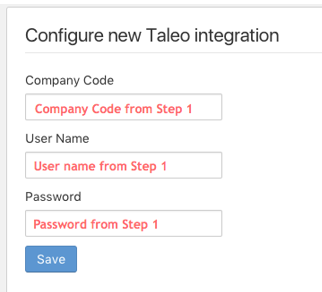
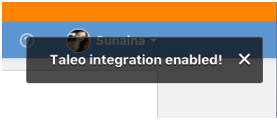
Clicking on Save will establish your TBE/Rival Search integration. You will see the following notification the top right corner of your screen:
You will also be directed to Custom Integration Settings, where you will see options to edit the Dummy Phone Number, and Dummy Email Address.
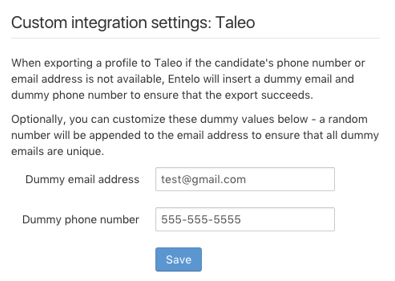
Once you have filled out this information, click Save. You can now begin exporting candidate profiles from Rival Search to TBE.
Step 3
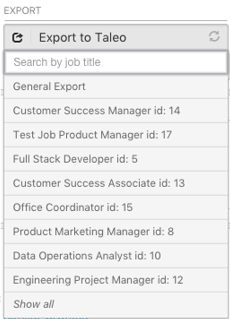
You can export candidate profiles to TBE individually (through profiles) or in bulk (through lists). Through the Chrome Extension, or within Rival Search itself, you will see the option to Export to Taleo. You can export to particular job requisitions within your TBE account.
That’s it! You have now successfully integrated your TBE account with Rival Search!