Create a Track template
- From the navigation bar, click Track.
- Click Templates. The Templates page opens.
- Click +CREATE NEW.
- In the Name field, type a name for the template. Make it descriptive so you can easily identify it.
- In the Subject field, type text that describes the email's purpose. Candidates see the subject field when they receive emails.
- In the Body field, compose the email.
Tip: Outreach Insights provides insights on how to optimize your message score.
- (Optional) If you want this email template to be private (only you can view and access it), click the Private check box.
- (Optional) Click Add Follow Up if you want the system to send out a follow-up email if a candidate does not respond within a certain number of days (you can choose the time frame).
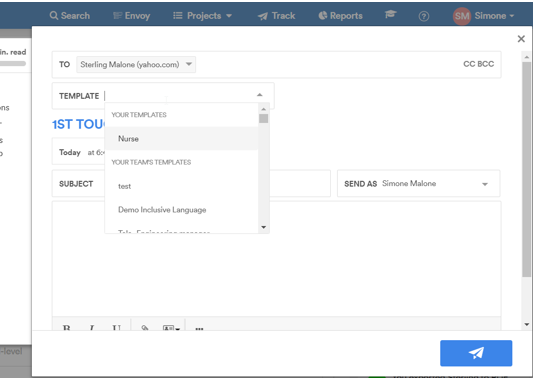
- Click Save. The email template is now available when you click the Templates drop-down when composing a message: