Send On Behalf Of
Setting Up Send On Behalf Of
Log into your Rival Search account. If someone else from your organization has requested you to grant them "Send on Behalf of" access, you will get an email prompting you to create an account first.
Once in your account, click Your Settings: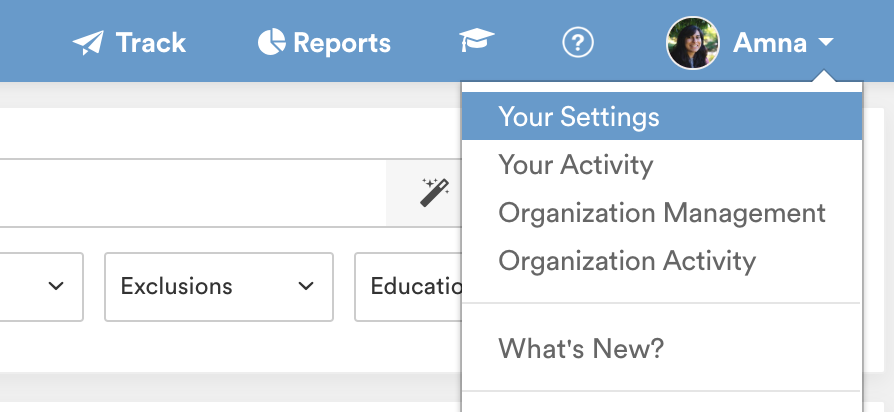
On the 'Track' tab, you'll see the Send on Behalf of section. From there, click 'Authenticate'.
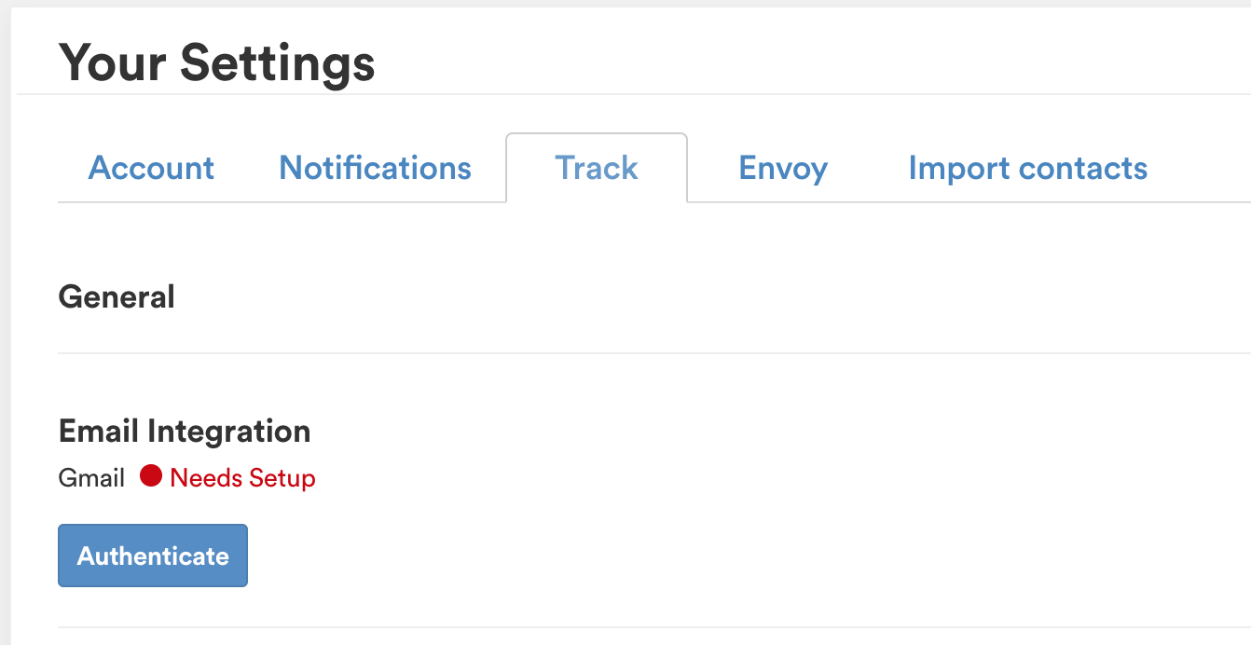
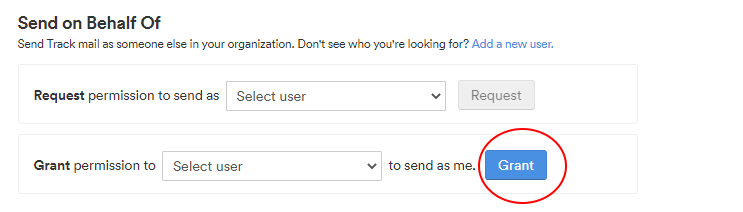
Your email will then be authorized with the system. Once that's complete, you can choose the members from your team that you would like to grant permission to send on behalf of you. Once you give those permissions, your team members will receive an email notifying them that they now are able to send as you.
From this page, you can also request permission to send as someone else in your organization, whether or not they already have an account.
Adding A New Hiring Manager
If you don't see someone on the list or they do not have a Rival Search account yet, you can add them by selecting the Add a new user hyperlink.
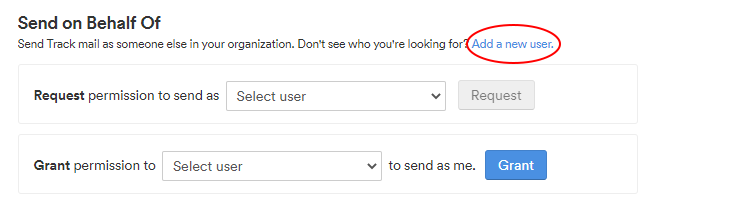
After clicking the Add a new user hyperlink, you should see this page:
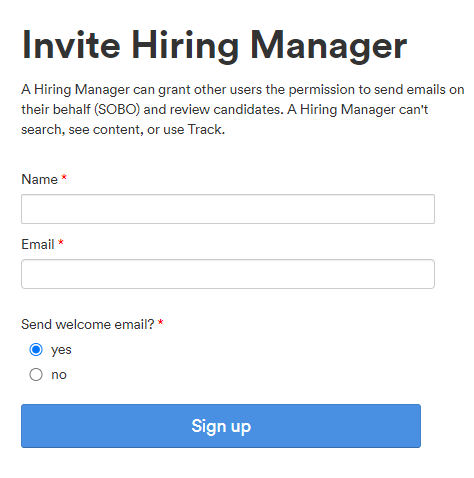
You will need to enter their First and Last Name in the Name form and their Email Address in the Email form.
Once you have entered the information, you will click the Sign up button.
If you have any issues adding the Hiring Manager, please reach out to your Customer Success Manager, or contact Support.
How to use this feature
When drafting a message on Track, select the person's name that you wish to send as from the Send As field. Your email will now send from that individual's email address.
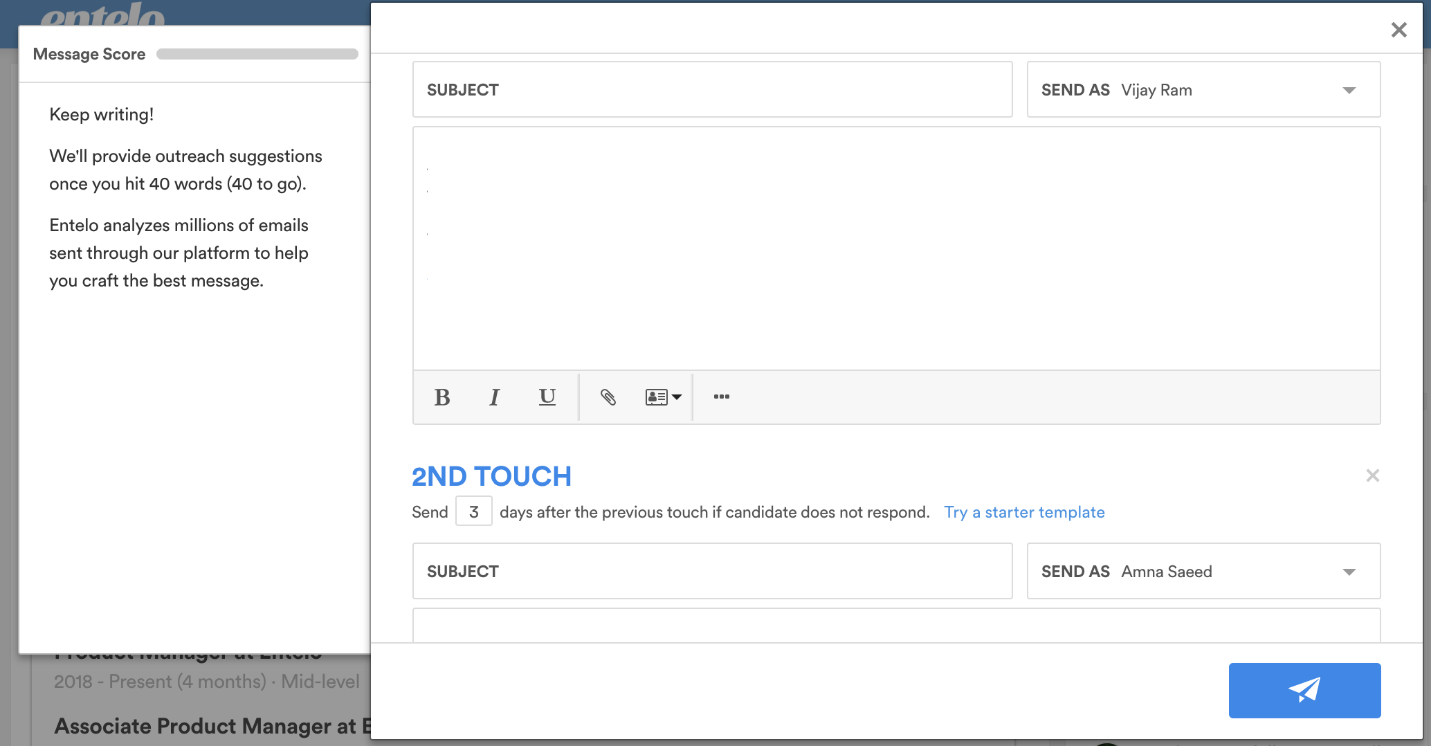
Sending on Behalf of Multiple Senders
If you have the Multiple Follow-Ups feature, you can set your touches to be sent from different senders by selecting the appropriate sender on each touch.
By default, the sender is you. If you add follow-ups, the "Send As" on your first 1st Touch will be applied to the follow-ups. So, if you have a template with 5 touches and you want to send all of them on behalf of a hiring manager, select that hiring manager as the sender on your 1st touch, and then select your template. That hiring manager will be applied to all subsequent touches, so you don't have to set them one by one.
A candidate does not "Reply All" on Send On Behalf Of (SOBO) Email
Leveraging Send On Behalf Of (AKA SOBO) feature increases your candidate response rate. In fact, metrics show that using the SOBO feature on passive candidates, the response rate could increase to 75%. But what if the candidate(s) you reached out to did not "Reply All" to the SOBO email(s) you were Cc’d on and your Hiring Manager is on PTO/sick with no access to his/her email? How do you track and engage a receptive candidate?
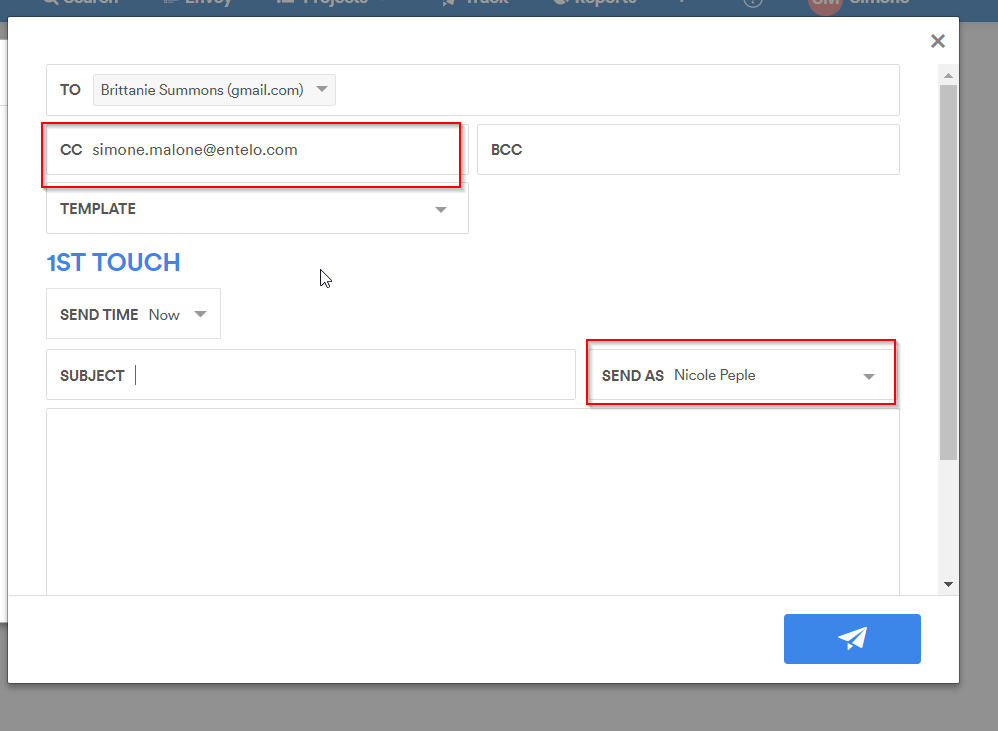
Since the SOBO email originates from your manager’s email engine, you won’t receive a notification if the candidate does not "Reply All." However, you can easily track the activity on the SOBO email via Track. You can see whether or not the candidate opened or replied to the email:
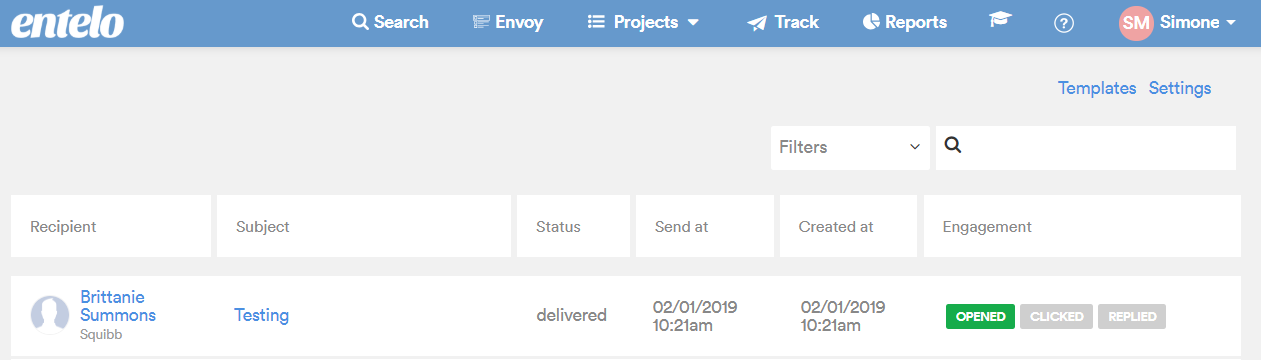
By hovering over the Engagements, you can get more details on the candidate’s activity for that particular SOBO email:
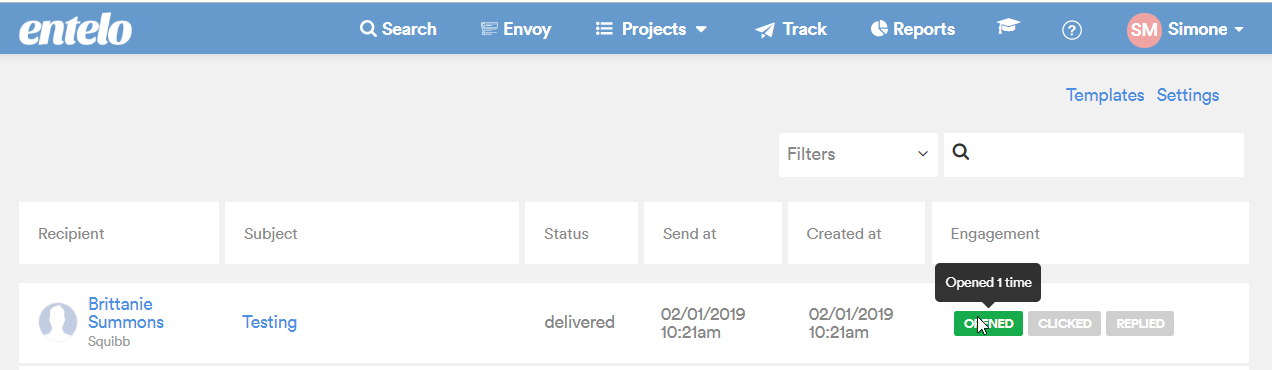
Notice that the above candidate has opened the email once. You can proactively follow up on behalf of your manager and take it from there. Better yet, when your manager comes back from PTO, you’ll probably have good news to share.