Integrating SmartRecruiters with Rival Search
To integrate your SmartRecruiters account with Rival Search you will need:
- The Login information for your Rival Search Admin Account
- The Login information for your SmartRecruiters Admin Account
To begin the integration, you will need to be logged in to an Rival Search account with the "Org Admin" role and a SmartRecruiters account with Admin permissions.
Step 1
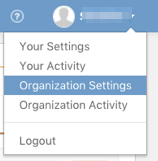
First login to your Rival Search account. In the top right corner, click on your name. Then, from the drop-down menu, select Organization Settings:
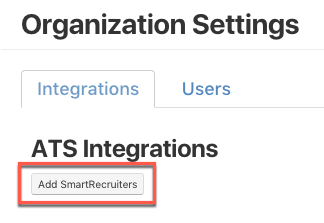
Under Organization Settings → Integrations, click Add SmartRecruiters:
Clicking on Add SmartRecruiters will direct you to your SmartRecruiters account. If you are still logged in from Step 1, you should see the following screen:
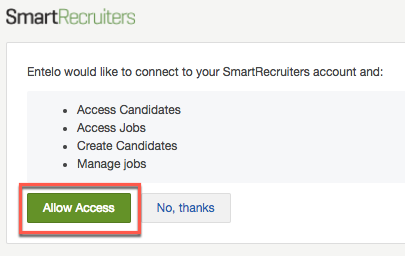
Click on Allow Access. You’ll be redirected once more to your Rival Search account and see the following notification:

You’ve successfully integrated your SmartRecruiters application with Rival Search!
Step 3
You can now begin to use it immediately and export candidates seamlessly from Entelo Lists, Rival Search, and/or Profile into SmartRecruiters.
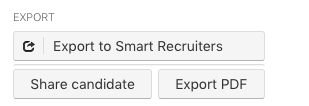
Through the Chrome Extension, or within Rival Search itself, you will see the option to Export to SmartRecruiters. Clicking on Export to SmartRecruiters will provide you a drop-down menu of active jobs on SmartRecruiters. You can export a candidate profile to a particular job.