How to Authenticate Gmail
Once your Customer Success Manager has enabled your Gmail integration on the backend, the integration will require authentication. (Note: if your organization's Gmail settings do not trust OAuth applications by default, please make sure to have your GSuite administrator "Trust" the application.)
To authenticate, log into Rival Search and follow these steps:
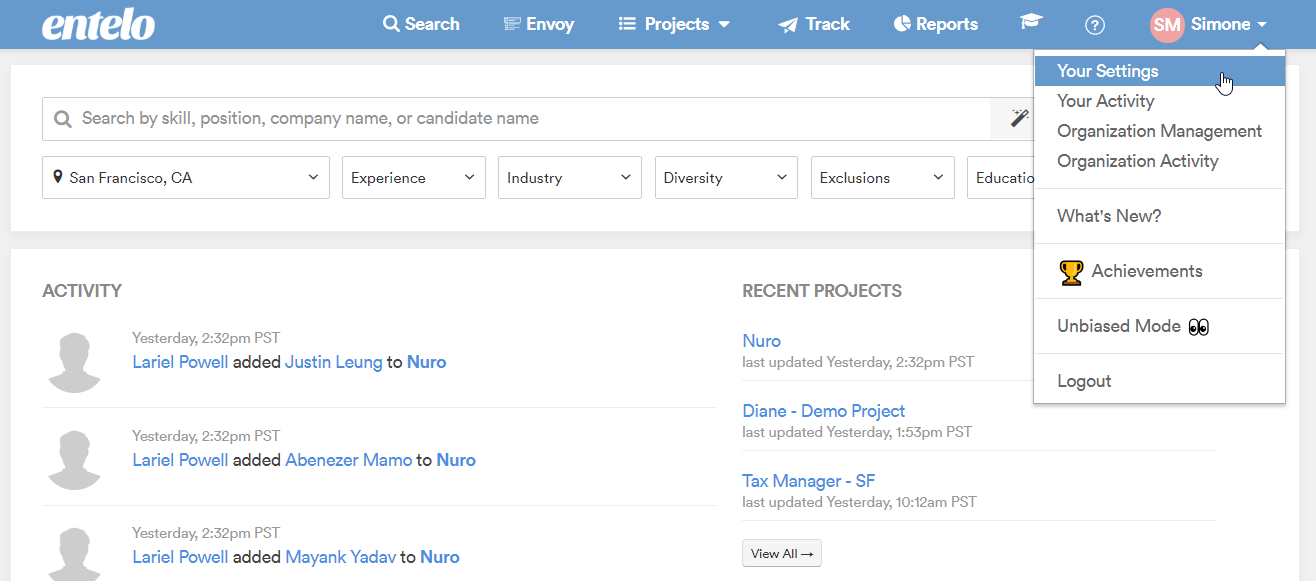
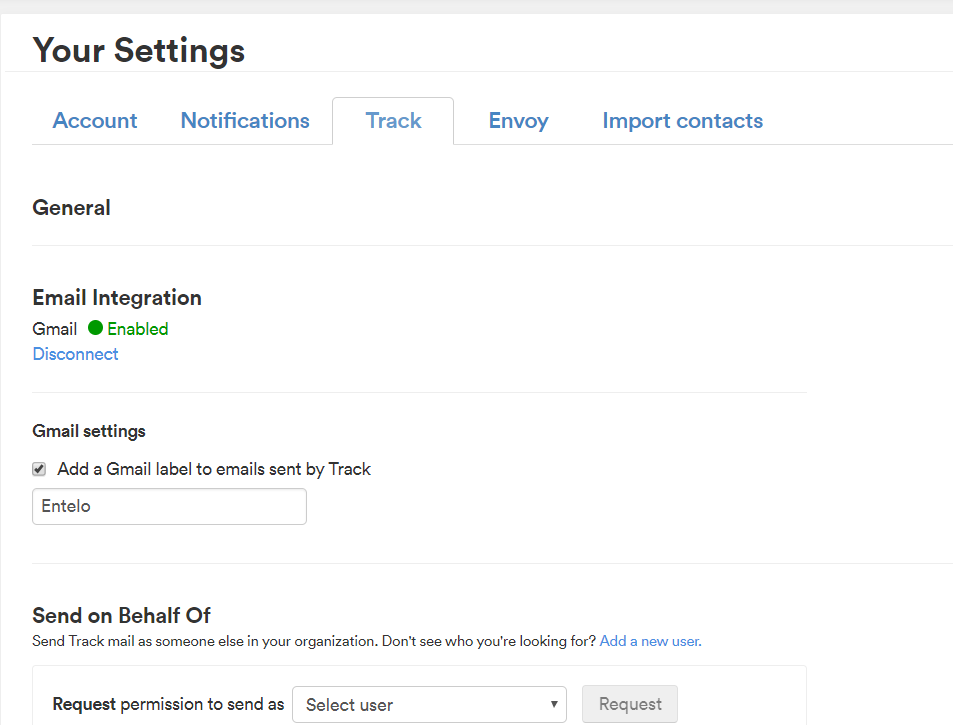
- Click "Your Settings"
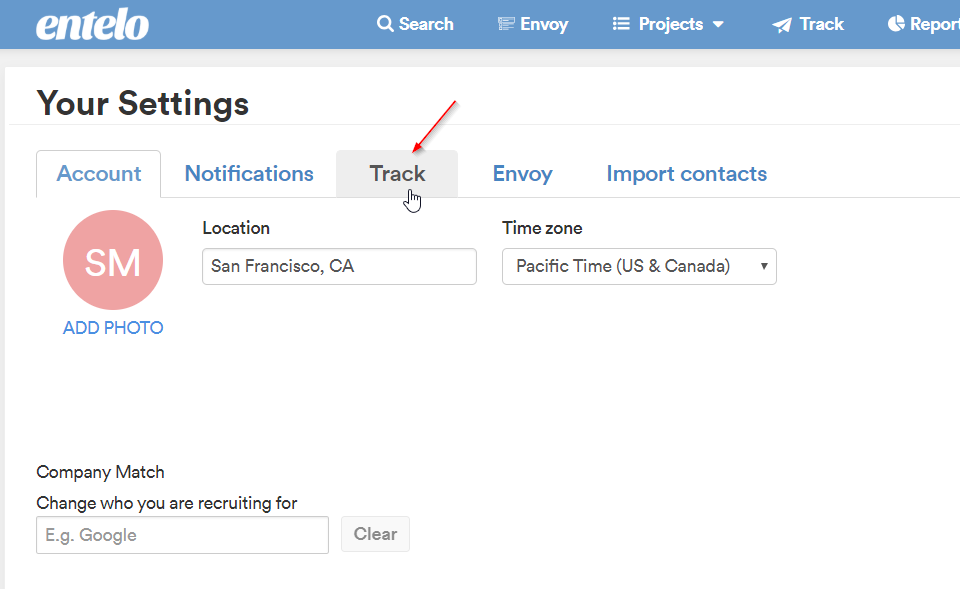
- Click "Track"
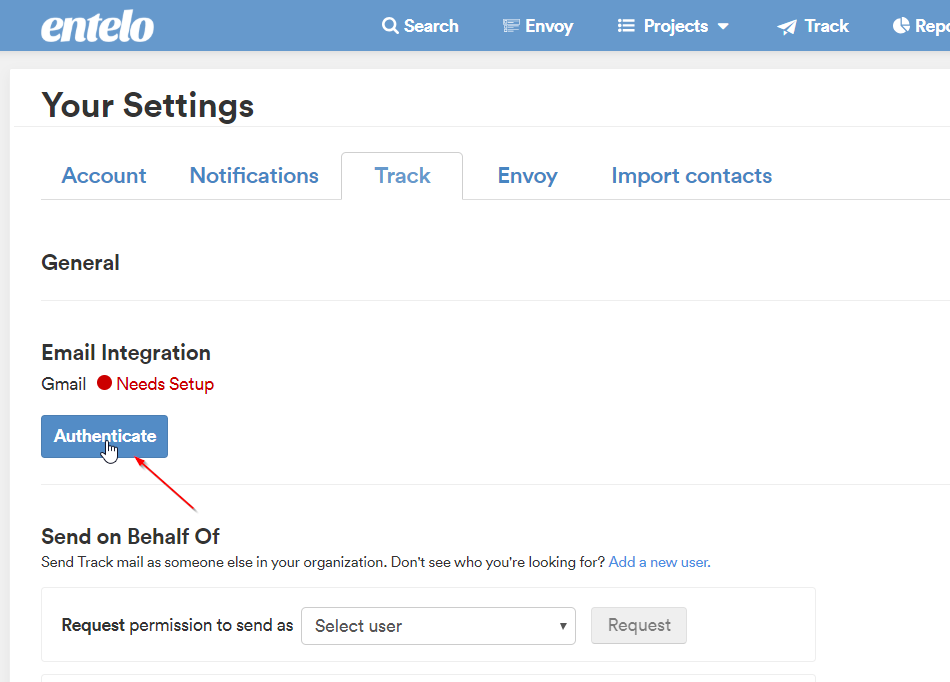
- Click "Authenticate"
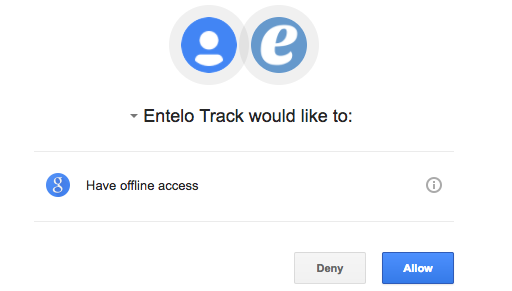
- Track would like to access your Gmail account, please click "Allow."
- If successful, there should now be a green "Enabled" sign, next to your Email Integration
If not successful, please contact Support. (Note: if your organization's Gmail settings do not trust OAuth applications by default, please make sure to have your GSuite administrator "Trust" the application.)