Integrating Lever with Rival Search
To integrate your Lever account with Rival Search, you must have:
- A Lever Super Admin account
- A Rival Search Admin Account
Step 1
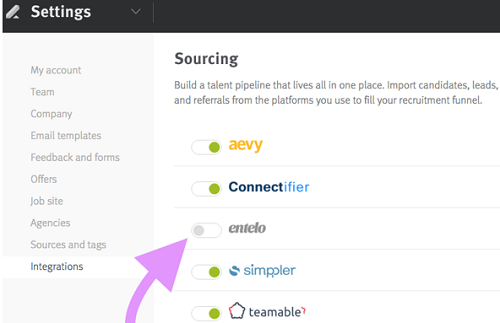
On the Rival Search platform, go to your "Organization Management". On the next page, click on the ‘Add Lever’ button. Login to your Lever account. Under Settings > Integrations, simply click the toggle next to Entelo’s logo.
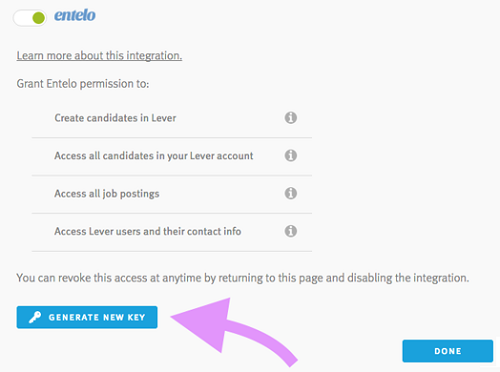
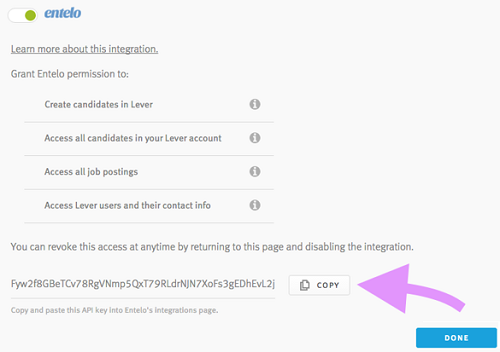
You will be taken to the following screen where you can generate an API key. The API Key is a string of letters and numbers unique to your organization. You will need this API Key to establish an integration.
This screen will also show you exactly what you are authorizing Rival Search to do.
Step 2
Once you have copied the API Key, you will need to initiate the integration with Rival Search.
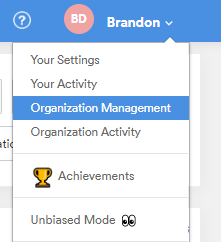
To do so, first login to your Rival Search account. In the top right corner, click on your name. Then, from the drop-down menu, select Organization Management:
On your Organization Management Page, you will click the Integrations button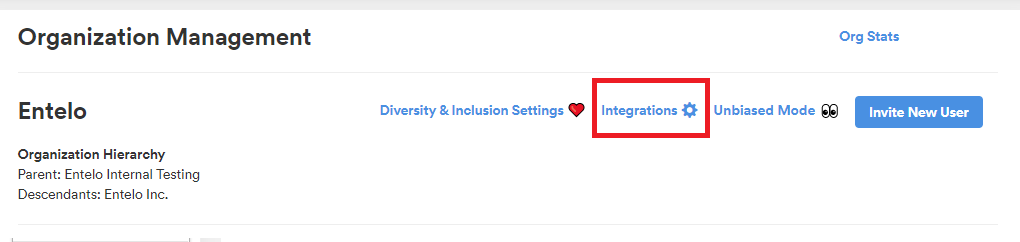
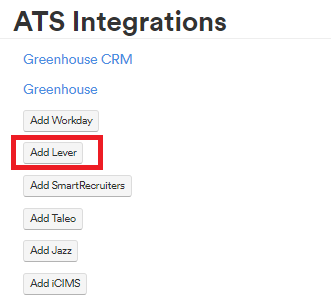
Once on the Integrations page, click Add Lever:
You will be directed to the following screen:
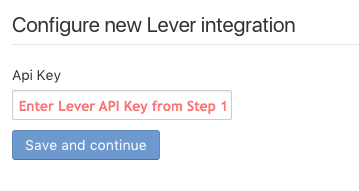
Enter the API Key you copied.
Once you’ve clicked Save and Continue, the integration is complete!

Step 3
You can begin to export candidates seamlessly from Entelo Lists, Rival Search, and/or Profile to a specific Job Requisition in Lever.
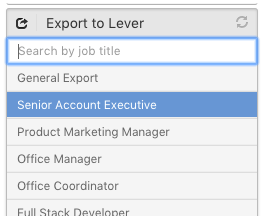
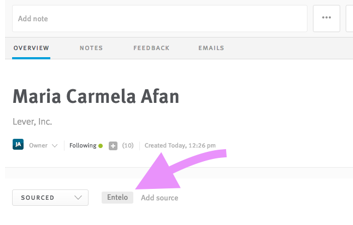
Doing so will create a brand-new candidate profile in the New Lead section of your Lever pipeline. Open up the profile, and you’ll see that the candidate will be automatically tagged with the name of the sourcing tool and the origin will be set as Sourced.
That’s it! You’re all set.