Gmail aliases
You can use a Gmail alias address for emails sent through Rival Search. With an alias, you and your G Suite admin will need to create and configure the alias in Gmail, and all candidate responses to this alias will be sent to you. This is different from Sending on Behalf Of (SOBO) through Rival Search, which does not require Gmail set up or any involvement from your IT, and with which candidate replies go directly to the person you are sending on behalf of.
Read below for details on how to use an alias. Failure to follow these instructions may result in delivery errors.
Step 1: Create an Alias in Gmail
For this example, let's pretend you want to send as your hiring manager, Jill. You can't use her actual email jill@entelo.com as an alias, or else replies won't go to you. Instead, we recommend creating an alias that still seems like her email address, like jill.smith@entelo.com.
Option 1: Using a Gmail Alias
With this option, candidate replies are sent to you.
- Ask your GSuite admin to add an alias that forwards emails to you.
Option 2: Using a Google Group Alias
With this option, candidate replies are sent to everyone in the Google Group.
- Create a Google Group (you may need to ask your GSuite admin to do this for you). Set the name and email of the group to be whatever you plan to send as.
- Make sure the Google Group settings are such that anyone can email ("post") to it. Have the Google Group manager do the following: navigate to Google Groups > select My Groups > select Manage Groups under the group name > select permissions (left-hand column) > select posting permissions > click the Post dropdown and select Anyone on the web
Step 2: Configure your Alias in Gmail
- Follow the instructions here under add an address you own and confirm the address. When prompted to enter the alias email, make sure to select treat as an alias. Note that if an admin set your alias, you may not need to confirm the address.
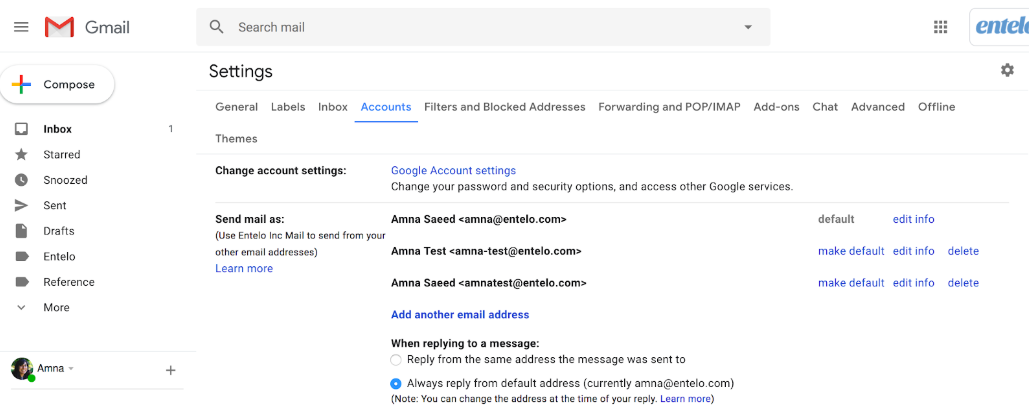
- In your Gmail settings, navigate back to the Accounts tab, and under Send mail as, you should see your aliases. It is important to confirm that the alias you want to use is in this list. Under when replying to a message, select reply from the same address the message was sent to.
- Verify your alias is working correctly. Ask a coworker to send an email to you alias, and make sure you receive it. Make sure that when you hit reply on this email, the "From" address is that of your alias.
Step 3: Add your Alias to Track
- Go to settings > Track. Under Send with an Alias, enter the alias name and email address exactly as they appear in your Gmail Send mail as list.
- Check the alias by sending a test email to a colleague's profile. Under Send As, you should see and select the alias that you just added as an option. Make sure that your colleague receives it and that you receive their reply.
If you face any issues with this, go through these steps again, and confirm that you entered your alias details correctly into the system. If you need additional help, contact Support.
Alternative to using a Gmail Alias
SOBO with a colleague's email
You can send emails on a colleague’s behalf through the system; replies will go directly to them. You will need to make this colleague a (free) Hiring Manager account and set up SOBO
- instructionshere.
SOBO with a dedicated email account
You can send emails with an alternate inbox through the system; replies will go directly to you.
- Ask your email admin to create a new email account for you with an email address you wish to send as (for example, an email address that looks similar to that of your hiring manager).
- Set up automatic forwarding for this account, so that all emails are forwarded to your email address in Rival Search.
- You will need to make a (free) Hiring Manager account for this dedicated inbox and set up SOBO for it - instructions here.