Resurface candidates using the Projects filter
- Resurfacing candidates is a fast and efficient way to find the right candidate for the right job.
- Use the Projects filter in Search Builder to resurface candidates who you have already saved to projects.
- From the Home page, click
 . The Search Builder opens. The Search Builder is part of the new UI redesign. It helps you build quality searches via filters, auto-completes, and intelligent suggestions. Let's look at some key elements of the Search Builder.
 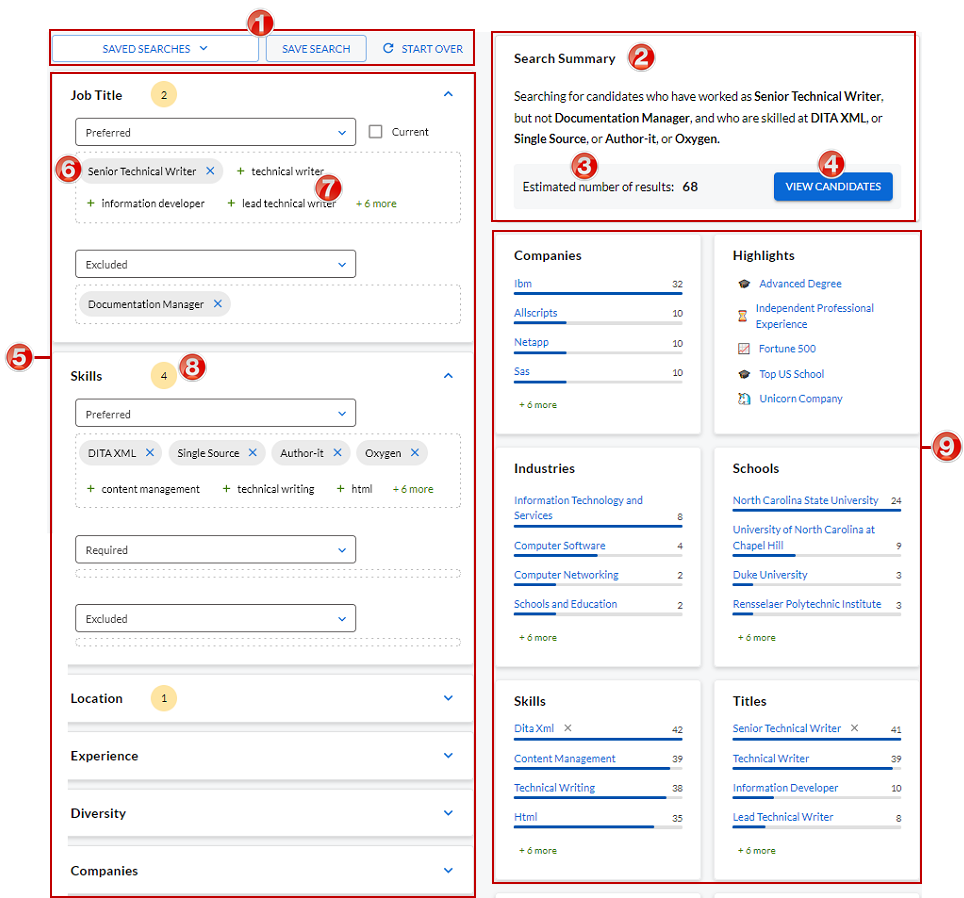 Search results After you build a search string and click View Candidates, search results appear on the right side of the page. Here are some key elements: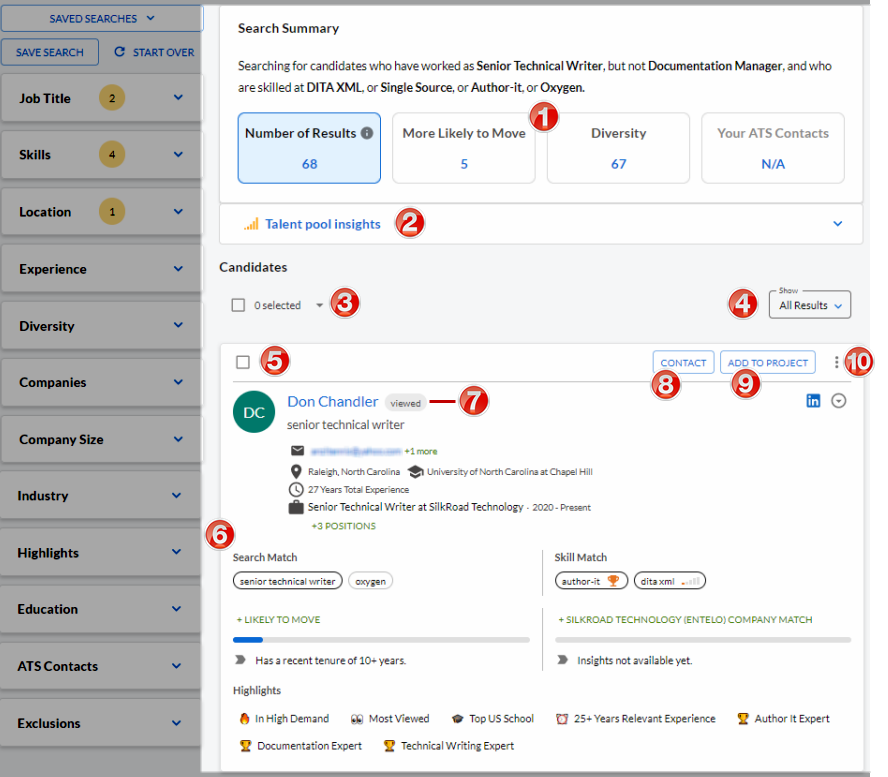
Name Description 1 Saved Searches, Save Search, Start Over buttons Click:
- Saved Searches to view and select from a list of saved searches.
- Save Search to save the current search as a saved search to be selected later.
- Start Over to clear the current search criteria and start over.
2 Search Summary Shows the search string you built (in easy-to-read text) 3 Counter Estimated number of candidates in search results 4 View Candidates Click View Candidates to view candidate profiles based on your search query 5 Filters and settings Select the filters/settings to build a search 6 Selected criteria Shaded chip is criteria you selected 7 Intelligent suggestions Non-shaded chips are intelligent suggestions derived from machine learning and artificial intelligence 8 Bubble count Shows the number of selections made within a filter 9 Talent pool insights System-generated insights based on the talent pool from the search results.
Tip: Click an insight to add it as a filter for the search.
Name Description 1 Interactive boxes Shows a count of number of results, more likely to move, diversity, and ATS contacts. Click a box to dig deeper into those results. 2 Talent pool insights System-generated insights based on the talent pool from the search results.
Tip: Click an insight to add it as a filter in the search query.
3 Multiple select Click to select all profiles on the current page, the first 500 profiles, or None. 4 Filter Click to show all results or exact results only. 5 Select profile check box Click to select a profile to perform an action on it. 6 Search results Profiles that meet the search criteria appear in this panel. 7 Action tag Action tags identify actions taken on a profile. Here are some tags:
- Viewed: Indicates the profile has been viewed. If you hover over this tag, the system tells you when the profile was last viewed.
- Contacted: Indicates the candidate has been contacted. If you hover over this tag, the system tells you when the candidate was last contacted.
- Exported: Indicates the profile has been exported.
8 Contact button Click this button to contact the person. 9 Add To Project button Click this button to add the person to a project. 10 Action icon Click  to perform an action on the profile. Actions include view emails, set a reminder, report duplicate profile, and export to an integrated third-party system.
 - Expand the Skills filter and select the required skills and preferred skills you are looking for. Exclude any skills you don't want to include.
- Use any other combination of filters to narrow your results. For example, you may want to resurface candidates in a specific region or state.
- Expand the Projects filter and click the Include all projects check box. The system looks in all the projects in which you have saved candidate profiles. The number of results narrows to include only the profiles saved within projects that match your search criteria.
- Scroll through the candidate profiles or use talent pool insights to dig deeper.