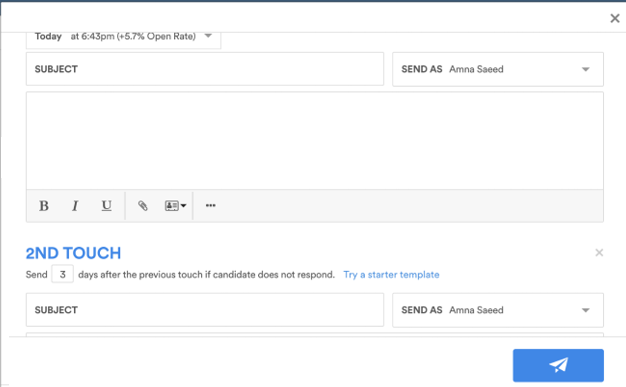
Multiple follow ups
All users on a Gmail, Outlook 365, or Exchange integration can use the multiple follow ups feature. Users on the Generic Email integration do not have access to this feature. You can check your integration type by going to Track>Settings. If you would like to change integrations, please contact Support.
Adding multiple follow ups
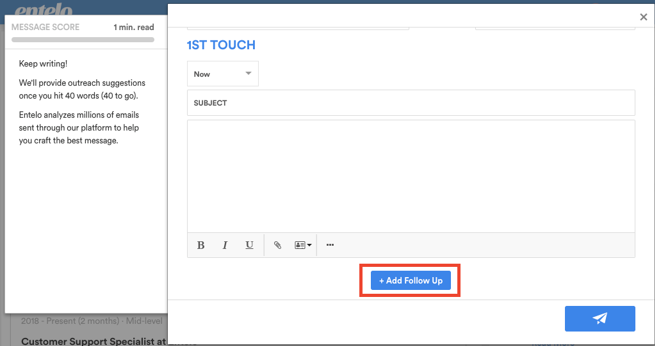
When contacting a candidate, click Add Follow Up. You can send up to four follow-ups, resulting in five total emails (first email and four follow ups).
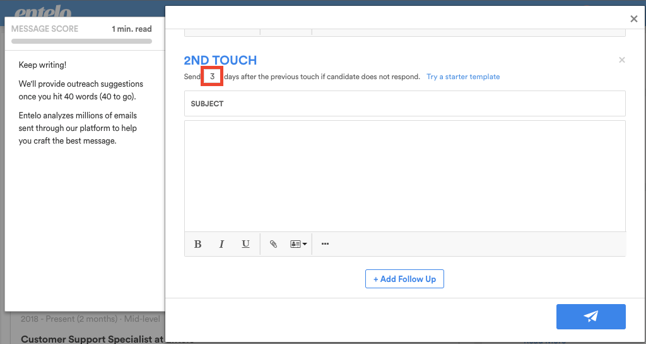
You can schedule a follow up to send 2-45 days after the previous email. The email will send at best time on the day you've selected.
Pause a follow up/scheduled email
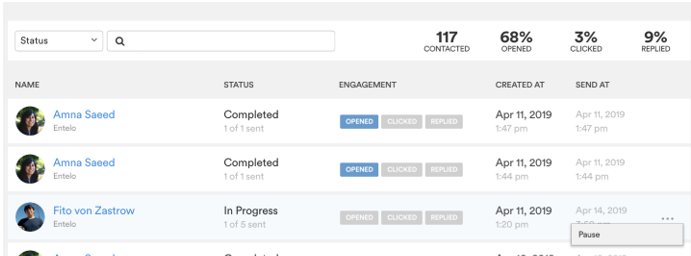
Go to the Track outbox (Track tab). On the conversation you want to pause, select the drop down on the right, and select pause. You can resume the conversation at a later date if you would like.
Sorting emails
The default for outbox is sorted by the Created At time. You can also sort by recipient name or the Send At time.
Send on behalf
You can choose who you would like to send on behalf of for each individual follow up email.