Integrating Greenhouse with Rival Search
To integrate Rival Search with Greenhouse for your organization, you will need to be an Rival Search Admin.
Login to Rival Search, and click on your name in the top right corner. Select Organization Management from the drop-down and then Integrations.
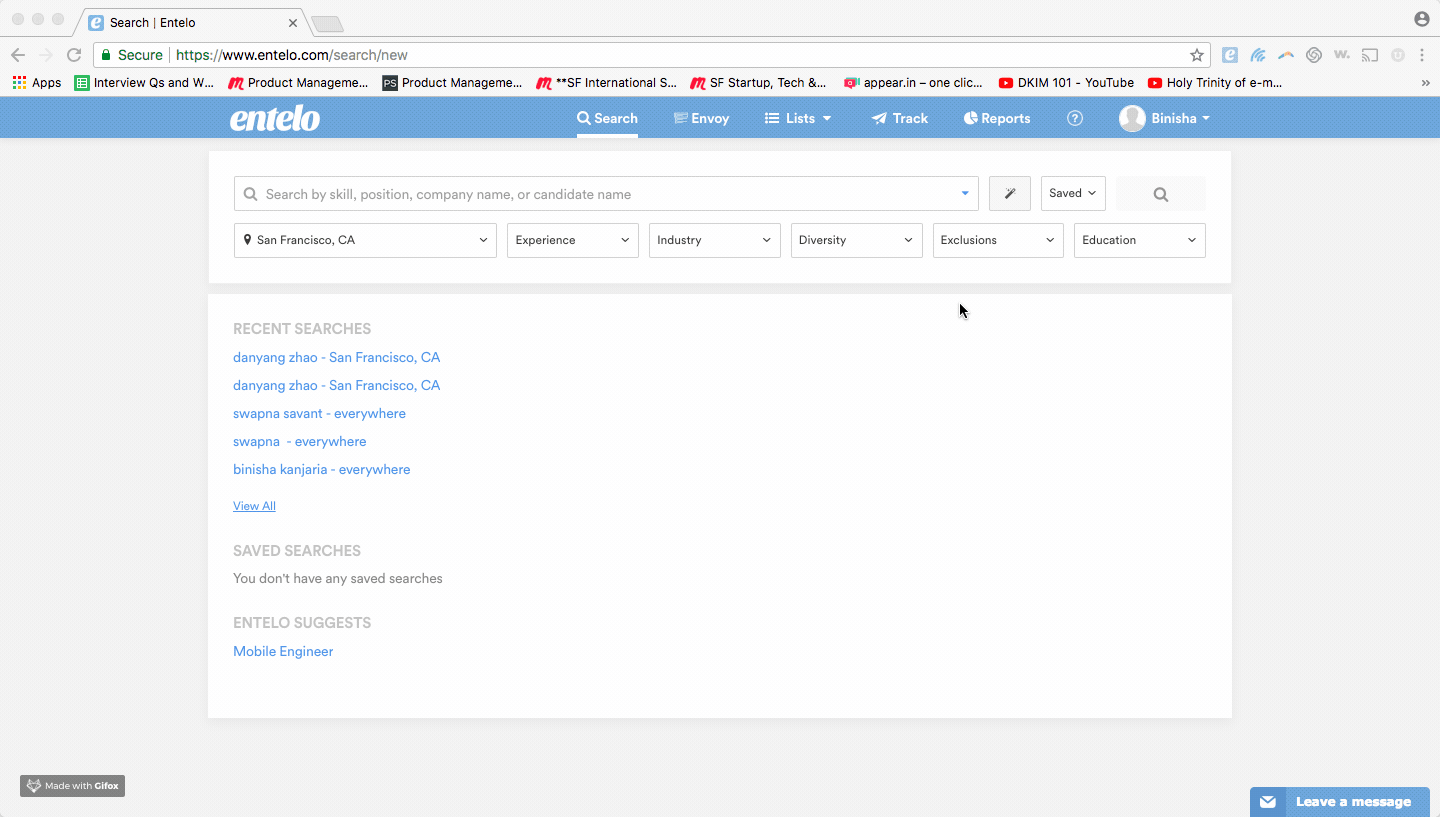
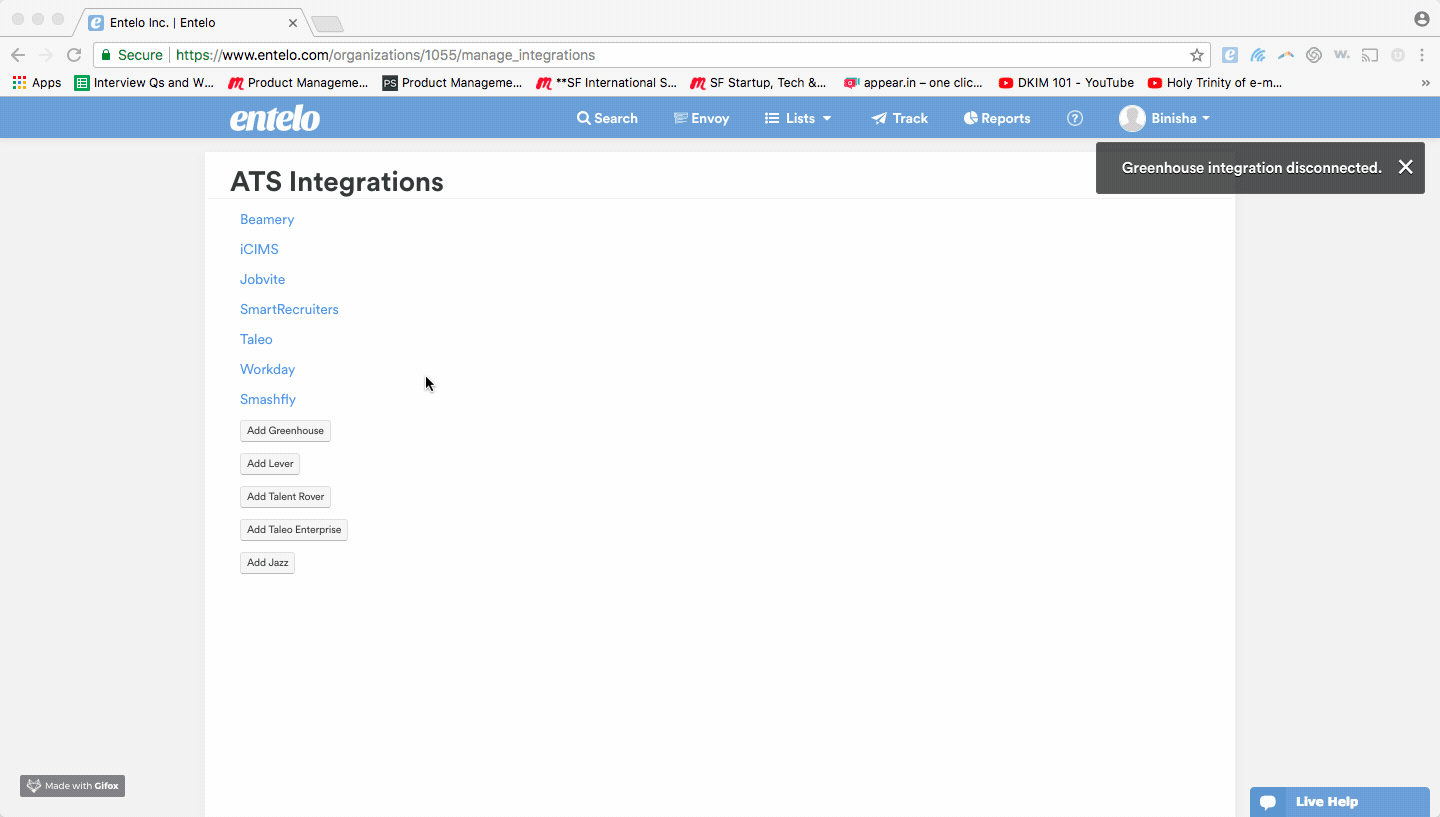
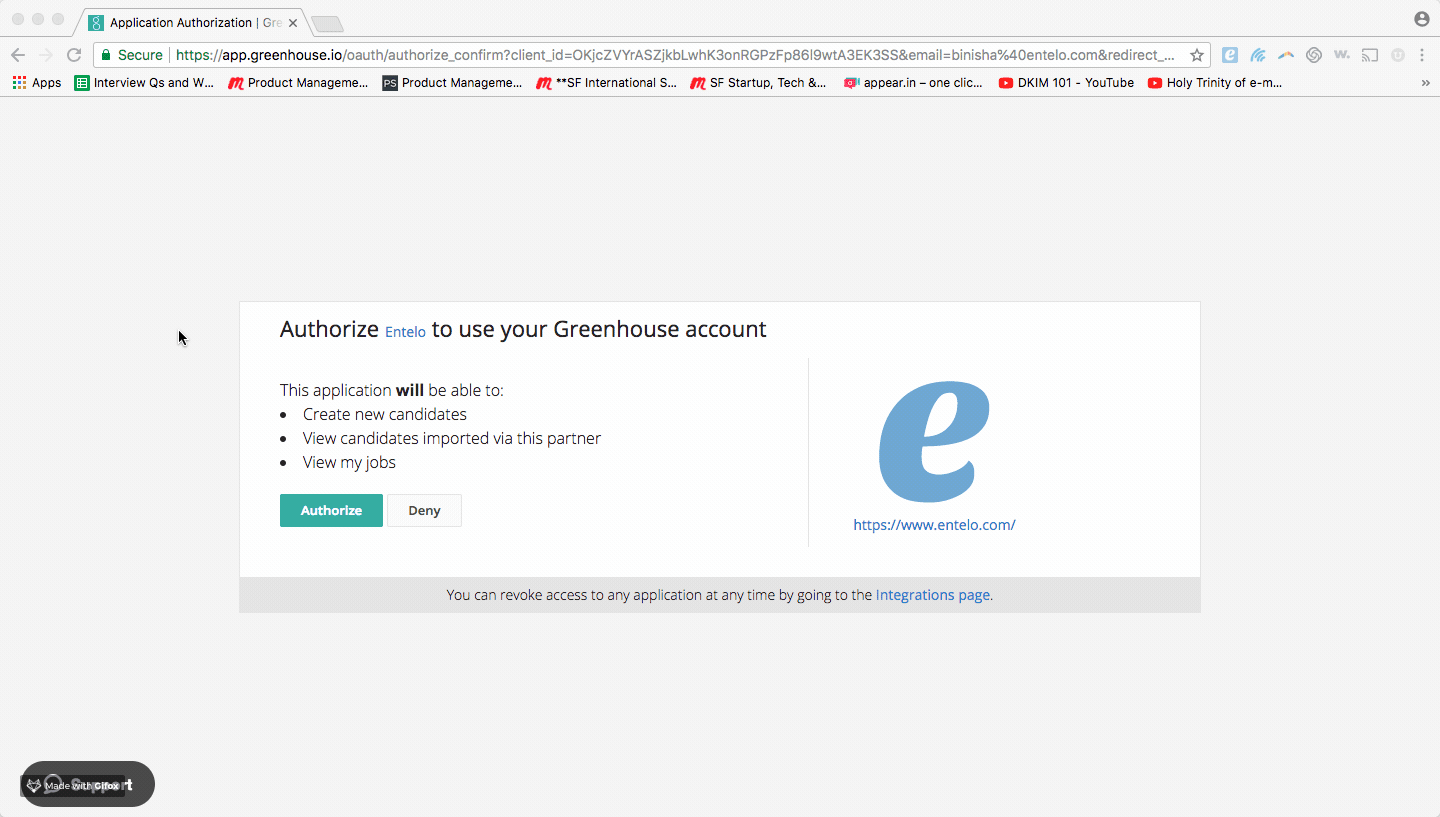
Click on Add Greenhouse and authorize the integration by entering your Greenhouse account credentials. Please note: For this integration, your Greenhouse login email should be the same as Rival Search login email.
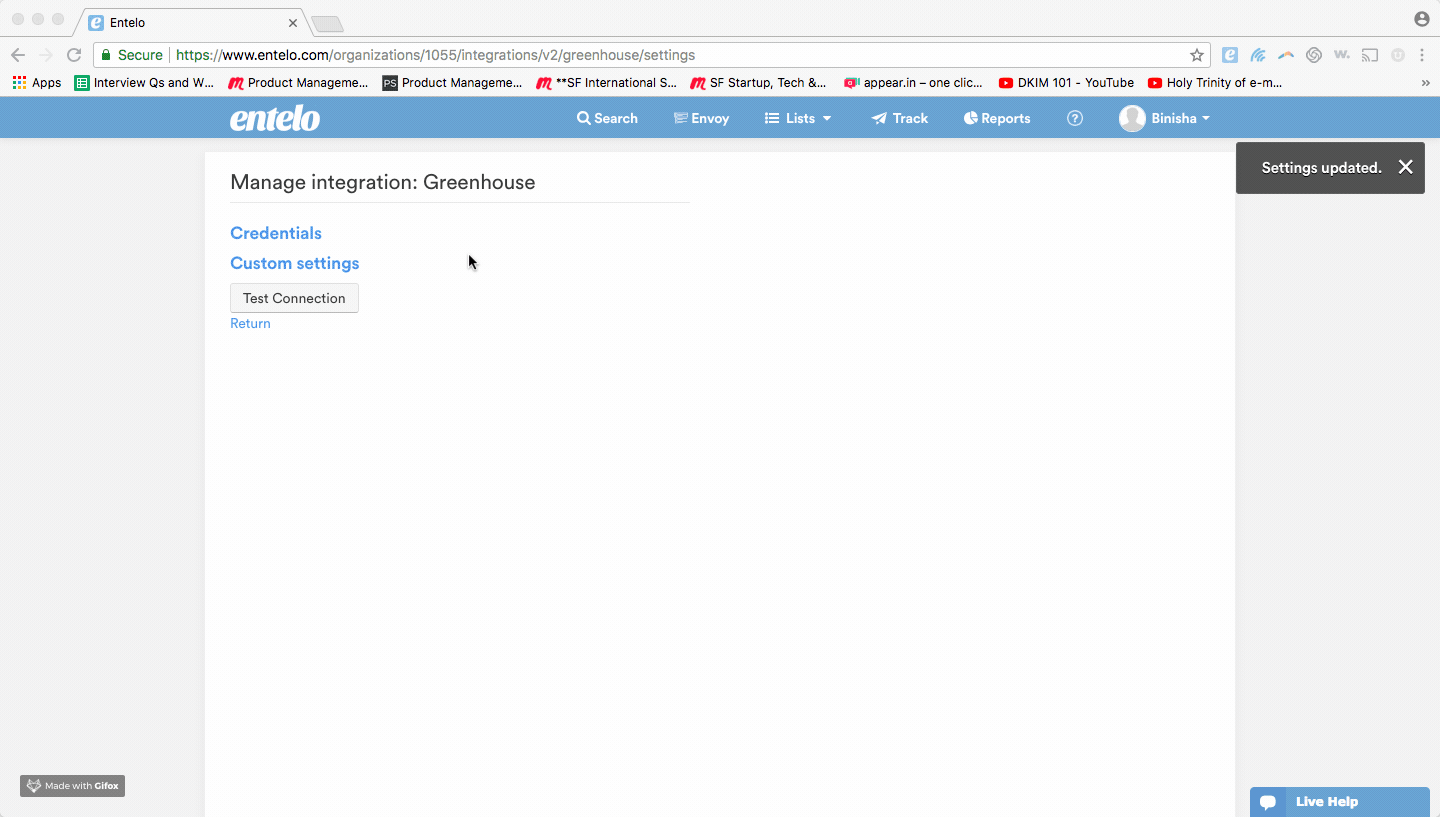
Once authorized, you will be directed to the Greenhouse Custom Settings page in Rival Search. You will see the option to export Rival Search profiles to Greenhouse either as Candidates only (set value to False) or Prospects AND Candidates (set value to True).
To test if you have successfully integrated, click on Test Connection.
You've now successfully set up Greenhouse for your organization.