Integrating Beamery with Rival Search
To integrate your Beamery account with Rival Search you will need:
- Org Admin access for your Rival Search Account
- Super Admin access for your Beamery Account
Step 1
Once you’ve logged into your Beamery account, click on the Settings symbol in the bottom left corner. Click on Open API from the menu.
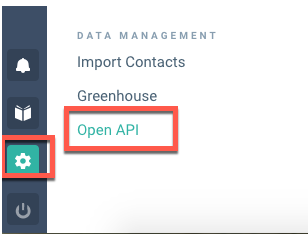
You will get the option to generate an API Key and an API Secret. Copy both strings to a clipboard.
Step 2
Next, login to your Rival Search account. Clicking on your name in the top right corner will give you a dropdown menu. Select Organization Management from the menu.
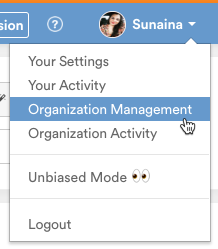
Under Organization Management, click on Integrations.
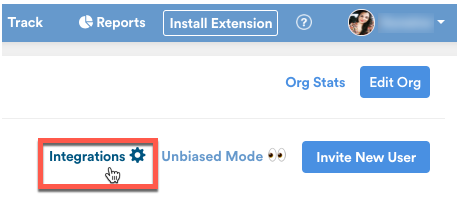
Then select the option to Add Beamery; you will be directed to the following screen. Enter the API Key and API Secret that you copied from Beamery and click Save.
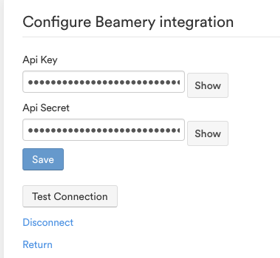
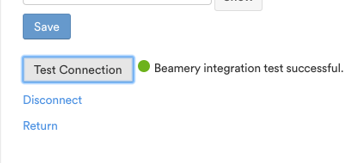
You can test whether your Beamery integration was successful by clicking on Test Connection.
Step 3
Once your integration is successful, you and members of your org can immediately begin exporting Rival Search profiles to Beamery. Please note that profiles are exported as Contacts under Vacancies. Beamery also supports the option to export profiles that are NOT tied to a vacancy. General exports are added as contacts under People.
Currently, Beamery does not support the option to export to Pools.
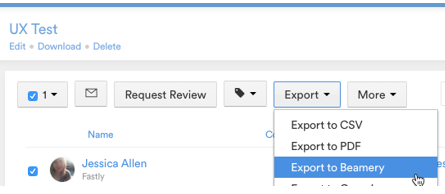
You can either exports lists:
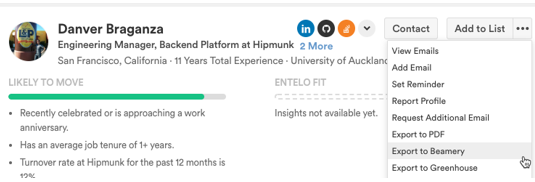
Or individual profiles:
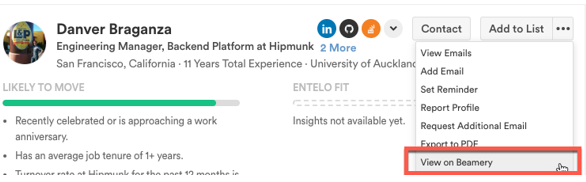
Once you've exported a profile, Rival Search will link you to the profile in Beamery:
Within Beamery, you will see the candidate's profile with:
- Social Links
- Work History
- Education History
- Profile Tags
- Contact Information
Please note, that currently, Beamery does not support automatically populating the source as Search. Once you've created a source in Beamery for Rival Search, you will have to manually add it to each profile.
If you encounter any errors or issues setting up the integration, don't hesitate to reach out to your customer success representative.