Track outbox
Track outbox is where you view the status and performance of your outreach.
Each row in the Track outbox corresponds to a conversation or a set of touches that you have sent or scheduled for a candidate, including the original email and any follow-up touches.
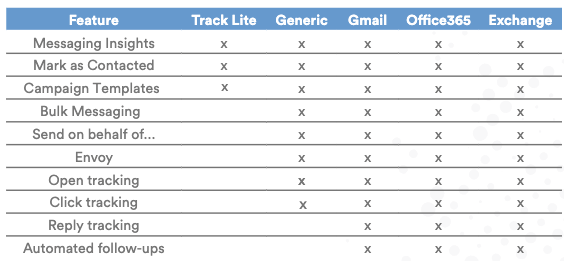
Note: Automated follow-ups are not available to users on our Generic Integration (see details here).
Track outbox shows information about the conversation, including:
- Status: The progress of your touches
- Engagement: How many times the touches were opened, clicked, or replied to
- Send At: The date/time when the next touch is scheduled. If there are no more touches in the conversation to be sent, this time is when the final touch was sent.
Pausing/resuming
You can pause a scheduled or in-progress conversation. Pausing stops all of the remaining touches in the conversation from sending. Resuming a paused conversation continues the conversation from where it left off. If you do not resume a paused conversation, it will never go out and is essentially canceled.
Conversation Details
By clicking on the row, you can go to the conversation page for that candidate to see all of the touches in that conversation and details about their status.
Sorting and filtering
You can sort by:
- Candidate name
- Conversation
- Created and sent date
You can filter by the status of the conversation or by candidate name and email address using the search bar.
Stats
On the top right side of the outbox, you can see stats regarding your outreach, such as the number contacted (number of conversations that had at least one touch sent out), as well as the percent of those conversations that had any touches that were opened, had a link clicked, or were replied to. These stats are updated to reflect any filters or searches that you are using.