Chrome Extension over Gmail
We hope you like the Chrome Extension! If you do, you will most definitely like how it works over Gmail Inbox!
In case you are wondering what our Chrome Extension is, then I would like to refer you to this article.
Once you read up on it and get to know our Chrome Extension, please come back here!
Update the Chrome Extension
For the Chrome Extension to work over your email inbox, please make sure to have Entelo Extension Version 3.0.3. You can update the extension here.
How To Activate The Entelo Extension
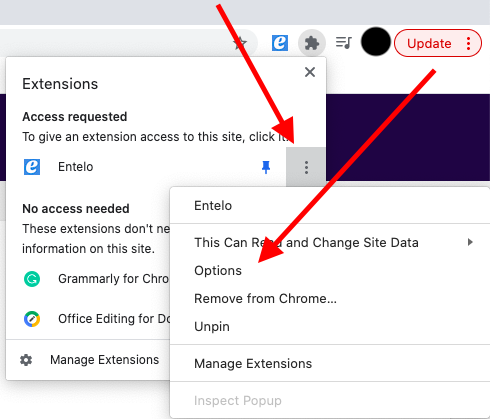
Now that you have updated the Chrome Extension, please click on "Extensions" which can be found on the right side of your URL bar and click on Grid where your Entelo Extension is. From there select "Options". Here is the screenshot:
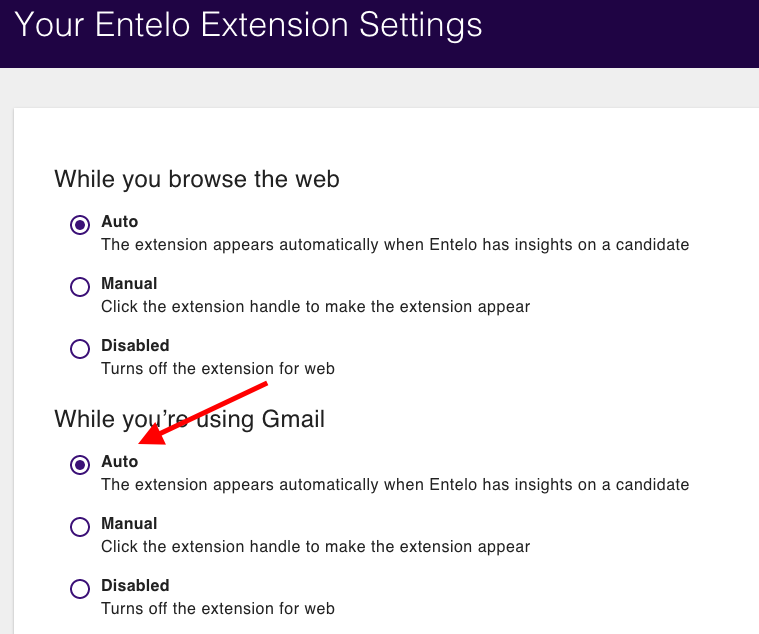
You will then be taken to the page to activate it. You can select for Entelo Extension to activate manually or automatically. Here is the screenshot:
Sending An Email Through The Chrome Extension
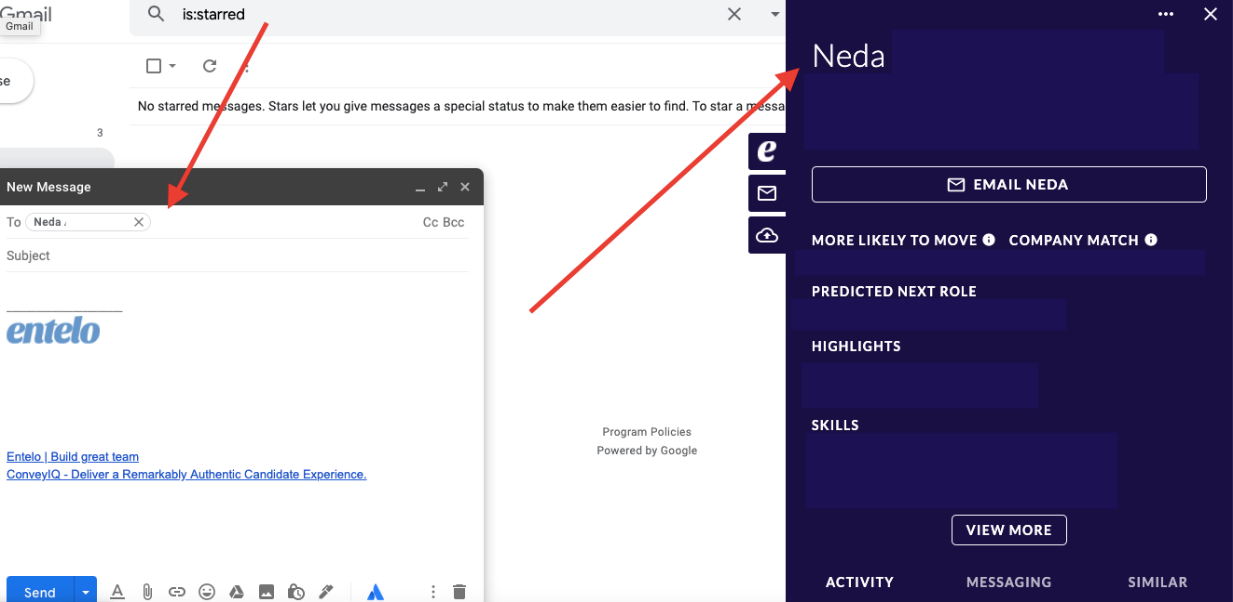
When adding a candidate in your email as a recipient, with our Chrome Extension, you will be able to see all of the information about the candidate that is needed. Here is how it looks like:
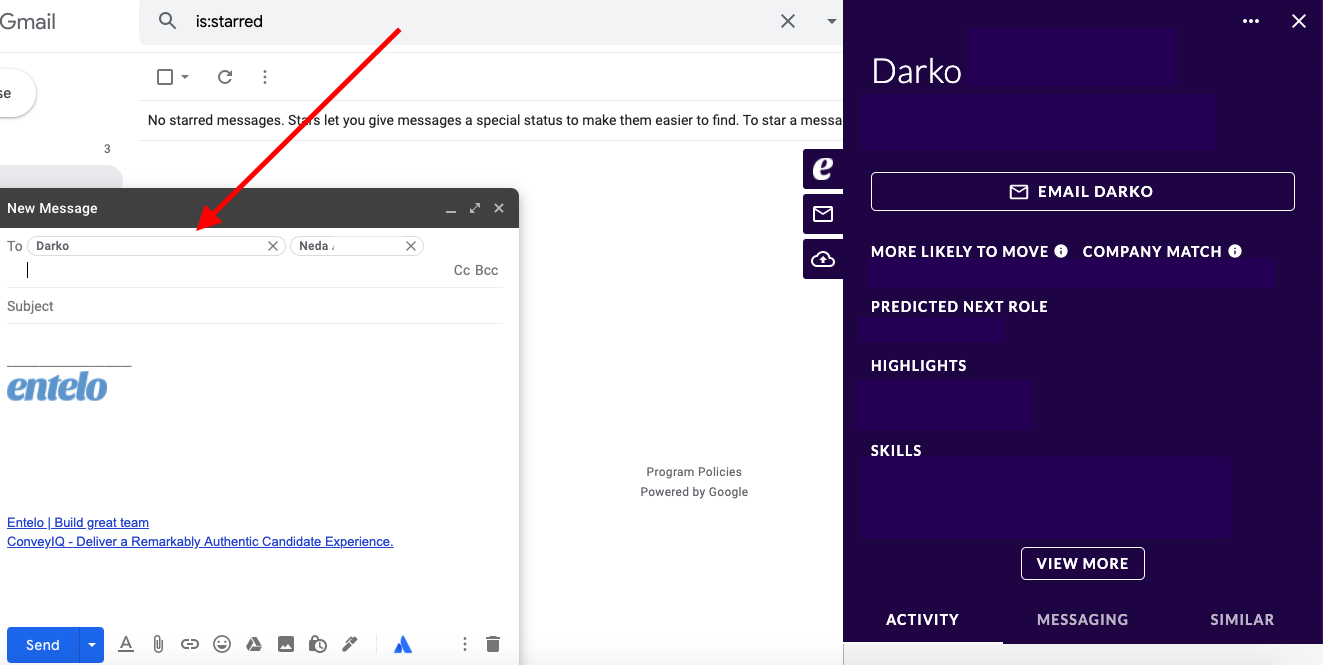
In case you have more than one recipient, you can drag and drop the recipient you would like to show in Chrome extension to the first place. Here is how it looks like:
Chrome Extension & Email Threads
Chrome Extension can also show you the information about candidates when scrolling through an email thread with them. Here is how it looks like:
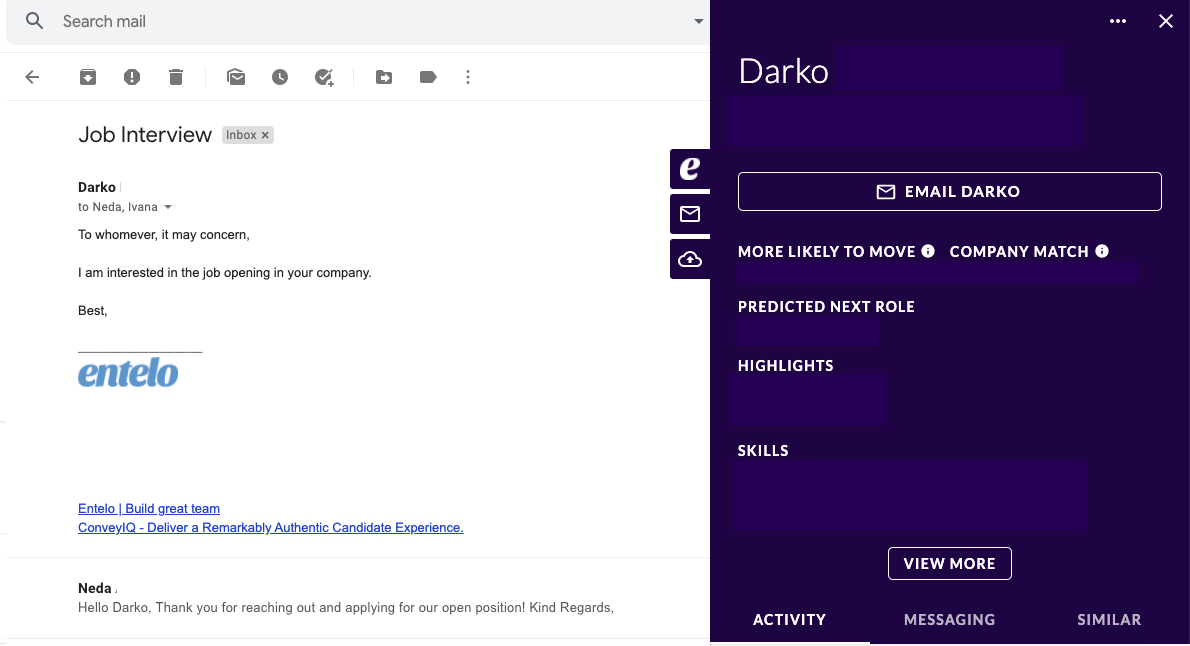
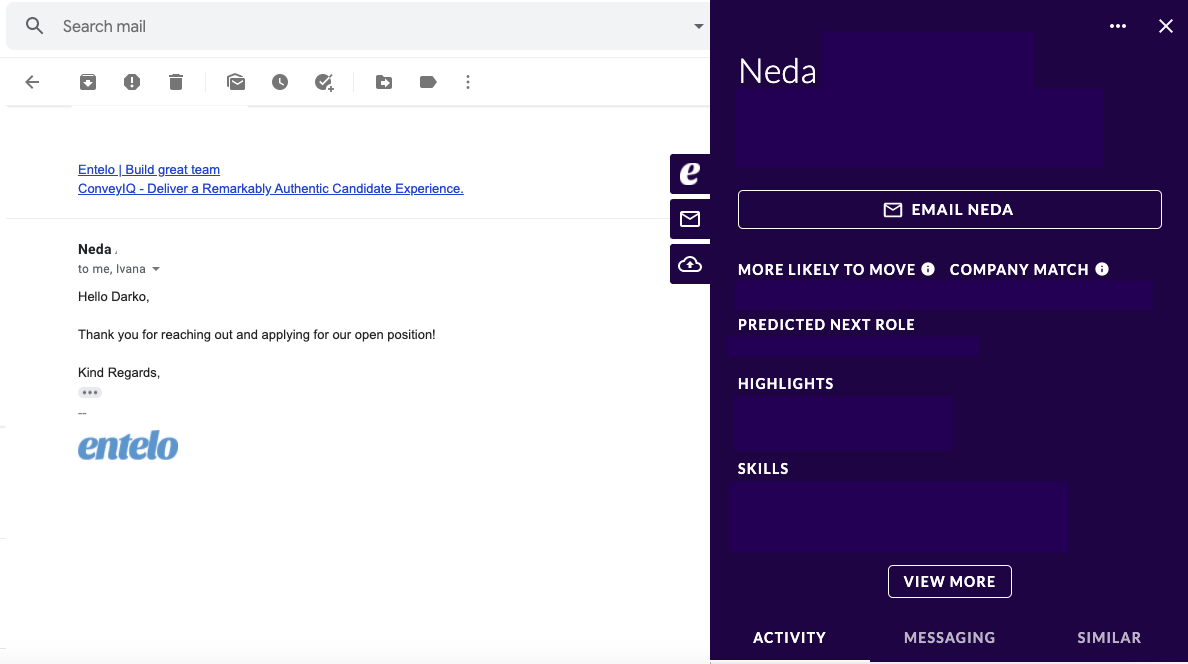
However, it doesn’t end there! With every email reply, our Chrome Extension will find a person in a thread and show you the information about them:
Finding A Candidate's Email
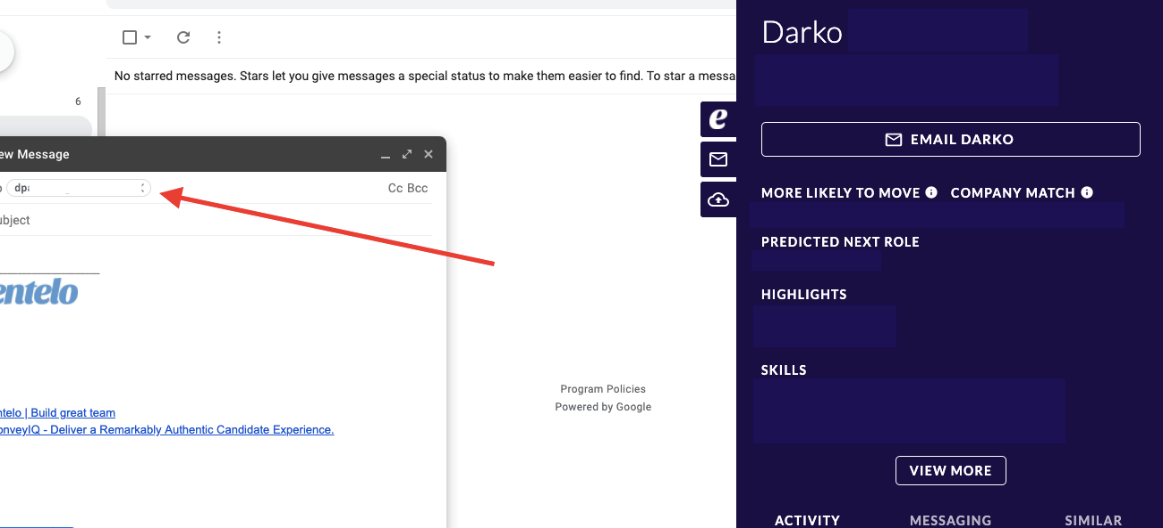
Our Chrome extension can also help pull the data about a certain candidate when you copy their email address to the clipboard from their profile on the sites like Linkedin.
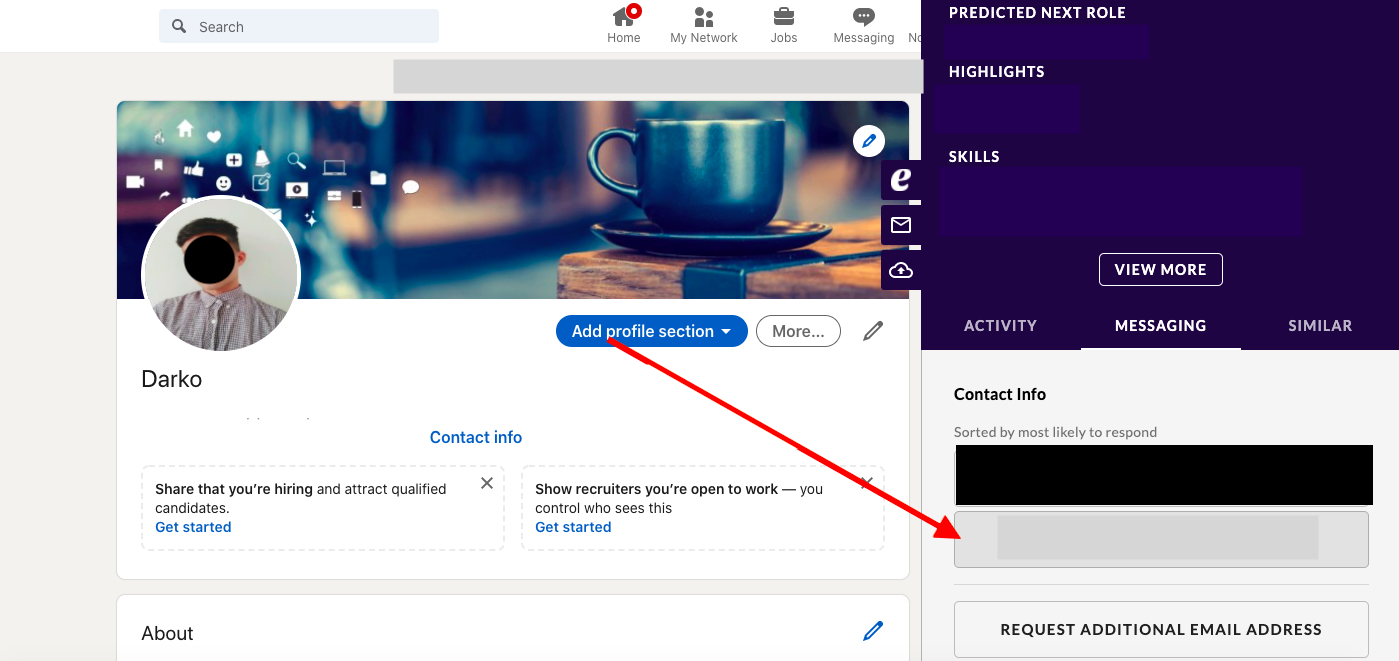
You can then paste the email address you have copied in the email you are writing and all of the information that was shown on their Linkedin page, will also show in your Gmail as well:
Please note that you don’t have to have Track enabled in order to use our Chrome extension.
That is it! A quick guide about Chrome Extension over Gmail! Best of luck!