Chrome Extension Activity Tab
The Activity tab under a candidate's profile will allow you to review a number of activities related to their account and work experience.
The first section will show you all the activities, sorted by the most recent one. In order to view them all, you should click View All Activity.
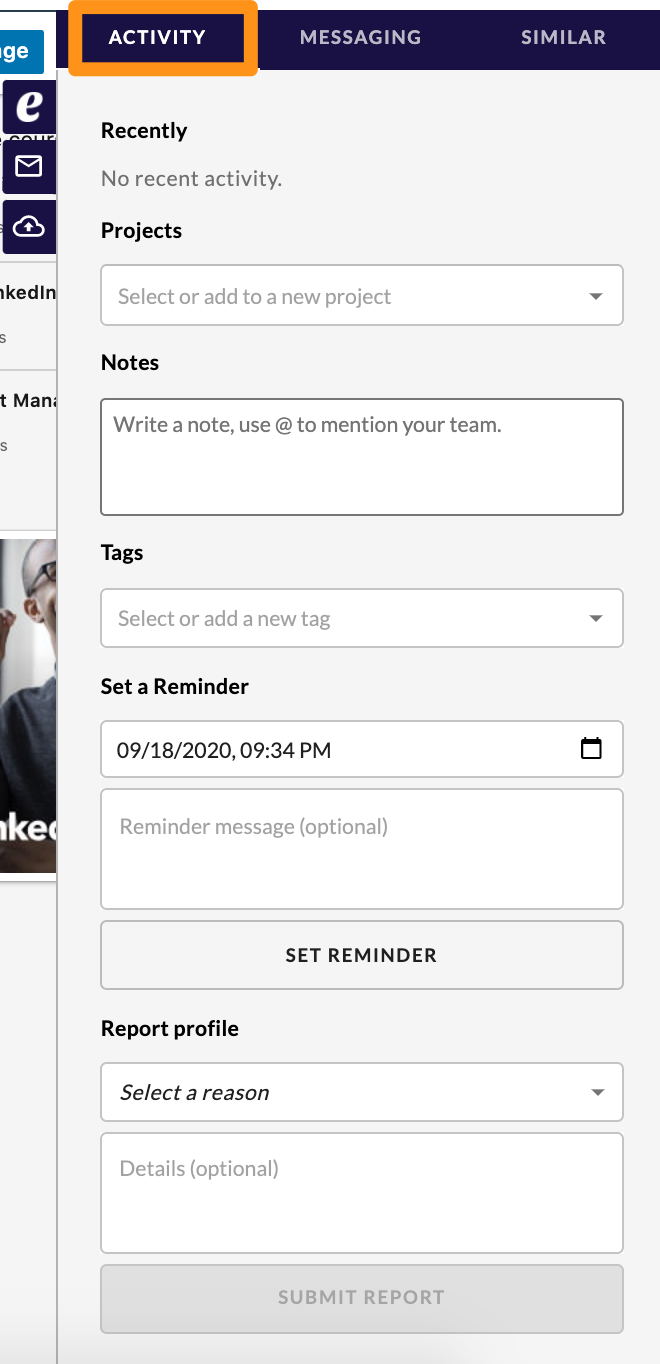
Below Activities, you will find Projects, Notes, and Tags.
- Projects will show all the projects this candidate has been assigned to. You can assign them to a new project by clicking on "Select or add to a new project" and selecting one from the drop-down menu.
- Notes will allow you to add a note related to this candidate. If you want to mention someone in particular from your team, please use the "@" symbol.
- Tags will allow you to add a particular tag for this candidate. In order to add a tag, click on "Select or add a new tag" and select one from the drop-down menu.
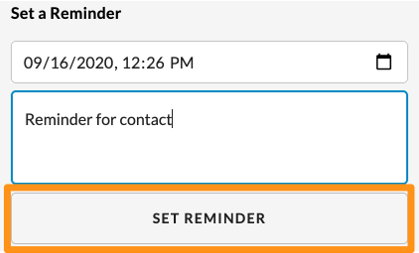
Within this section, you can also set a reminder related to the candidate. When you click on the calendar icon on the right-hand side of the top bar, you will be able to choose the date and time for the reminder, and below you will be able to enter the reminder description. In order to activate it, click on Set Reminder.
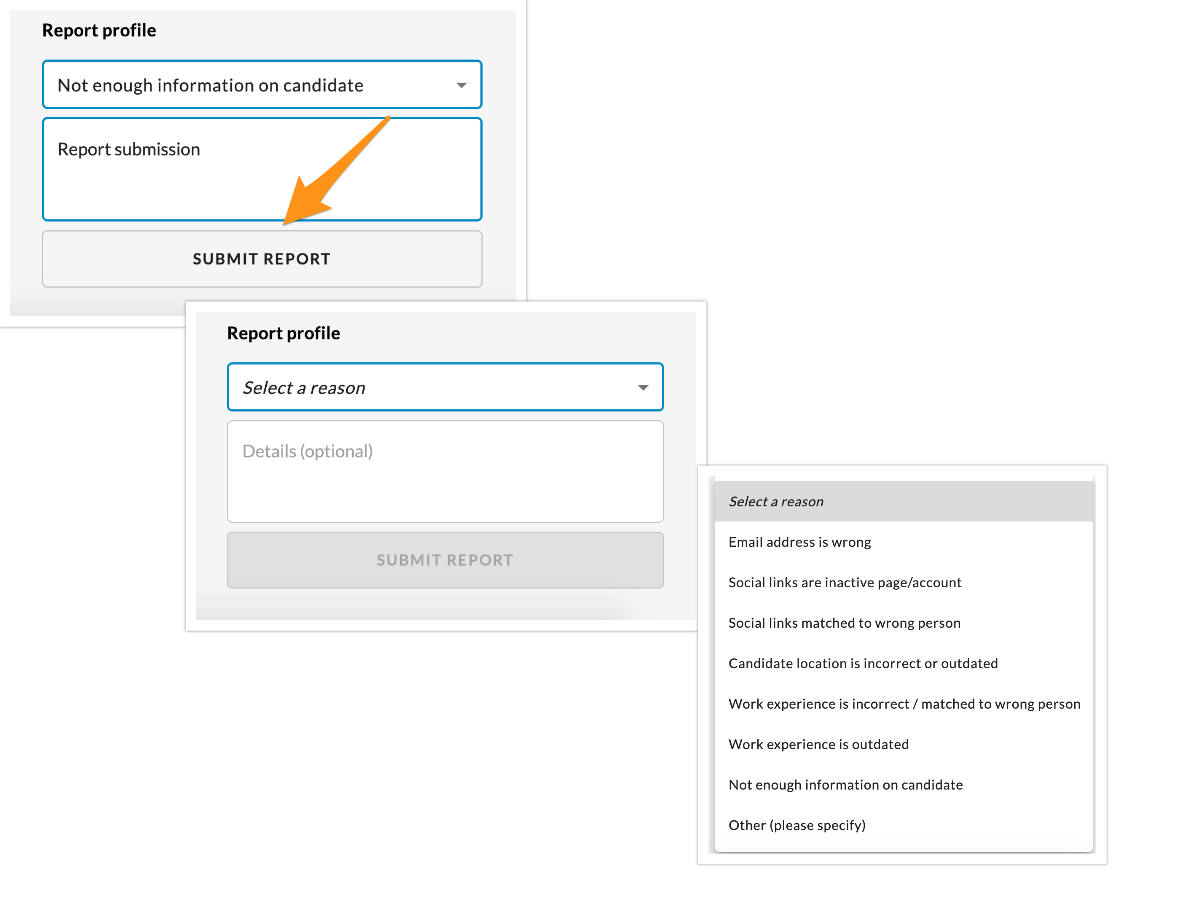 If you want to report this profile due to any kind of inconsistency, you can do that by scrolling down to the Report Profile section, selecting a reason from the drop-down menu, entering the report description, and clicking on Submit Report.