Chrome Extension overview
The Chrome Extension helps you bring Rival Search with you, wherever you source and browsing whichever preferred candidate sourcing tool.
Leverage Rival Search data while you browse profiles on other social sites such as LinkedIn, Github, Facebook, Twitter, and other sources.
What is the Chrome extension?
Chrome Extensions are small software programs that customize your browsing experience. They enable you to tailor Chrome functionality and behavior to individual needs or preferences.
The Chrome Extension helps you bring Rival Search with you, wherever you source!
You can leverage the data within Rival Search while you are on other social sites such as profiles on LinkedIn, Github, Google+, Twitter, and other sources.
How can I download the extension?
You can download our extension from https://www.entelo.com/search/extension.
Once you have downloaded the extension, click on the Rival Search icon to the right of the Chrome search bar. This will pop the Rival Search extension tab up on the right of the page if you are on a supported site. On the top of the extension, there is a button to grant additional permissions - clicking this will allow the extension to pop up without doing the additional manual steps described above. Granting these permissions is recommended - while they may appear broad, Rival Search only uses the ones related to cookies for our
Why a Chrome Extension?
It’s not uncommon for recruiters to find themselves in an endless sourcing black hole, getting lost in a sea of open tabs, hunting down email addresses, and trying to track it all in a spreadsheet. All of this back and forth between websites and spreadsheets can cost you productivity and make it difficult to reach hiring goals.
How does it work?
To successfully use the Chrome Extension, you'll need to be logged in to your Rival Search account.
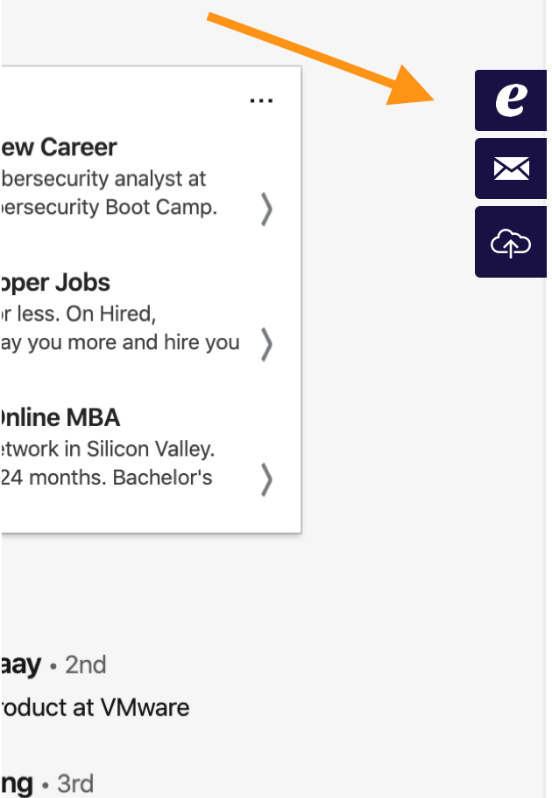
Whether you’re viewing a candidate’s professional profile or social media account, you can use the Chrome Extension’s three core modules to:
- Find and Qualify. Use the Profile module to get a summary view of a candidate’s social footprint, skill level, company fit, likeliness to move, key achievements, and career progression. Add candidates to projects and find similar profiles.
- Engage. In the Messaging module, access candidates’ personal email addresses, craft and optimize emails using Outreach Insights, and schedule automated follow-ups.
- Export. Navigate to the Export module to add sourced candidates directly to your Rival Search-partnered ATS.
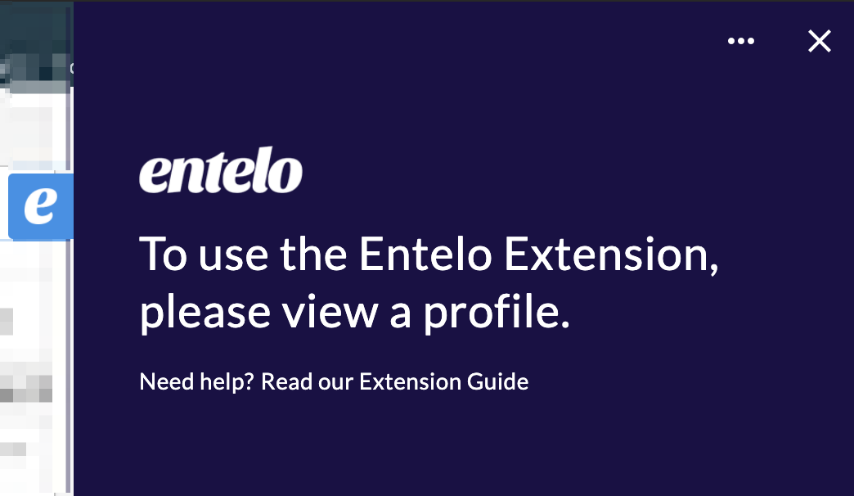
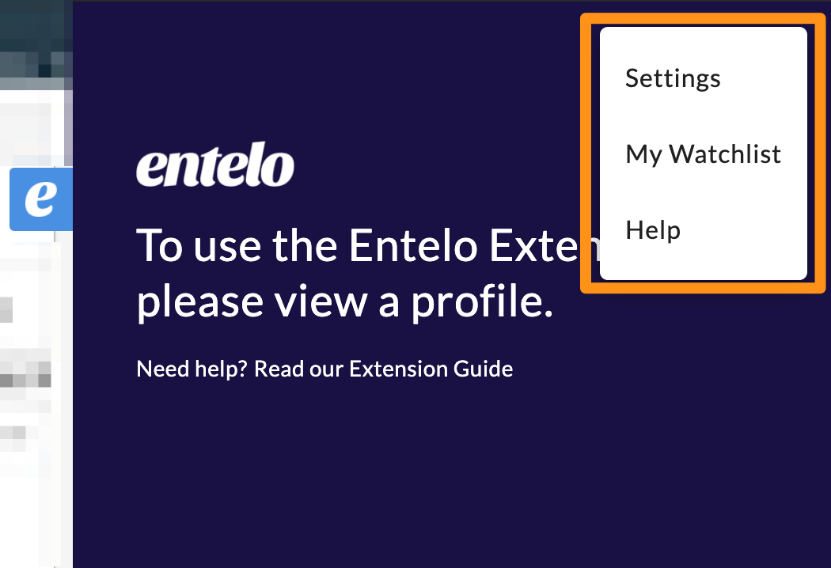
If you are located on any page other than a prospective candidate profile, the Extension will show you its' basic features, which are:
- Settings
- My Watchlist
- Help
When you enter a prospective candidate profile, the extension will show you its full potential.
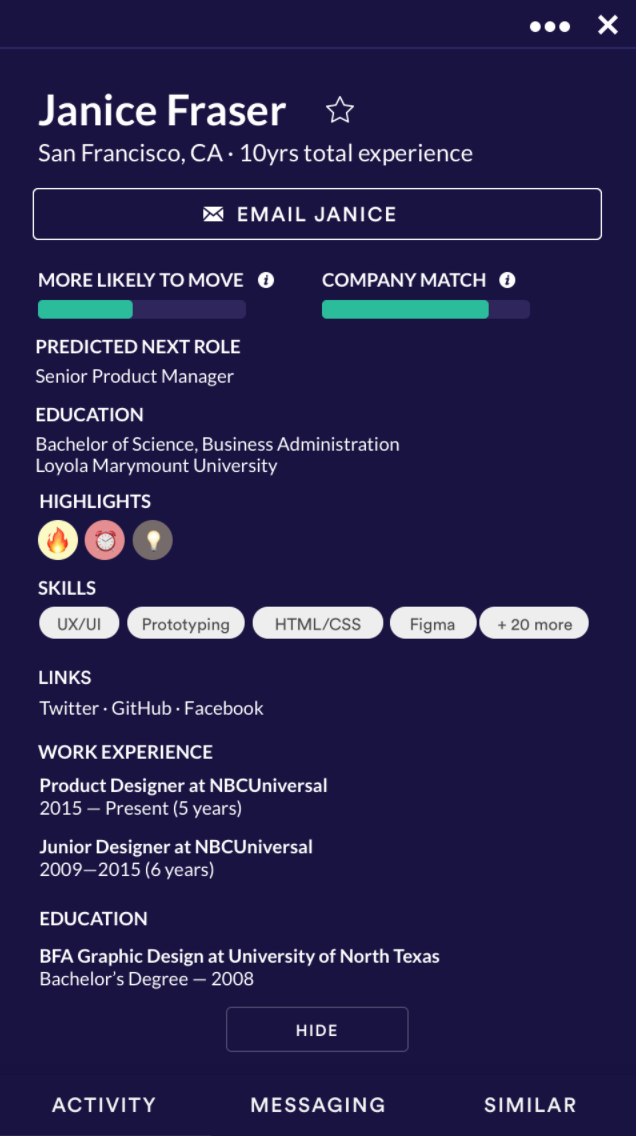
When you enter a candidate's profile, the options on the top right-hand side of the extension will contain some additional options:
- Open in Rival Search
- Report Profile
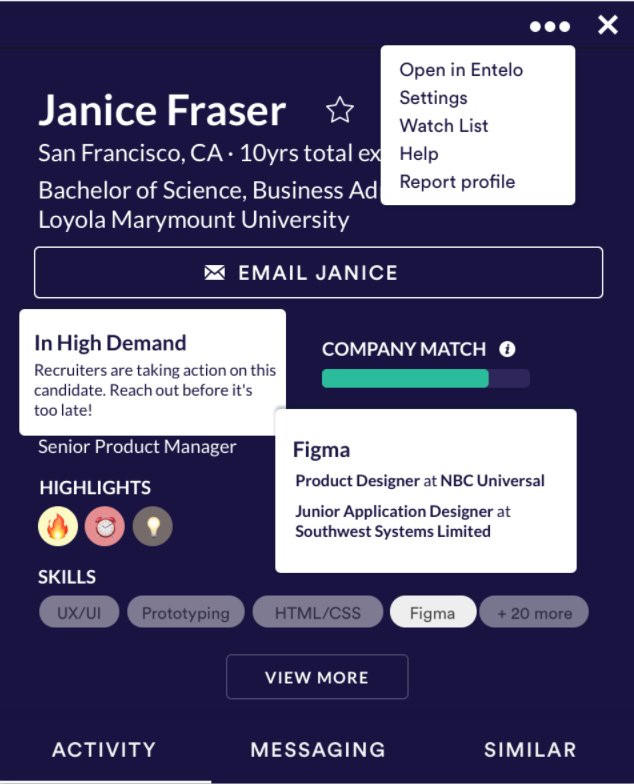
The extension will show you all the information you would need to have about the candidate (for full view, click on View More):
- Full name
- Location
- Experience and education
- If there is a likelihood to move (for example, if they have recently celebrated or are approaching a work anniversary or if they have an average job tenure of 2+ years)
- If they are a company match
- Their predicted next role
- Profile highlights
- Skills
- Links to social networks where the candidate has activity
- Detailed work experience and education
Below that, you will find Activity, Messaging, and Similar tabs.