Adding Candidates to Your Organization
How to Add New Candidates to Your Organization
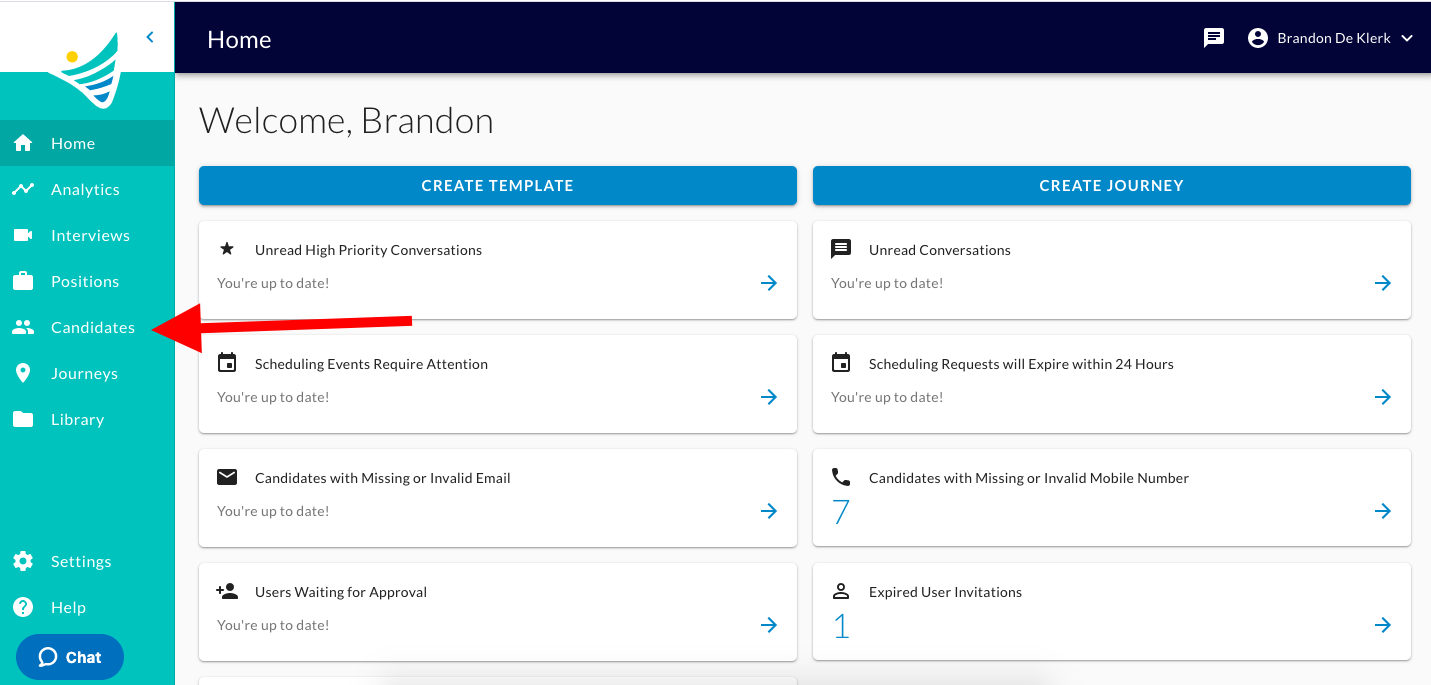
- You will start by clicking the "Candidates" button on the left-hand side of the screen.
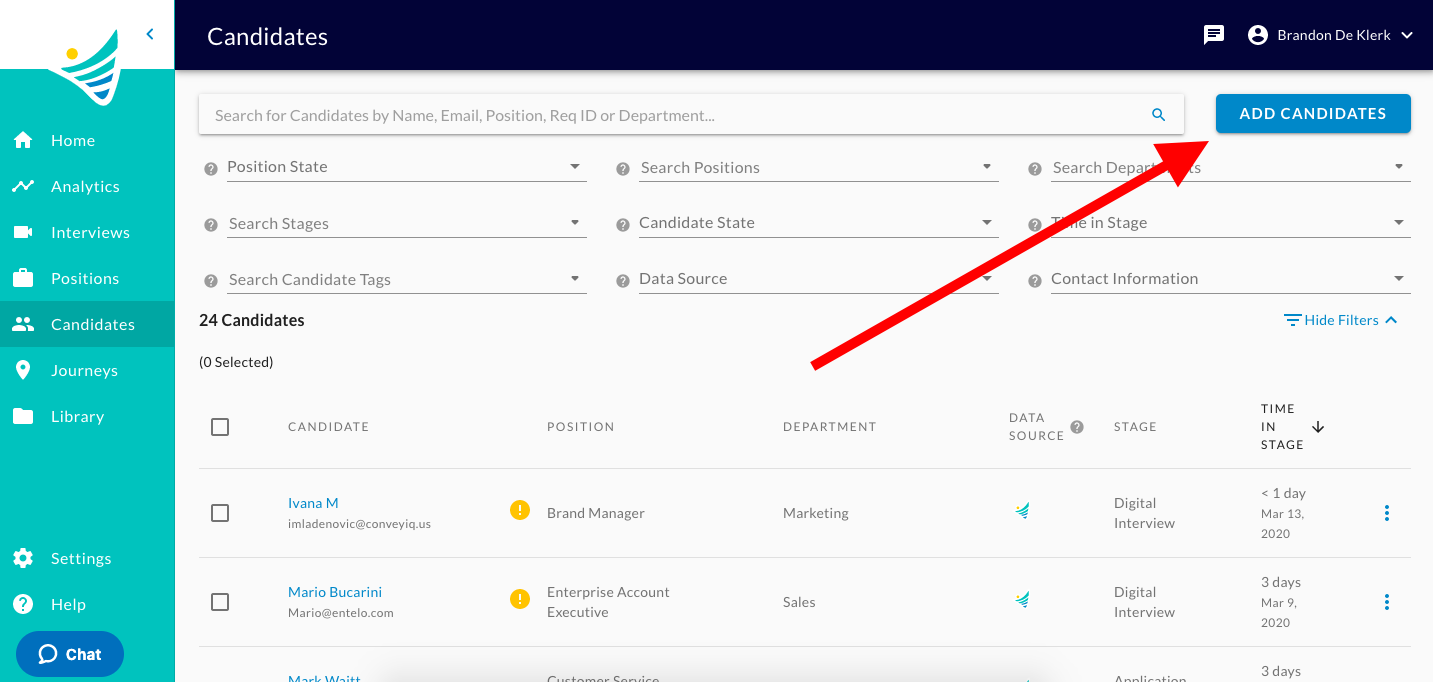
- On the "Candidates" tab you will then click the "Add Candidates" Button.
- Once the "Add Candidates" button has been clicked you will be given 2 options to either " Manually Add" or "Bulk Upload". We will cover both options in this article.
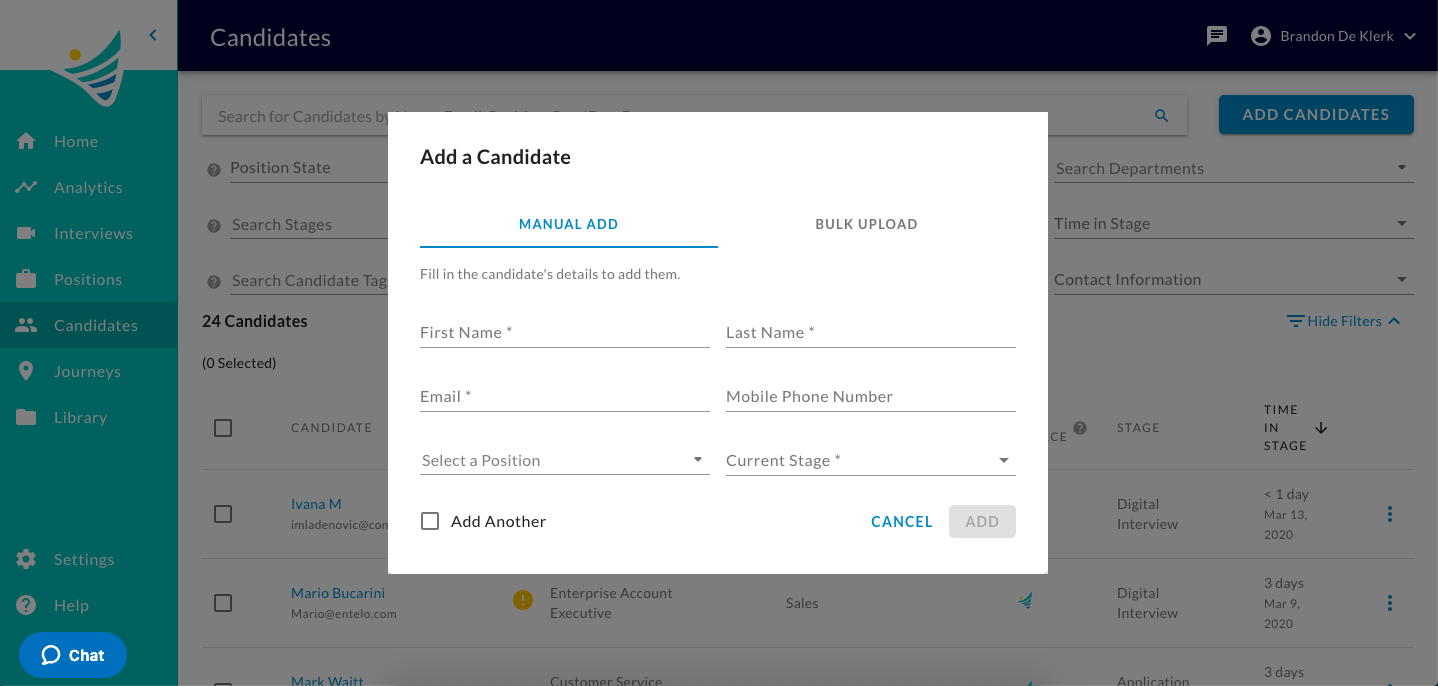
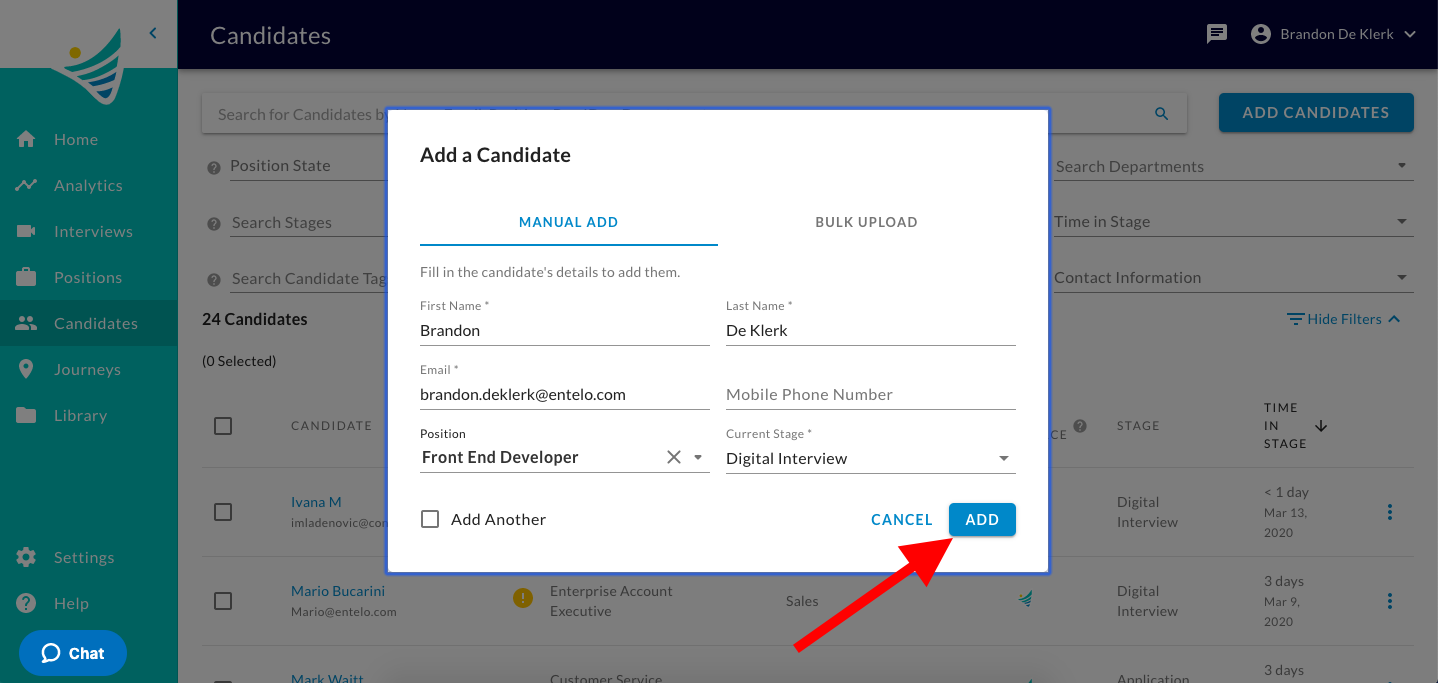
- For the "Manual Add" tab, you are required to enter the Candidate's First Name, Last Name, Email, Position, and the Candidate's "Current Stage". Once entered you will click "Add".
- If you need to add multiple candidates at once, you have the option to do with through the "Bulk Upload" option.You can export from your CRM or ATS as a .csv file to perform this action.
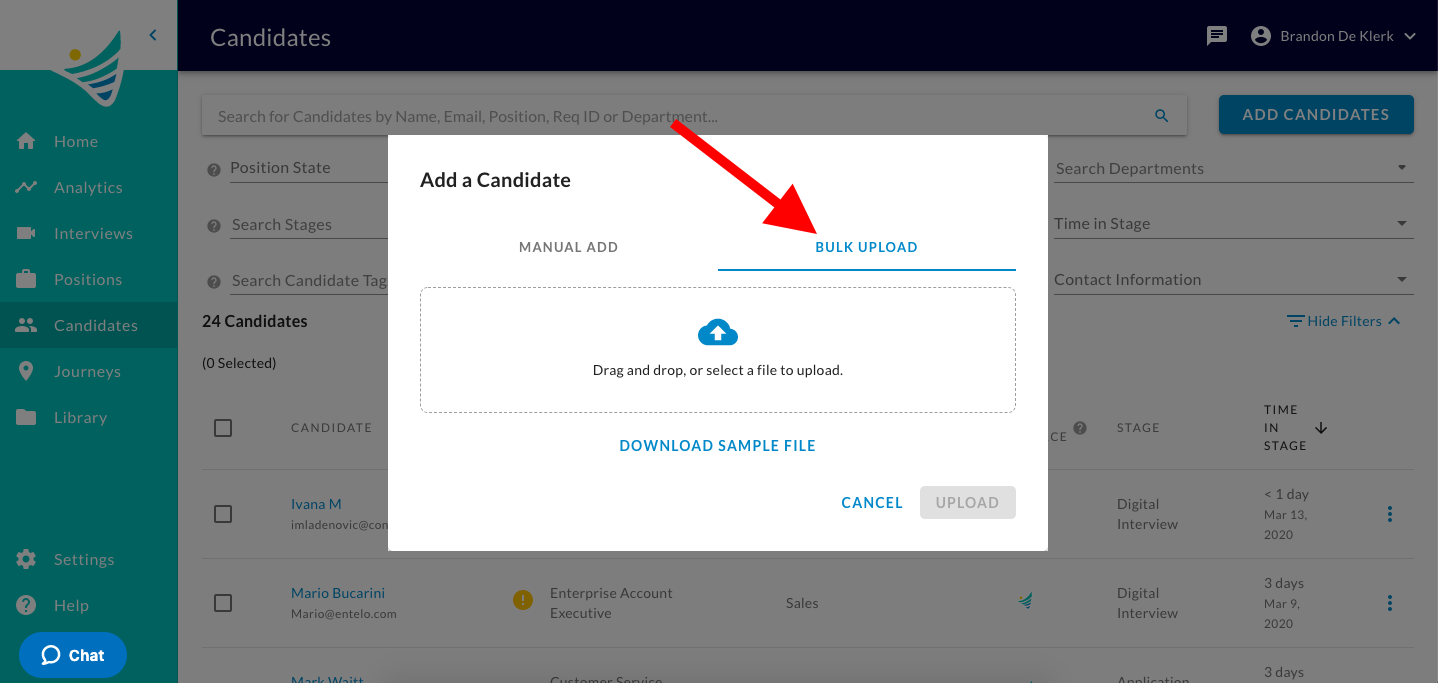
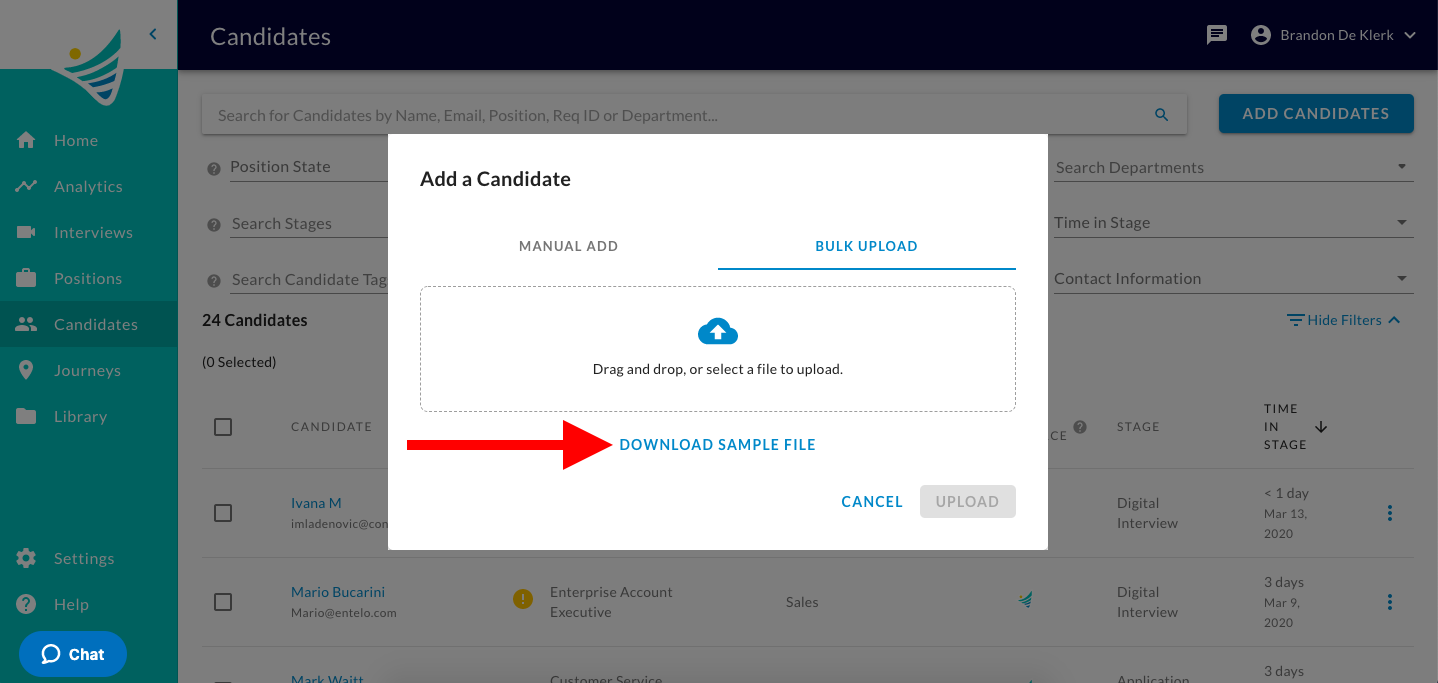
- The "Bulk Upload" tab allows you to add multiple candidates at a time with a CSV file. We will provide a sample file for you to use as a template to make sure all candidates are added correctly.
- Once you have entered the candidate's information in the CSV file you will then upload the CSV file into ConveyIQ.
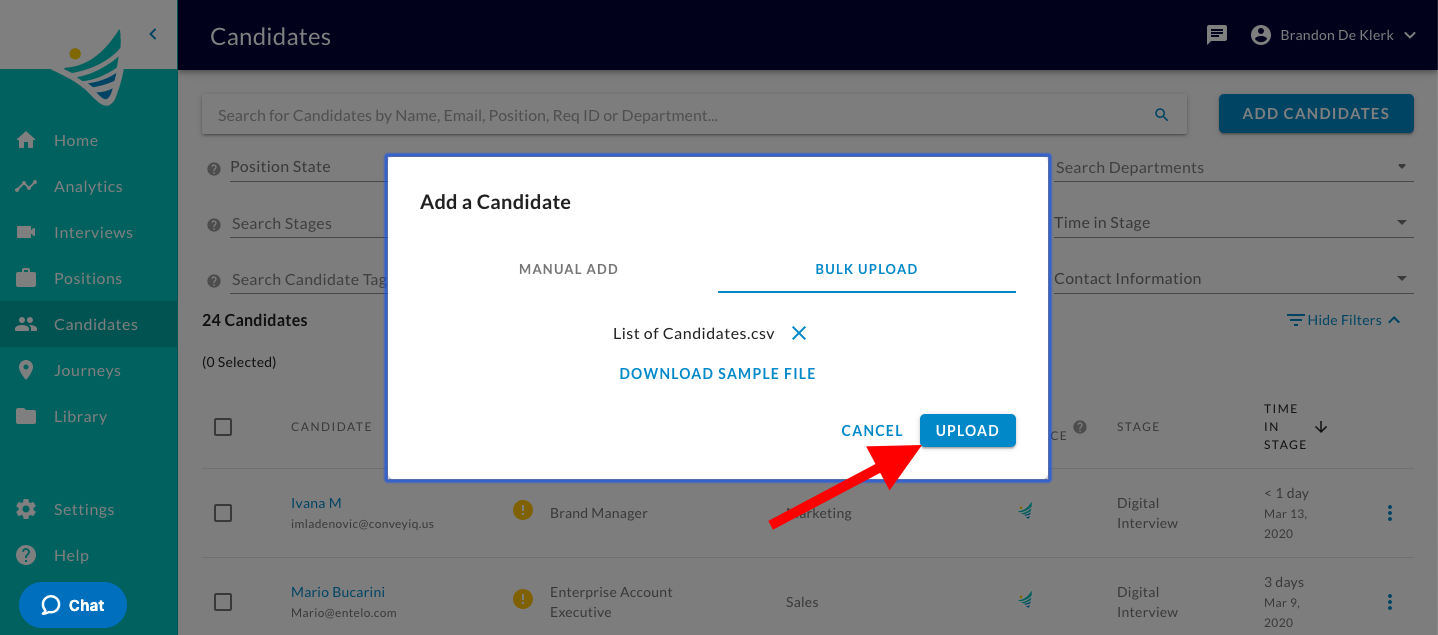
You have now successfully added a candidate or candidates to ConveyIQ.