Public Links for Interview Scheduling and On-Demand Interviewing
The Public Links feature enables recruiters to post or share a position public invite to take an on-demand interview or schedule an interview for high volume roles.
Recruiters are able to create a Public Link post it on the company website, job board, or send it directly to the candidate in order to complete or schedule an interview.
One of the possible usages of Public Links is a hiring event where the recruiter has the candidate click a link to take an on-demand interview on the spot. The candidate fills out their contact info and then continues onto the process of taking a digital interview (or picking a time slot for an interview).
Also, if you source candidates using some other method and collect their emails you can easily bulk invite them to complete the interview process or schedule an interview.
Here is how to get started:
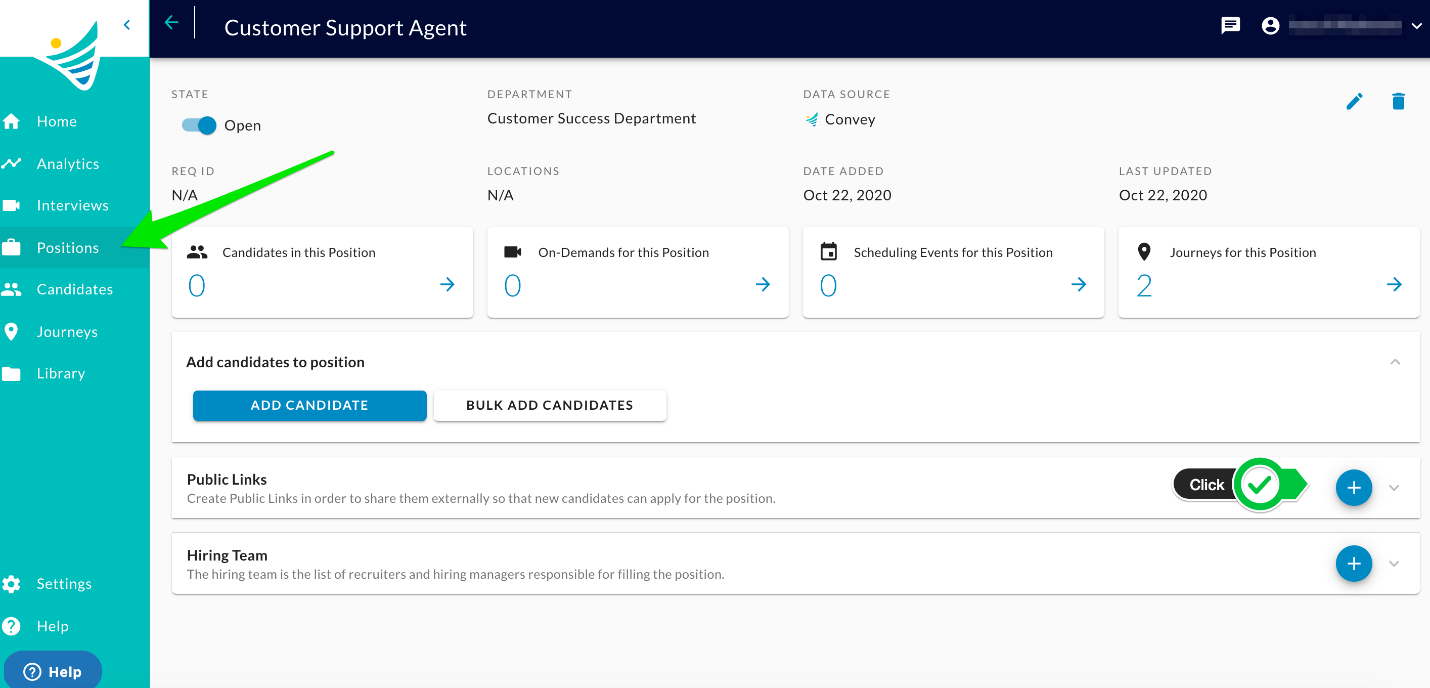
- Go to the Positions tab and click on the "+" icon next to the "Public Links" section
- Choose Stage, On-demand /Scheduling Template and define if "Require email verification" is required or not
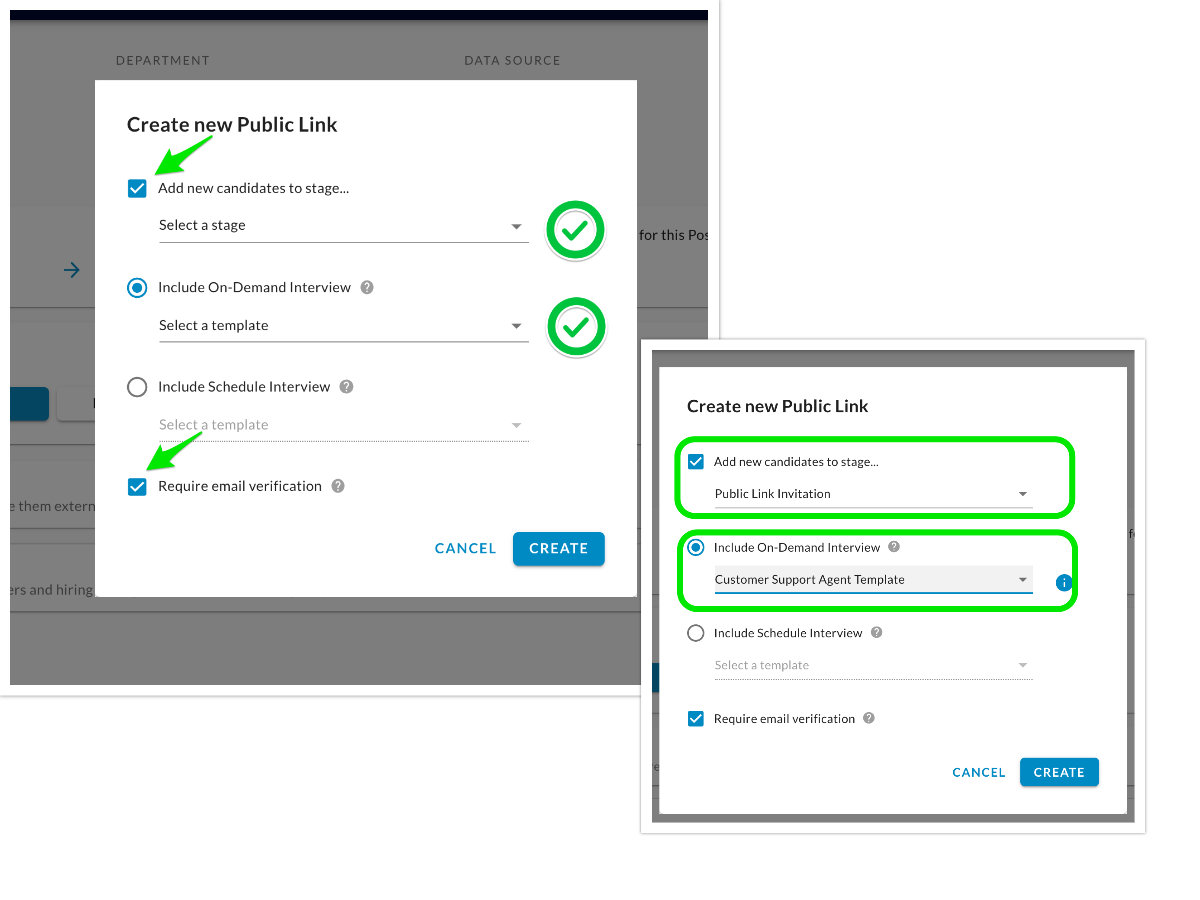
- Stage: Candidate status in the current ongoing recruiting process.
- On-Demand / Scheduling template: Previously created template of questions that candidate is required to complete / Previously created scheduling template with offered available slots for the candidate to select.
- "Require email verification": Requiring the email verification step is a more secure candidate flow when using public links. By following the public link candidates are asked to provide their email address and an automatic email will be sent to their inbox with a verification link. The candidates will have to continue the flow by following the link from the email.
- Click Create. Your Public Link is created and ready to be shared! Expand the Public Link section to locate the created links.
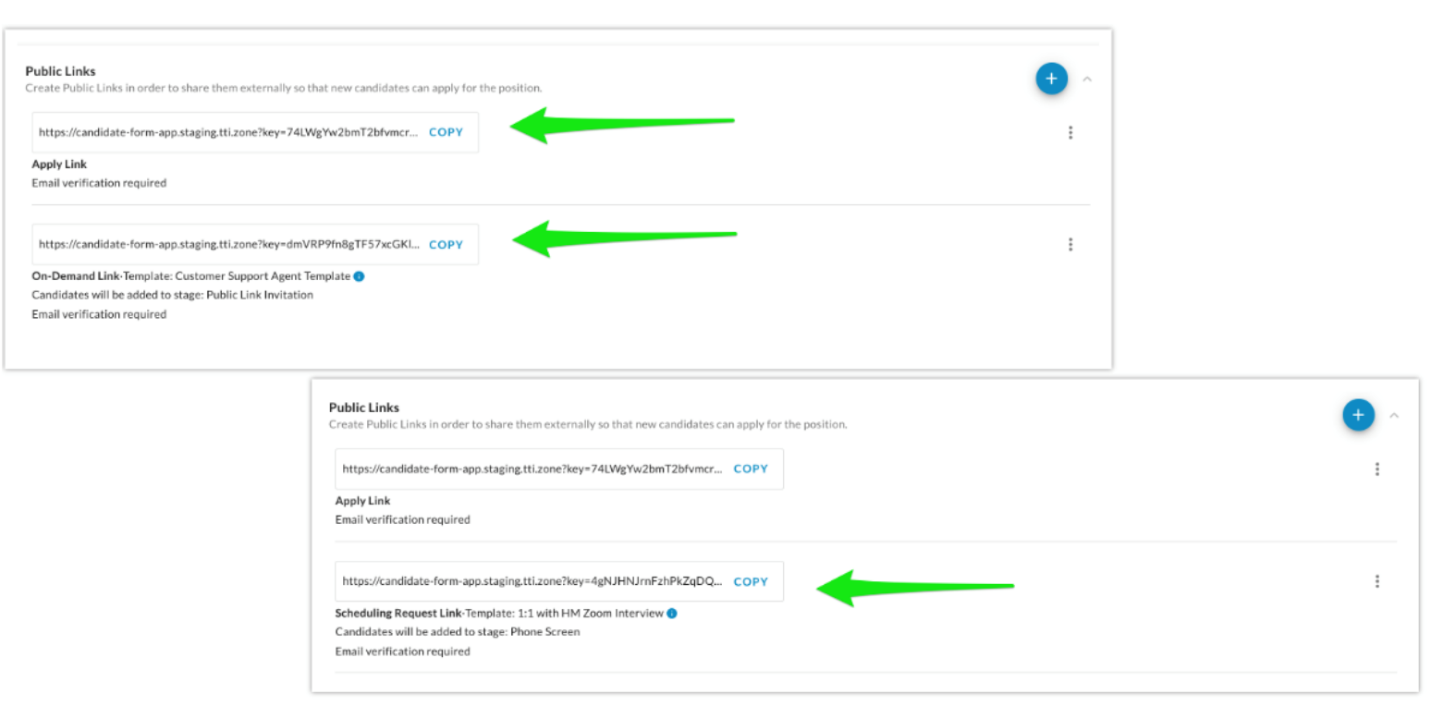
The Position Apply Link is automatically created whenever a new position is created in Convey through Convey Open. Sharing this link we allow you to source candidates interested in the position before you actually decide to proceed with video interviewing or interview schedule.
By sharing On-Demand Link / Scheduling Request Link candidates will be able to proceed and complete the interview process to or schedule an interview.
- Copy the link and share it with your candidates.
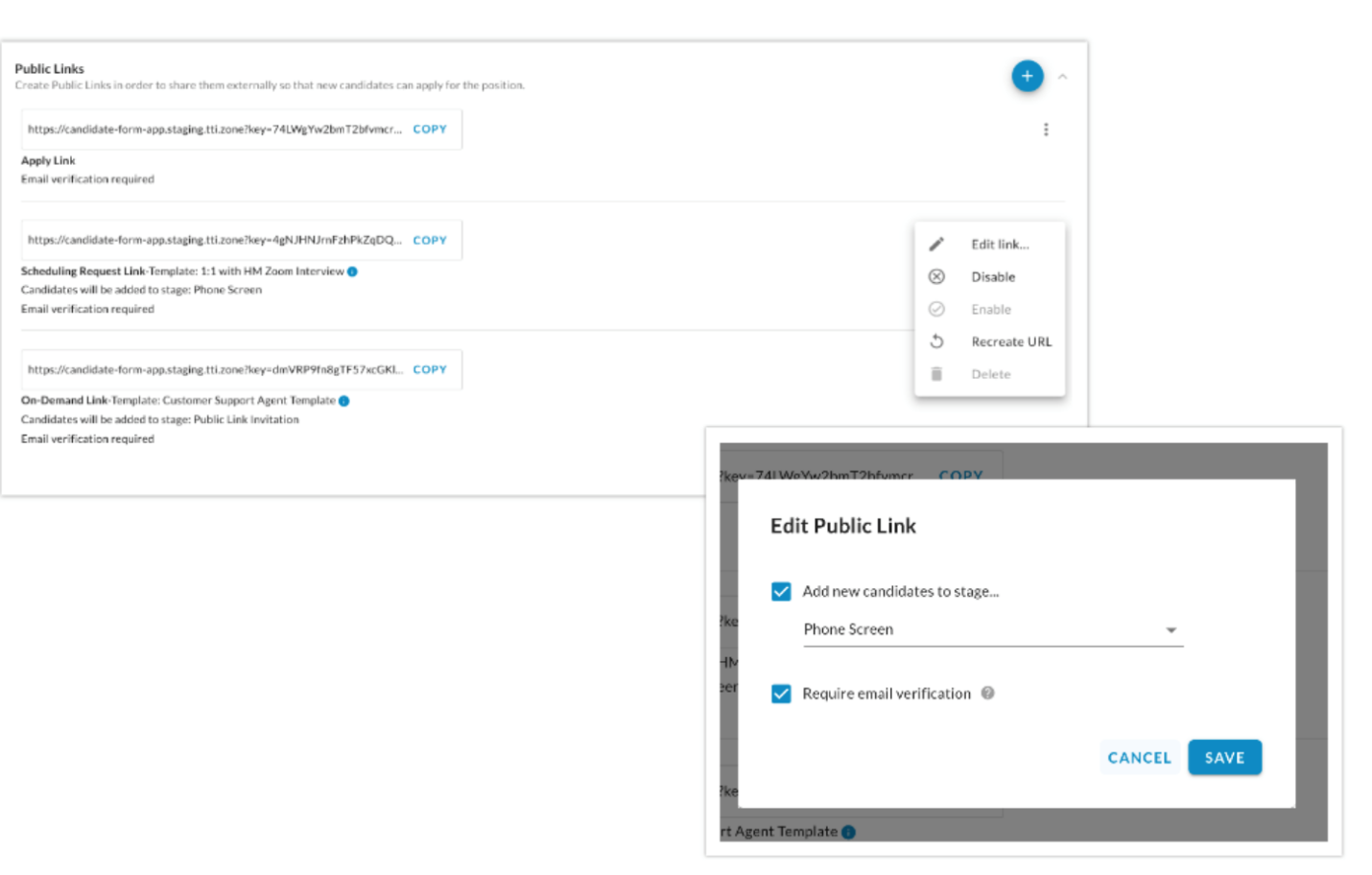
When a link is created and shared with your candidates, we still are allowing you to change and update it.
- Click on the three dots on the Public Link section to expand the edit menu
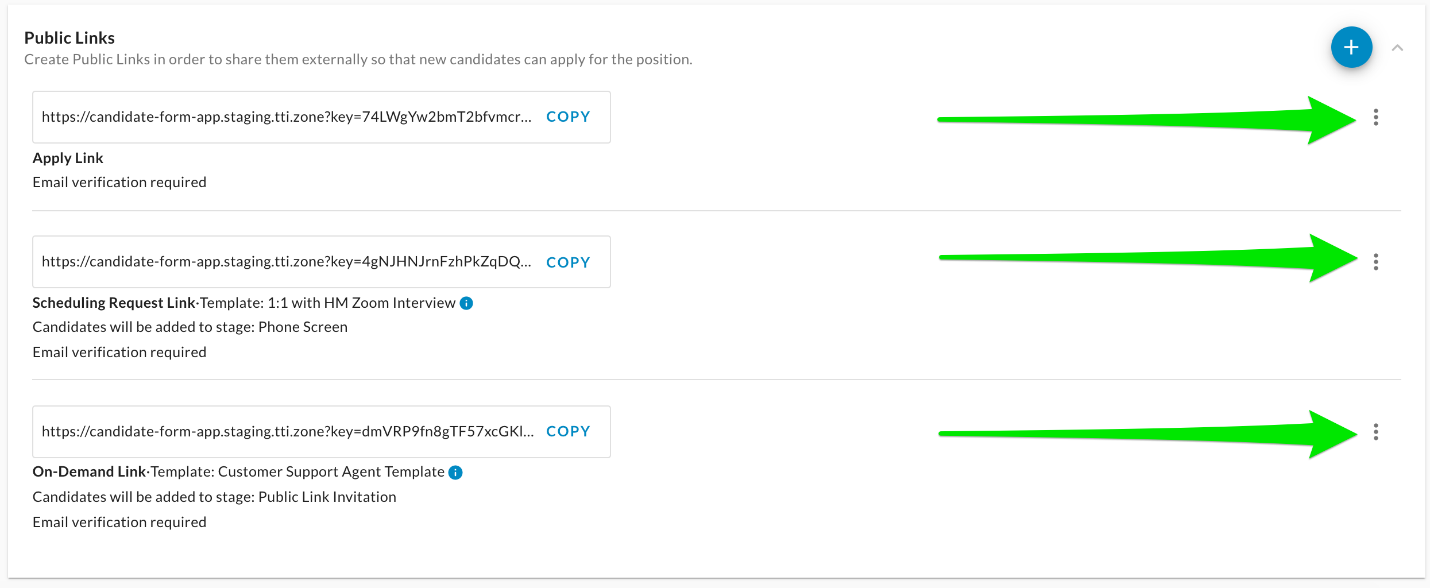
We allow you to change the created link setup by changing the Stage, Email verification, Recreate a new link and if you want to stop the recruitment process, Disable the link.