Stage Management
- You will start by clicking the "Candidates" button on the left-hand side of the screen.
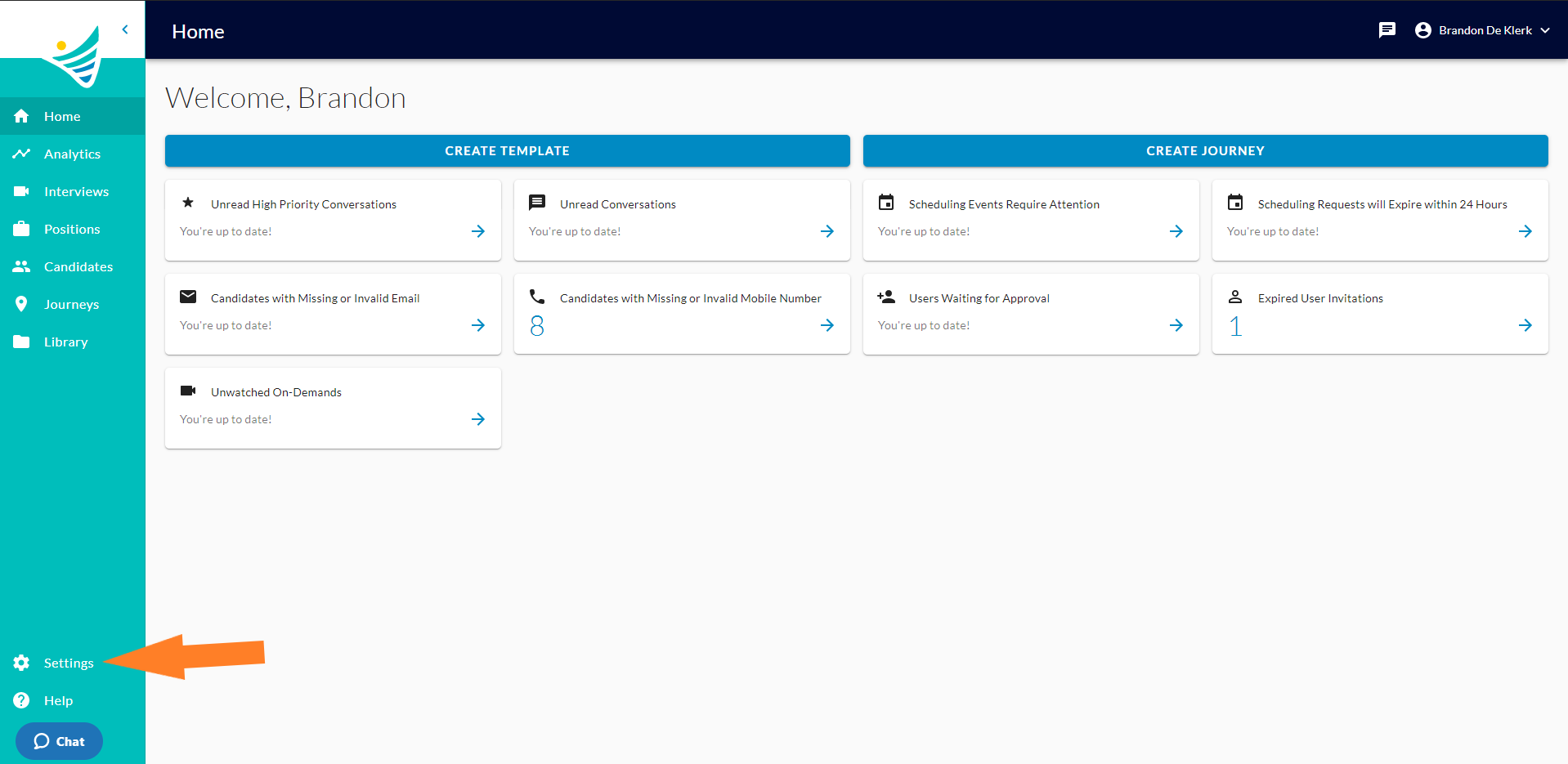
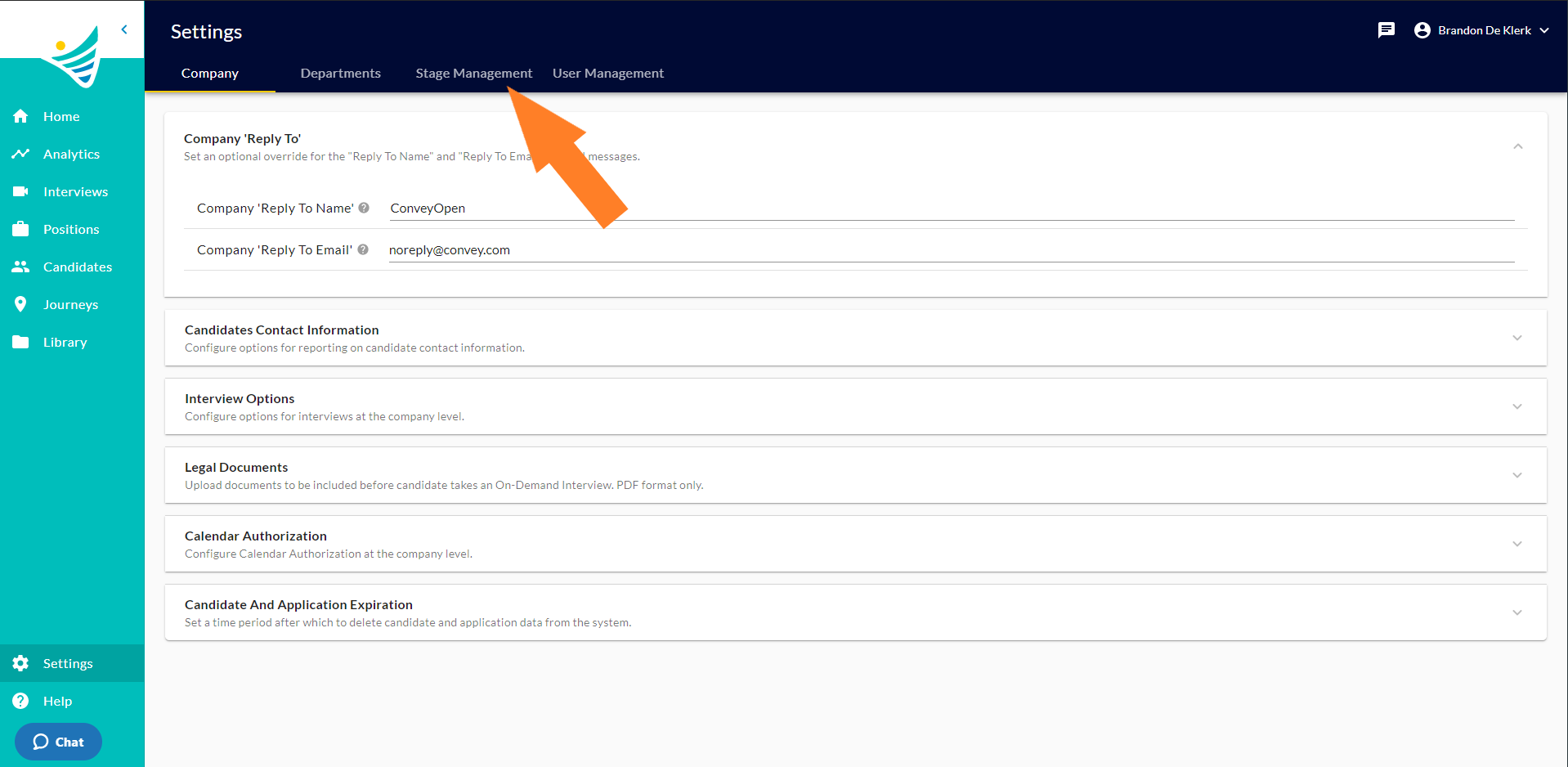
- Once you are in the "Settings" tab. You will click "Stage Management" at the top of the page.
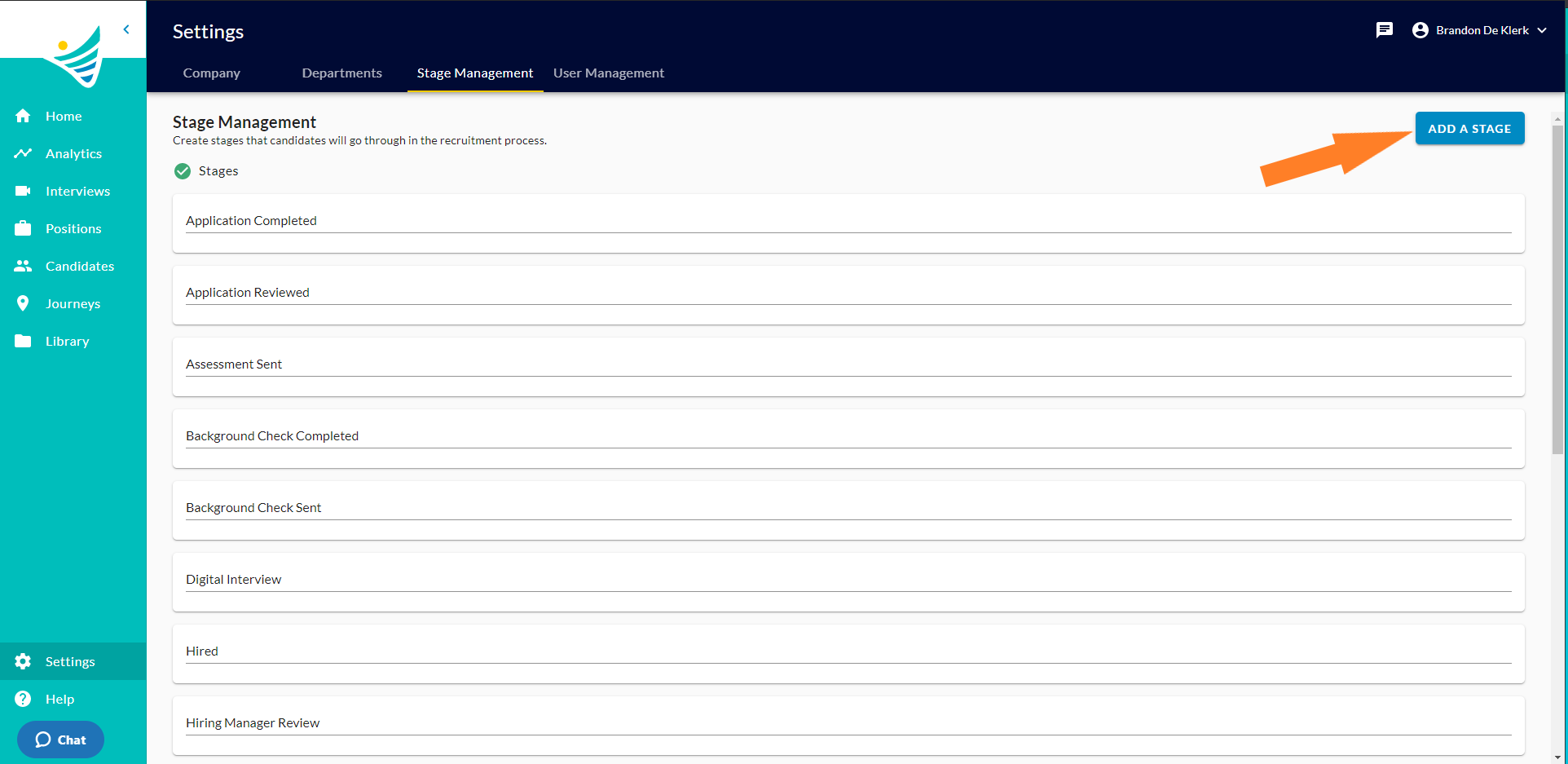
- When you're on this page you can view all of your companies stages, you can also add a new stage by clicking the "Add Stage" button.
- Next, you will need to name the stage. Once you have named the stage, you will click "Save" at the bottom right of the page.
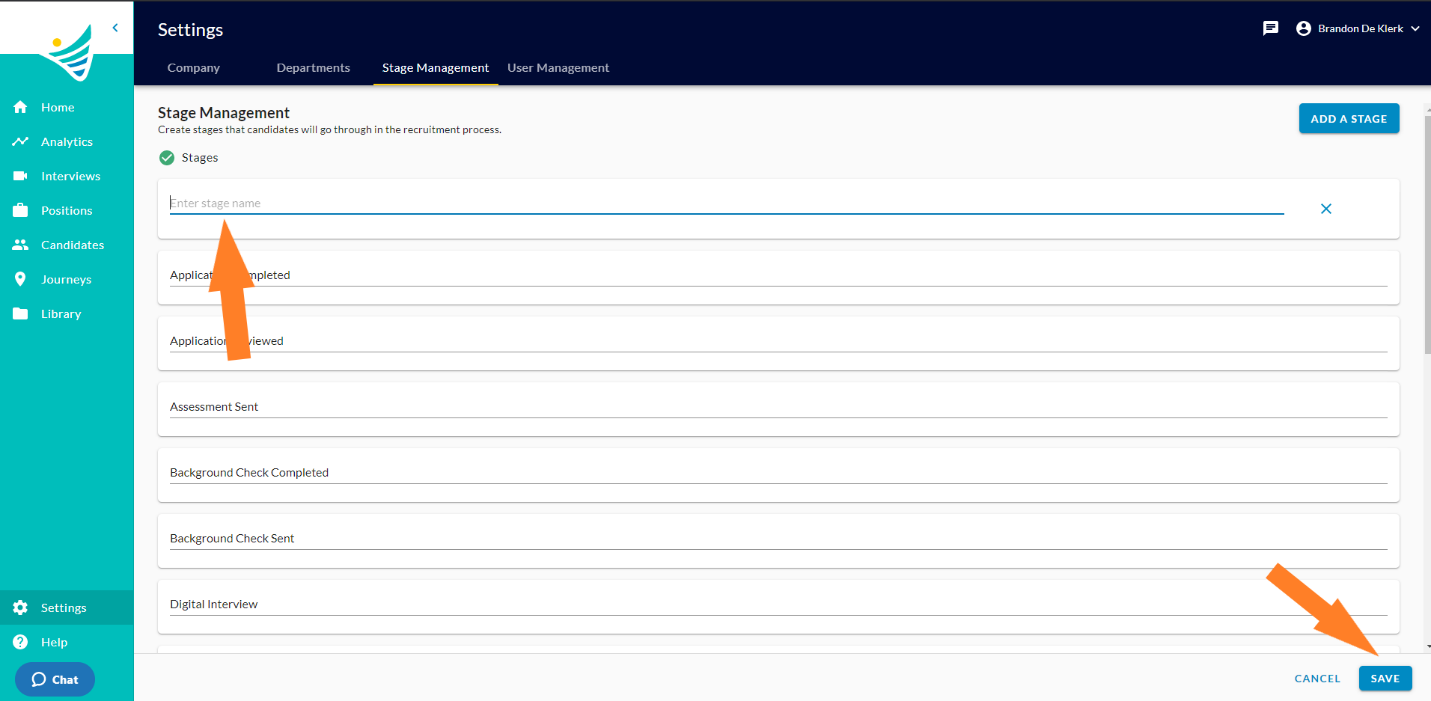
You have successfully added a stage in the "Stage Management" tab.