How to upload your Resume?
If your recruiter wants to get to know you better, may ask you to attach your resume.
This step can be optional or required, that depends on the setup defined by your recruiter.
If the resume upload is set as optional - you can skip it if you don't want to enclose your resume or it can be required. However, if it is set as required - you'll not be able to proceed with the interview process before you upload the file.
Here are the steps how to do that:
- In case resume upload is optional, you can choose to skip this step and continue to interview or you can upload it like it is explained in step 2.
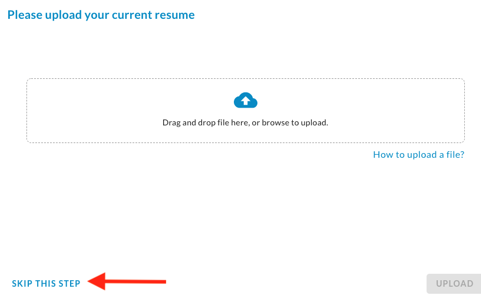
- If you choose to upload a resume or this action is required by your recruiter, there are two different ways how to do that:
- Drag and drop files or
- Browse to upload. You can choose from files on the device, mobile, and desktop, or from a cloud account.
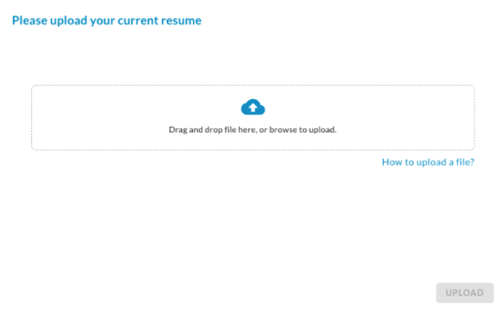 If you prefer to browse to upload, simply browse for your resume and click on the "Open" button or double click on the file.
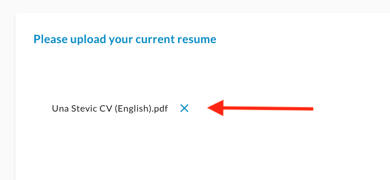
 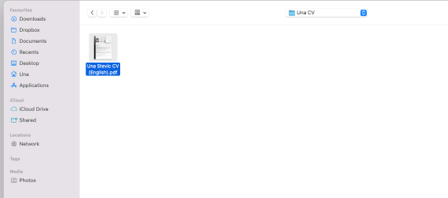 Once you have selected your resume it will look like in the next picture.
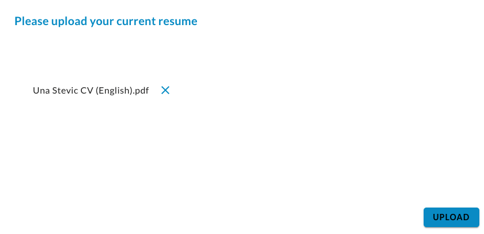 In case you change your mind, you can delete the selected file by clicking on the 'X' icon next to the file name and upload another one. When you are sure about your decision, just click on the "Upload" button.
  After uploading your resume you will proceed to the interview starting with your interview questions. Please note following:
- The support file formats are: .doc, .docx, .pdf, .png, .jpg
- Maximum file size: 50 MB If you are interested in what the whole interview process looks like, feel free to check this article.