Navigating the Candidate Page
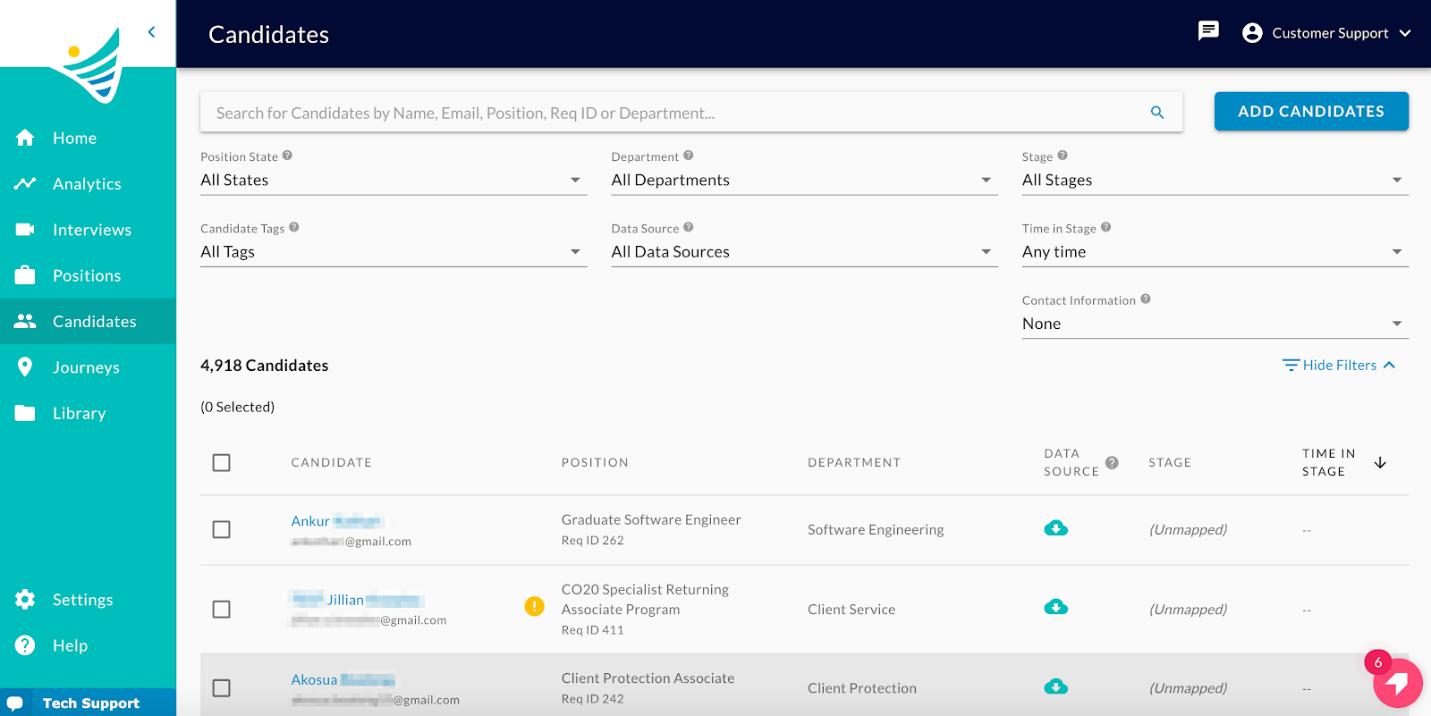
On the candidate page (which can also be considered an ‘Applications’ page), you will have the ability to search for your candidates by their name, email, position, requisition number or department. You can also filter the list of candidates by position state, department, stage, and time in the stage.
Sorting the List
When you click on the column header, it will sort the candidate list by whichever criteria you select. Sorting is available by either: A-Z or Z-A or Time in Stage: Oldest to Newest or Newest to Oldest.
Filtering the List
You can filter the list:
- The Position Statesavailable for the filter are: Open, Closed.
- The Time in Stageavailable for the filter are: In the last 1 day, 7 days, 14 days, or 30 days.
- The Departmentand Stagefilter options will vary based on your ATS setup.
- The Candidate Tagsfilter options can filter the candidates by the Tag they are associated with.
- The Data Sourcefilter options can be either Convey or ATS.
- The Contact Informationfilter options can filter the candidates by their contact information to check which candidates have an e-mail address or mobile phone number issues.
Candidate Details
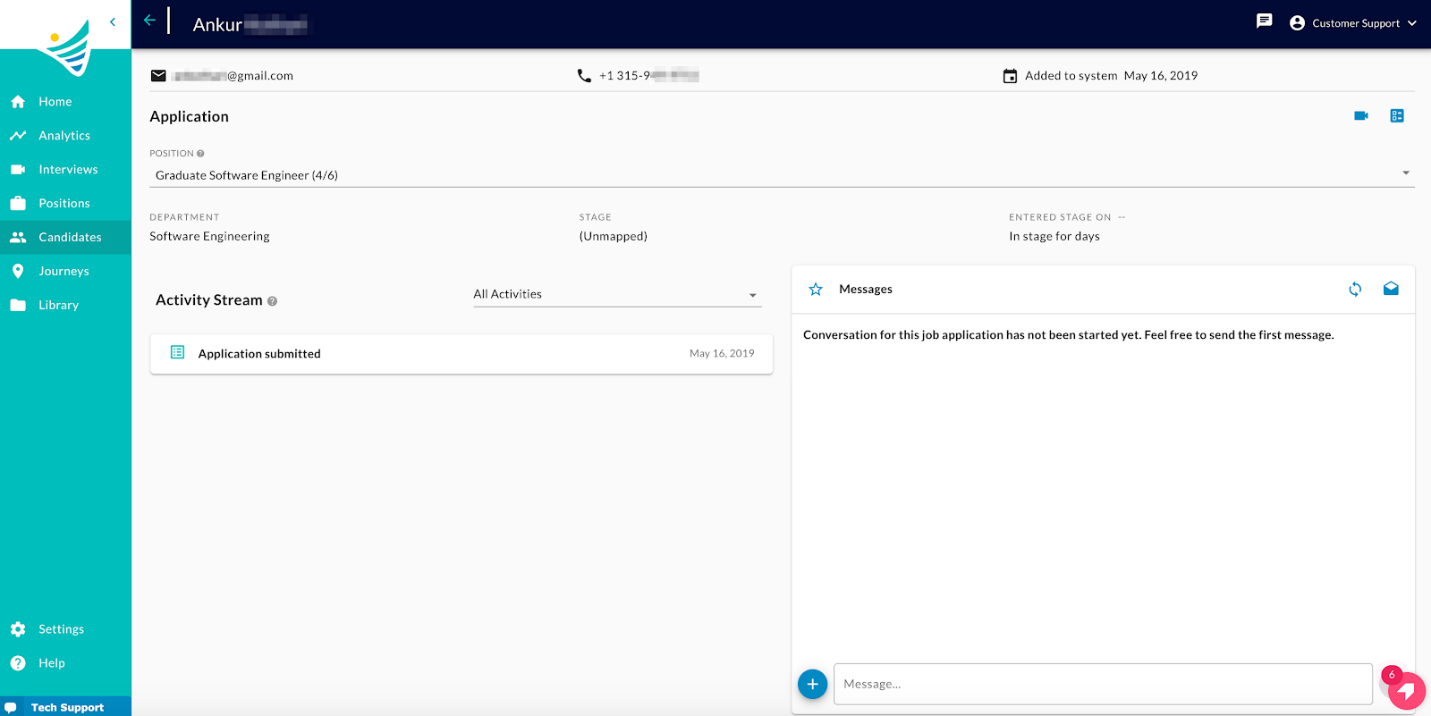
When you click on a candidate's name, it will take you to the candidate details. Here you will find their email address, phone number (if available), date they were added into the system, applications submitted, department that the position belongs to, stage, and time in the current stage.
Multiple Applications by One Candidate
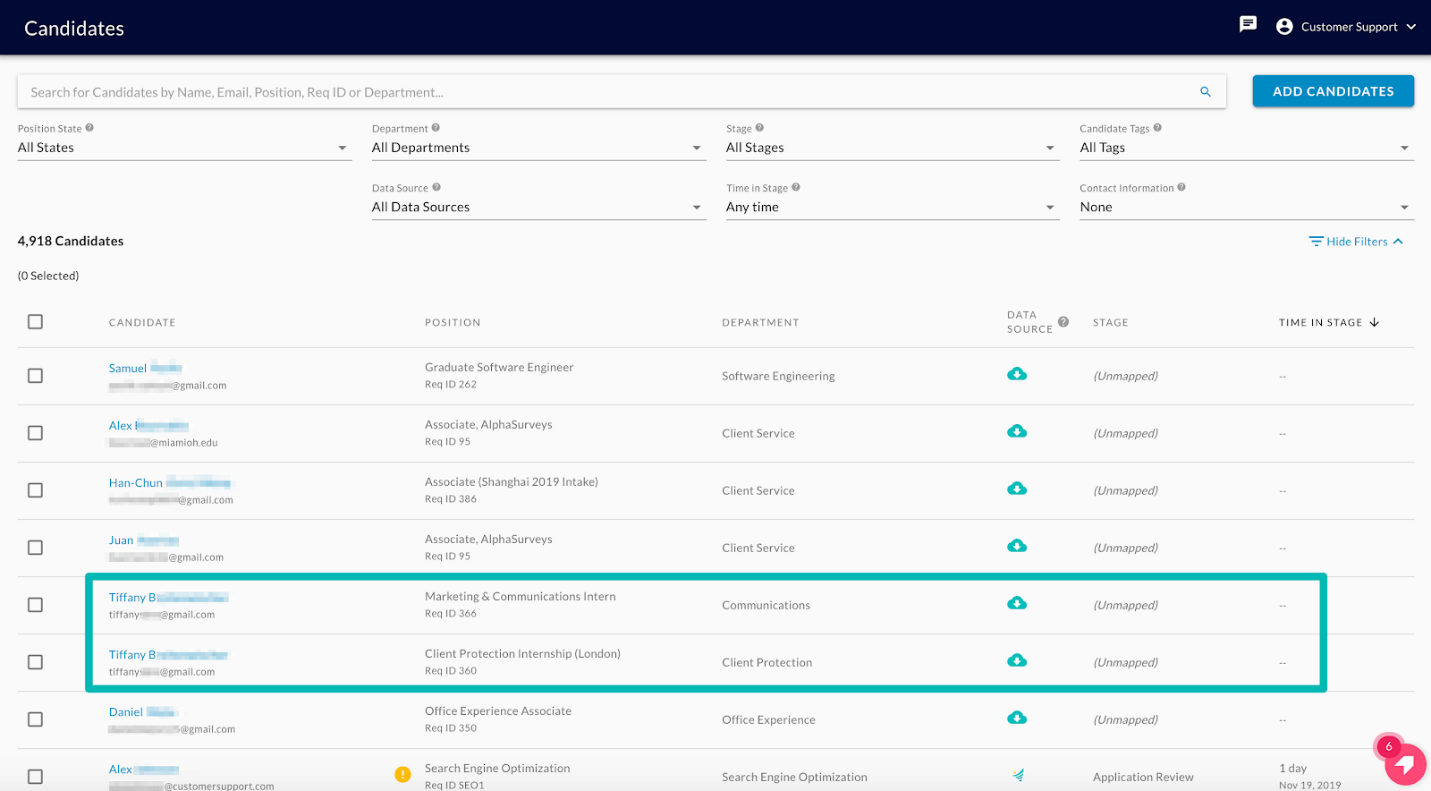
If a candidate has applied for multiple positions, you will see them listed multiple times tagged to the positions/departments that they applied to. Within the candidate details, click the drop-down on applications to toggle between the positions.
Activity Stream
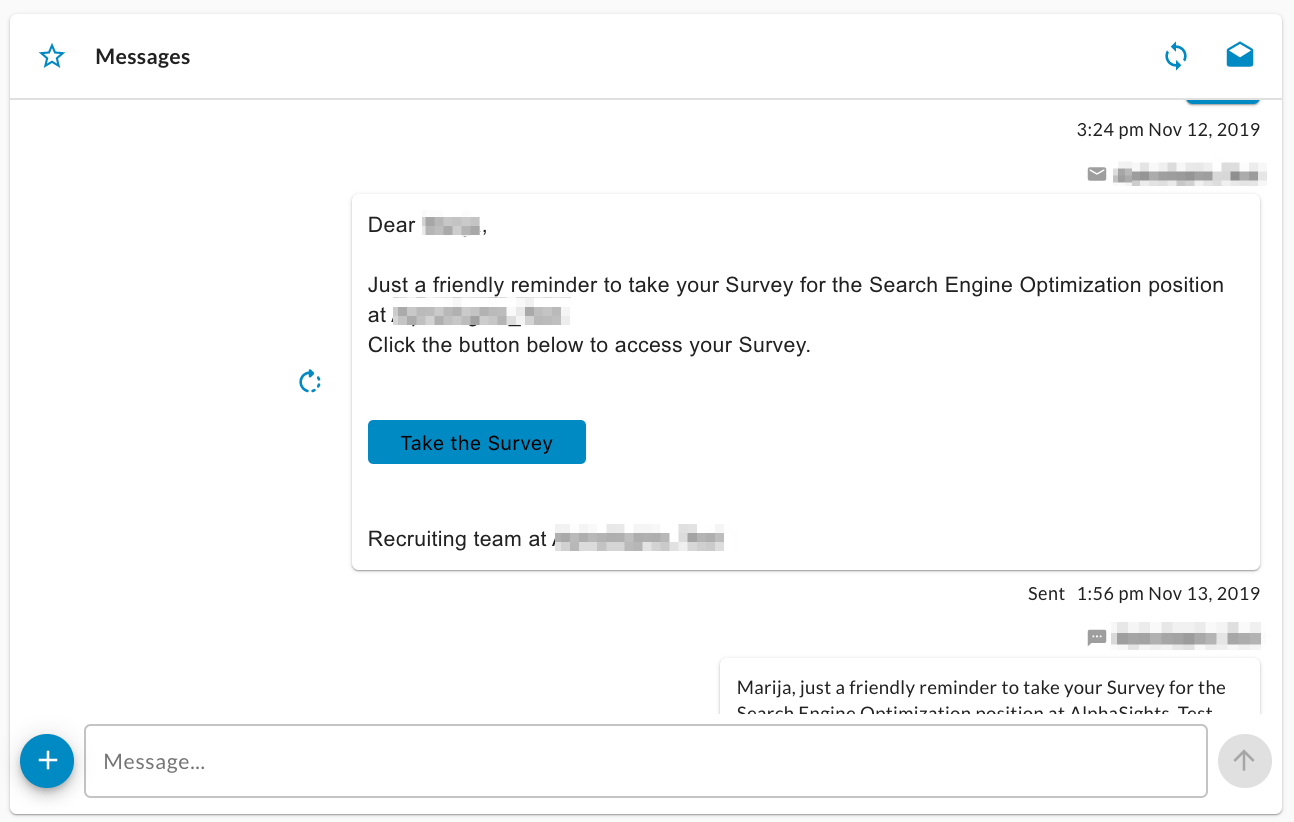
The Activity Stream will show you the date in which each ConveyIQ specific activity was completed. The activities available to see details for are: On-Demand Sent, Email Sent, SMS Sent, Application Submitted.
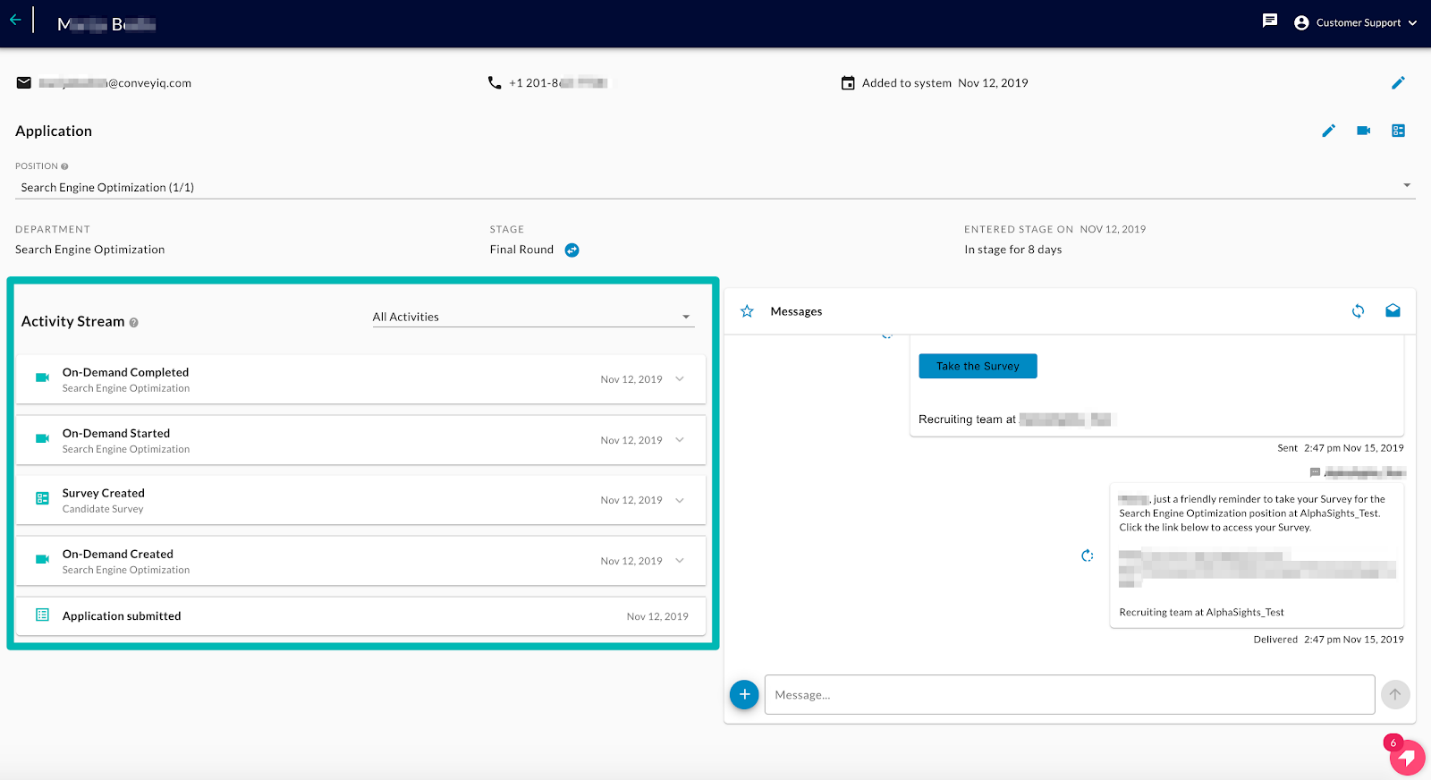
By clicking into the different sections, you will see the following:
- The Template Name that was used to send the On-Demand invitation
- Expanding the card will allow you to view the full Email or SMS message that was sent
- The date that the particular step took place