What are Calendar Resources?
In this topic, you will learn about what is a Calendar Resource, where to find them, the purpose of Calendar Resources as well as the difference it makes when it comes to Automated Scheduling & Manual Scheduling.
What is a Calendar Resource?
A Calendar Resource is a person or a conference room who participates in your interviewing sessions with candidates. Note that we have said a "person". This is because a Calendar Resource can be a hiring manager, recruiter, a conference room, or anybody that participates in conference rooms.
What is the purpose of a Calendar Resource?
The main purpose of a Calendar Resource is to predefine people that you would like to participate in the scheduling process.
Where to find Calendar Resources?
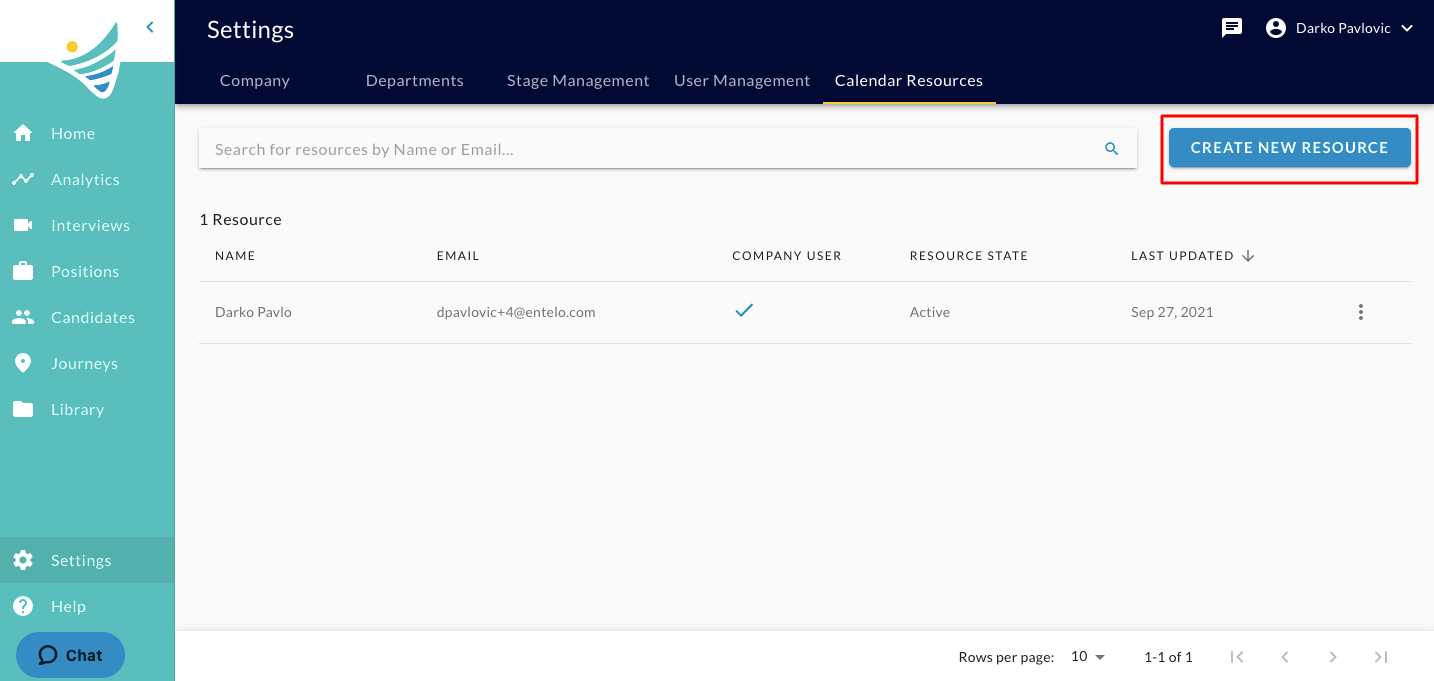
To find Calendar Resource, you would need to have Company Admin-level permissions in order to access Company setup. In case you already have Company-Admin-level permissions, you can navigate to Settings and then to Calendar Resources Tab. Here is the screenshot:
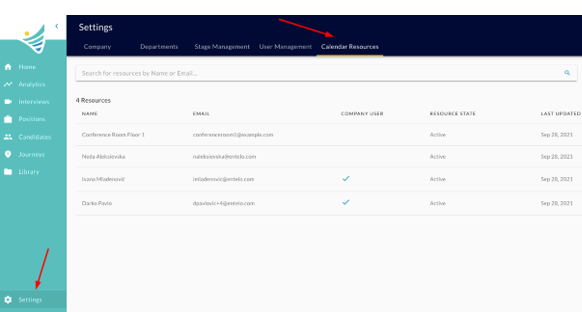
The view will differ depending on the type of Scheduling you have.
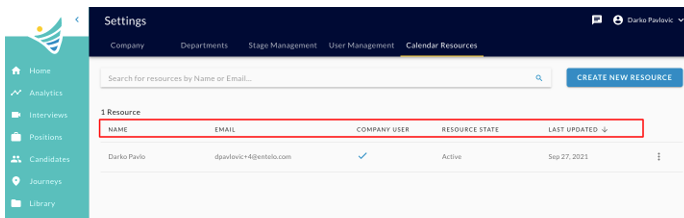
When it comes to Manual Scheduling, on the Calendar Resources tab, you will see the following information about calendar resources:
- NAME -Name of the calendar resource
- EMAIL - Email address of the calendar resource
- COMPANY USER - Whether or not a calendar resource has a ConveyIQ account
- RESOURCE STATE - Whether a calendar resource is active or inactive
- LAST UPDATED - The date of the last time a calendar resource was updated
Here is the screenshot:
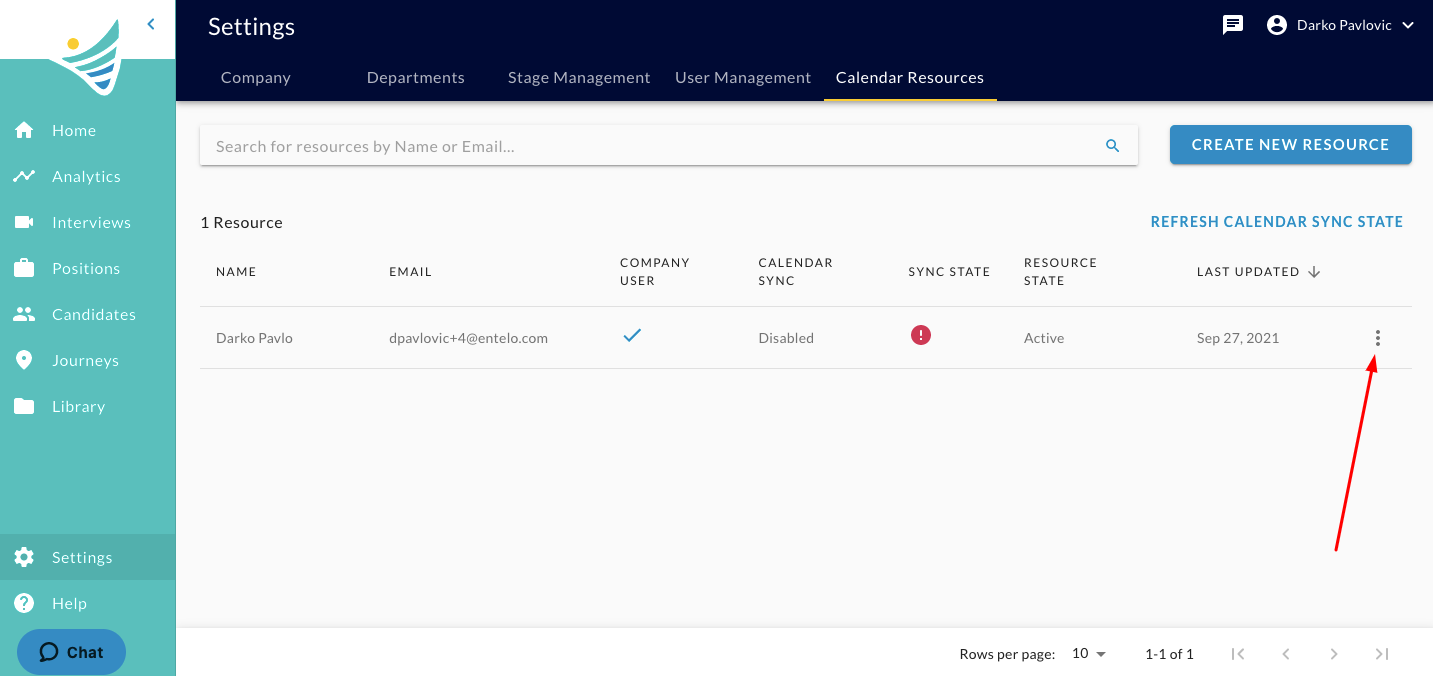
When it comes to Automated Scheduling, on the Calendar Resources tab, you will see the following information about calendar resources:
- NAME -Name of the calendar resource
- EMAIL - Email address of the calendar resource
- COMPANY USER - Whether or not a calendar resource has a ConveyIQ account
- CALENDAR SYNC - Whether a calendar resource has their calendar synced or not
- CALENDAR STATE - Whether a calendar resource's calendar is connected or not
- RESOURCE STATE - Whether a calendar resource is active or inactive
- LAST UPDATED - The date of the last time a calendar resource was updated
Changing a Calendar Resource (Edit, Activate, Disable)
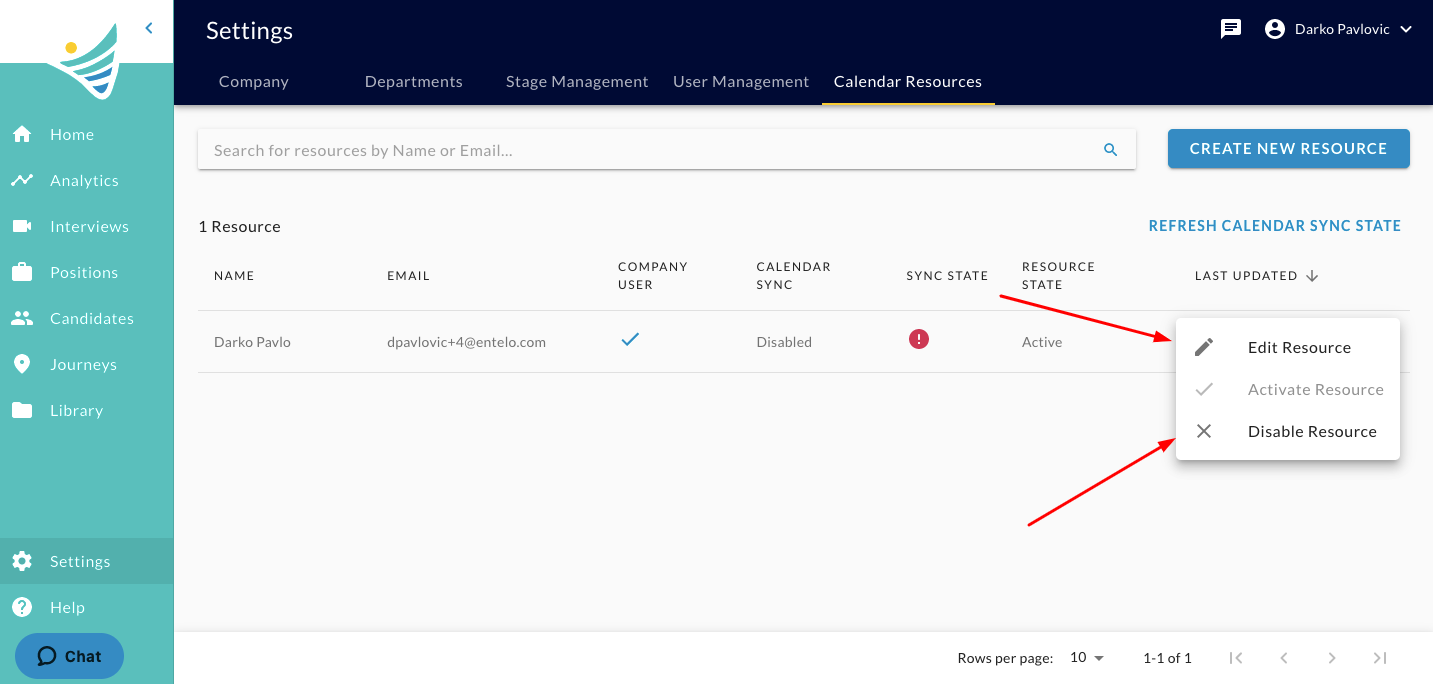
Whether it is Automated or Manual scheduling, a user with Company Admin-level access can disable or activate a Calendar Resource. You can do so by clicking on the grid dots on the right side of a Calendar Resource you would like to EDIT/ACTIVATE/DISABLE. Clicking on the grid dots will show these options. Here are the screenshots:
How to add Calendar Resources?
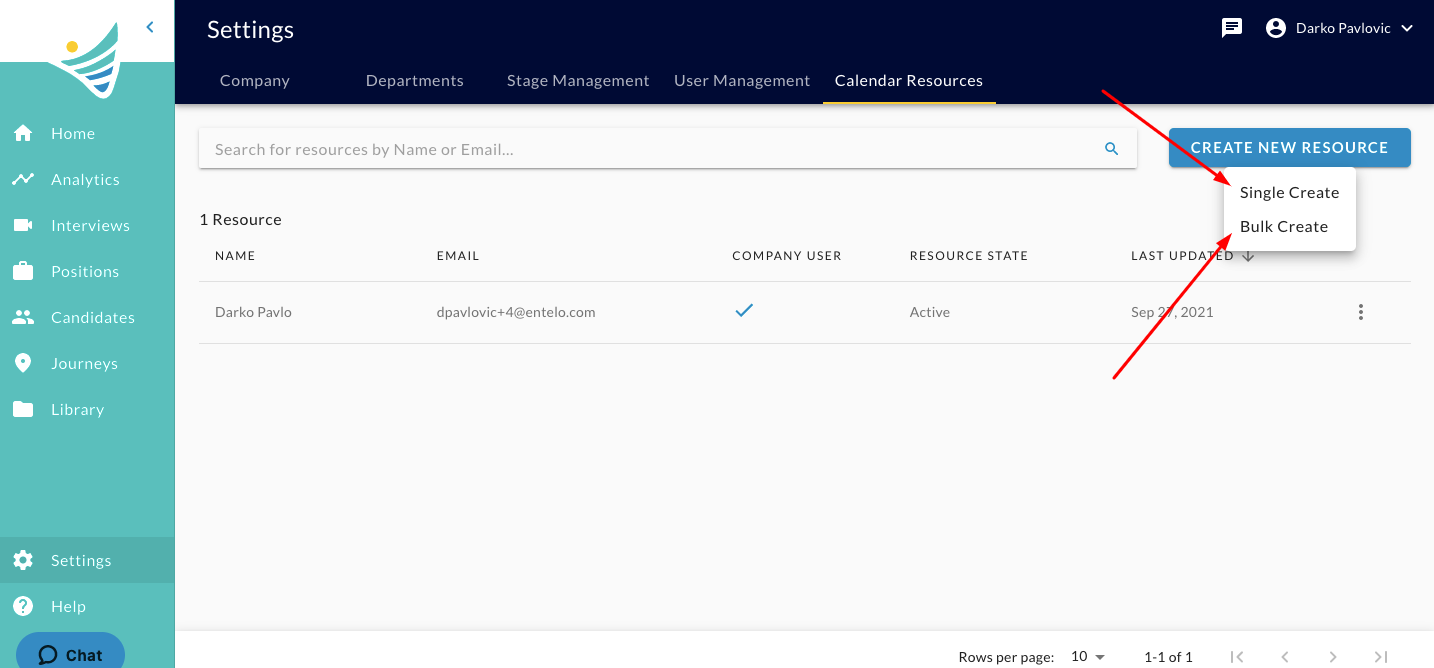
You can add Calendar Resources by selecting an option to add a single calendar resource in the upper right corner. It will show two options for adding Calendar Resources:
- Single Create - Adding one Calendar Resource
- Bulk Create - Adding multiple Calendar Resources using CSV file
Here are the screenshots:
Single Create
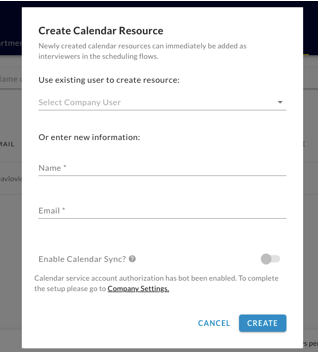
Clicking Single Create will prompt a pop-up window where you can fill out the information about a calendar resource. Here is the screenshot for Automated Scheduling:
Here is the screenshot for Manual Scheduling:
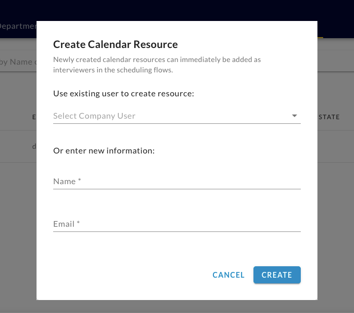
The only difference in this step is to allow a Calendar Sync wth user's own calendar which is allowed with Automated Scheduling.
Bulk Create
Clicking Bulk Create will prompt a pop-up window where you can upload a CSV file with your Calendar Resources information. Here is the screenshot:
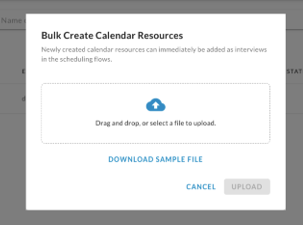
For the upload to go smoothly, we suggest downloading a sample file where you will be able to see the order of information upload. However, not to worry, as we will let you know the order in this article as well:
| Resource Name | Resource Email | Calendar Sync |
|---|---|---|
| John Doe | johndoe@example.com | TRUE/FALSE |
If you would like calendar sync, the value that should be entered in the Calendar Sync column is TRUE. Otherwise, you can input FALSE.
Differences between manual and automated scheduling when it comes to Calendar Resources:
When it comes to Manual Scheduling, Calendar Resources are not required to have ConveyIQ New accounts. They can also have different email domains.
When it comes to Automated Scheduling, Calendar Resouces also don't have to have ConveyIQ New accounts and can also use a different email, however, in order for a Calendar Sync, they are required to a company domain and to have ConveyIQ New accounts.