Navigating the Interviews Page
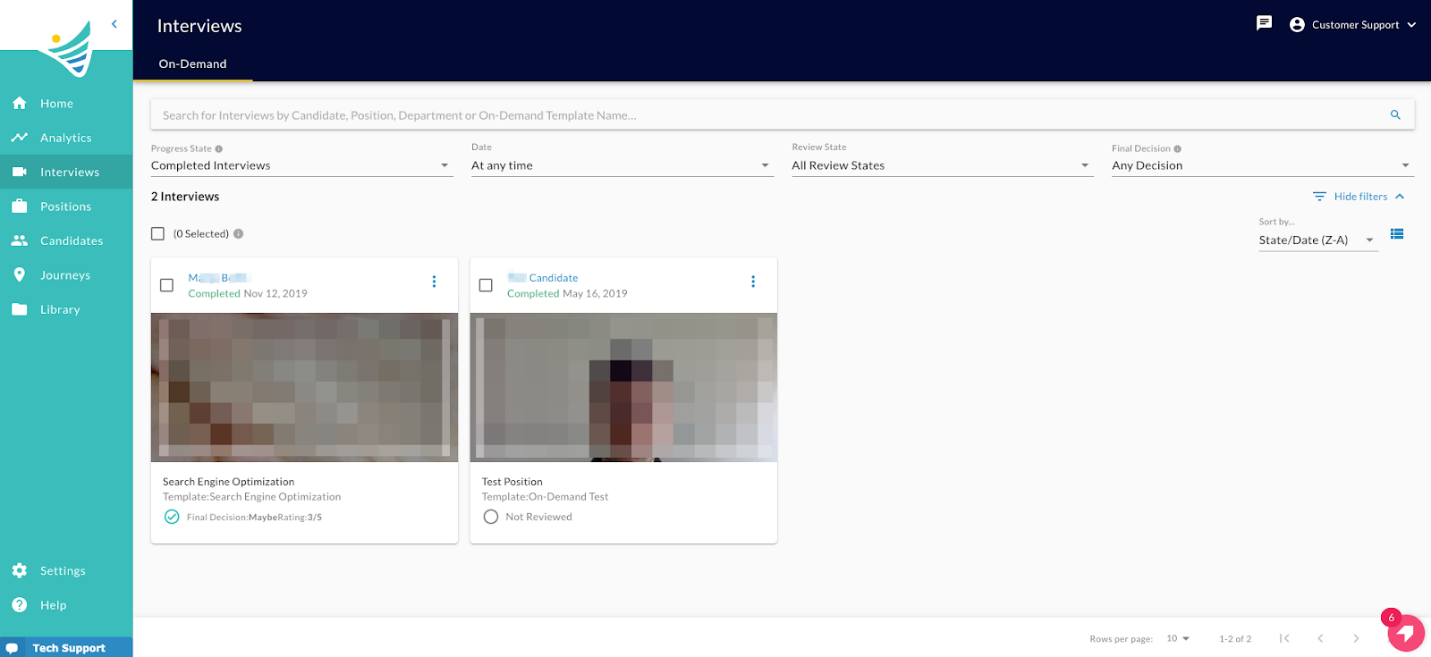
When you go to the Interviews tab, you can search for interviews by Candidate, On-Demand Template Name, Review State, Status, and State/Date.
Filtering by Interview Category
You can sort the interviews by Progress State, Date, Review State, and Final Decision. The filter options for each of these are as follows:
- Progress State: All States, In Progress Interviews, Completed Interviews, Invited Interviews
- Date: At any time, In the last 7 days, 14 Days, 30 Days, 60 Days or 90 Days
- Review State: All Review States, Reviewed, Not Reviewed
- Final Decision: Any Decision, Yes, Maybe, No, Not Applied
Sorting by Interview Category
You can sort each interview by these categories: A-Z or Z-A (for the date: oldest to newest, newest to oldest).
Grid View and List View
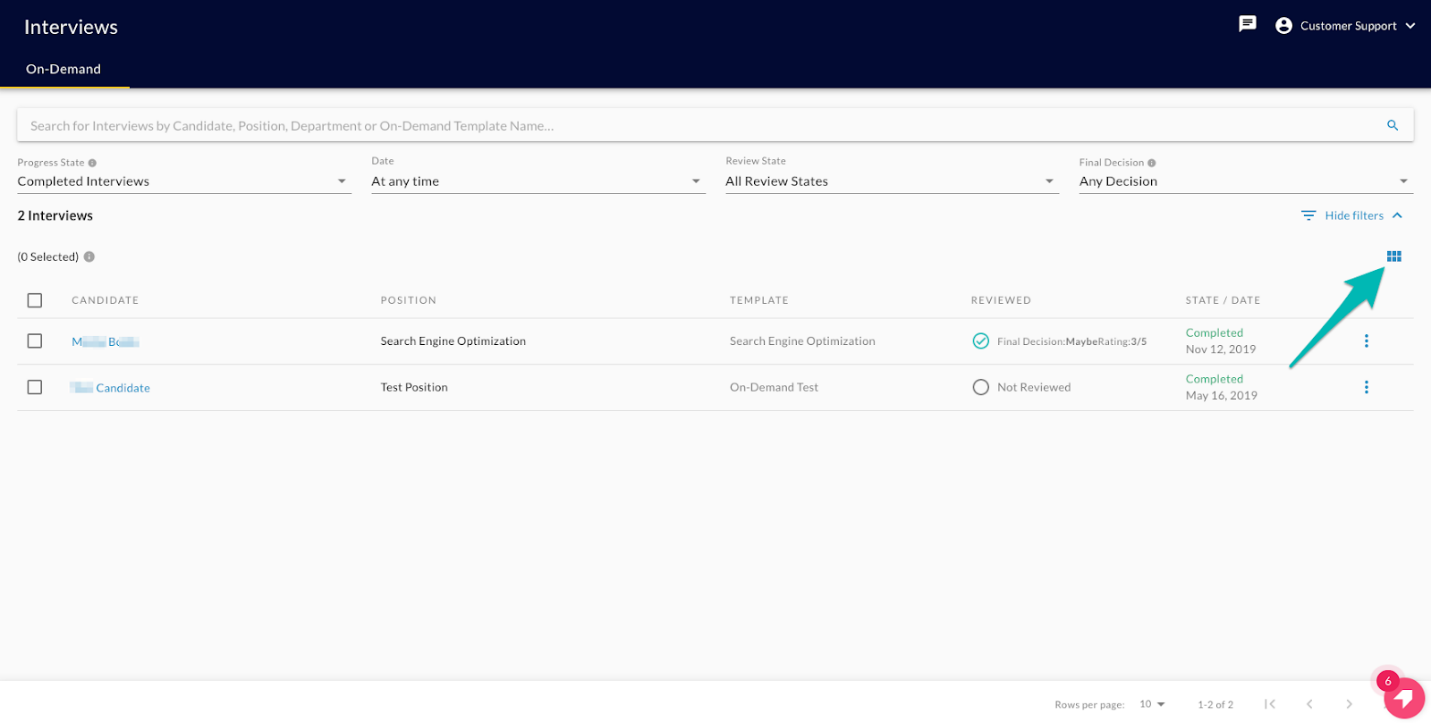
You can view the list of interviews in list or grid view by clicking on the respective icon.
List View:
Grid View: 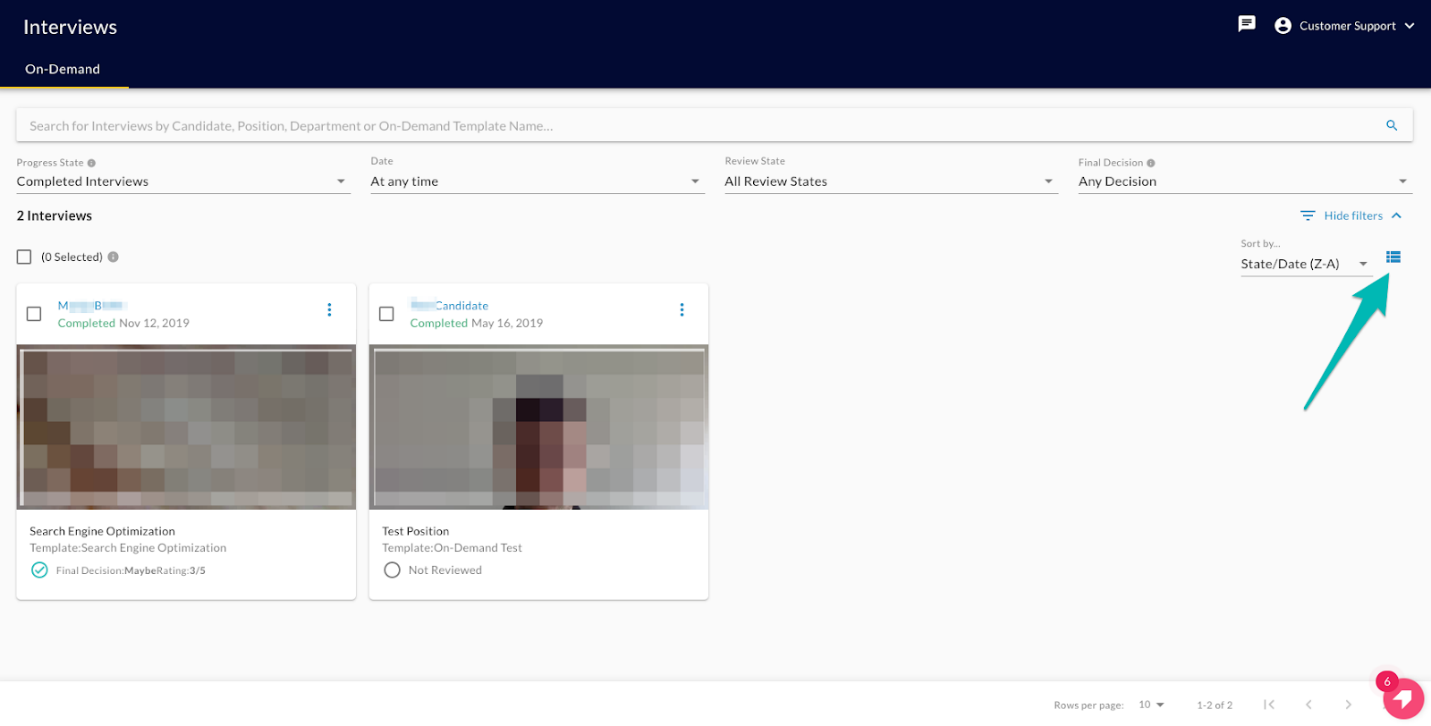
Interview Options
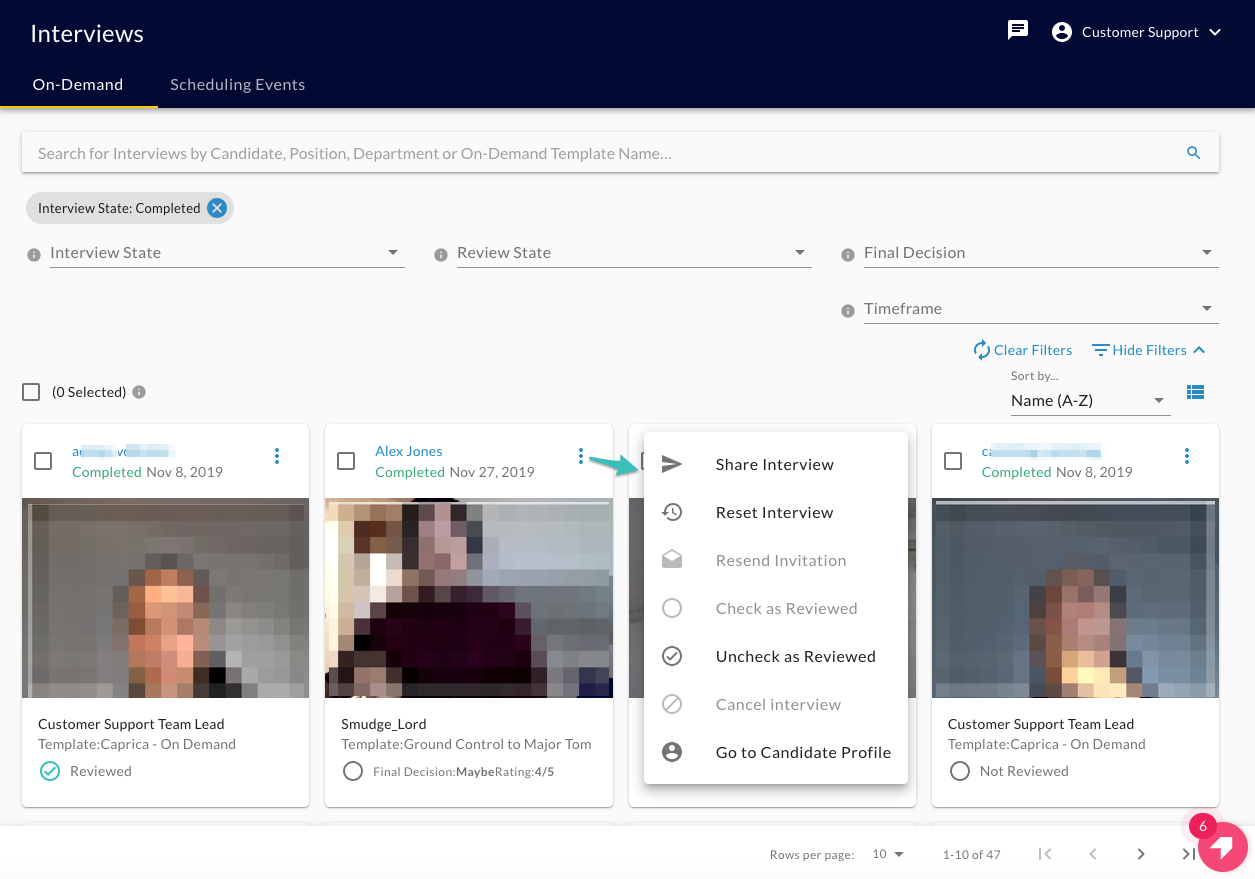
If you click on the 3 dots on the top right-hand side of every individual interview sections, you will find the actions available for a particular interview:
- Share Interview
- Reset Interview
- Resend Interview
- Check as Reviewed
- Uncheck as Reviewed
- Cancel Interview
- Go to Candidate Profile
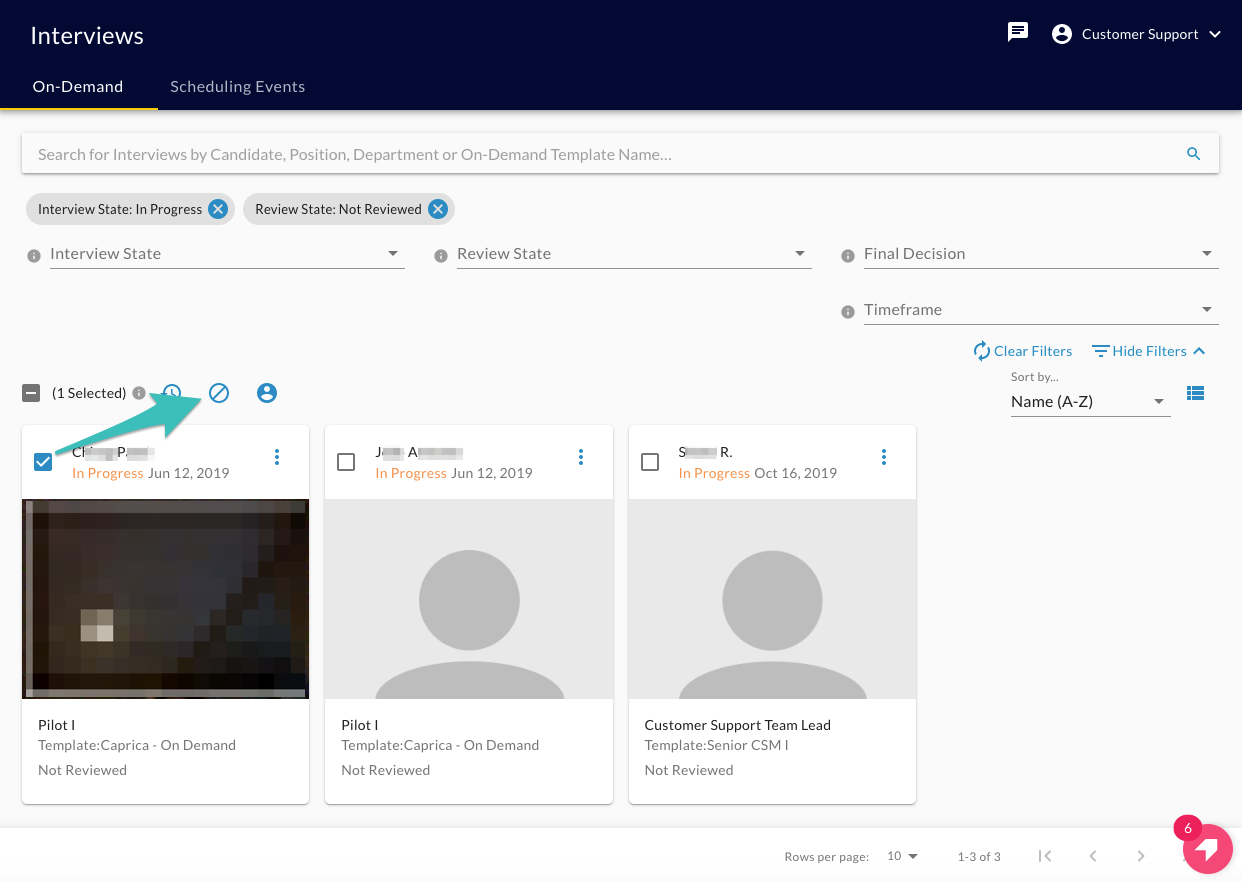
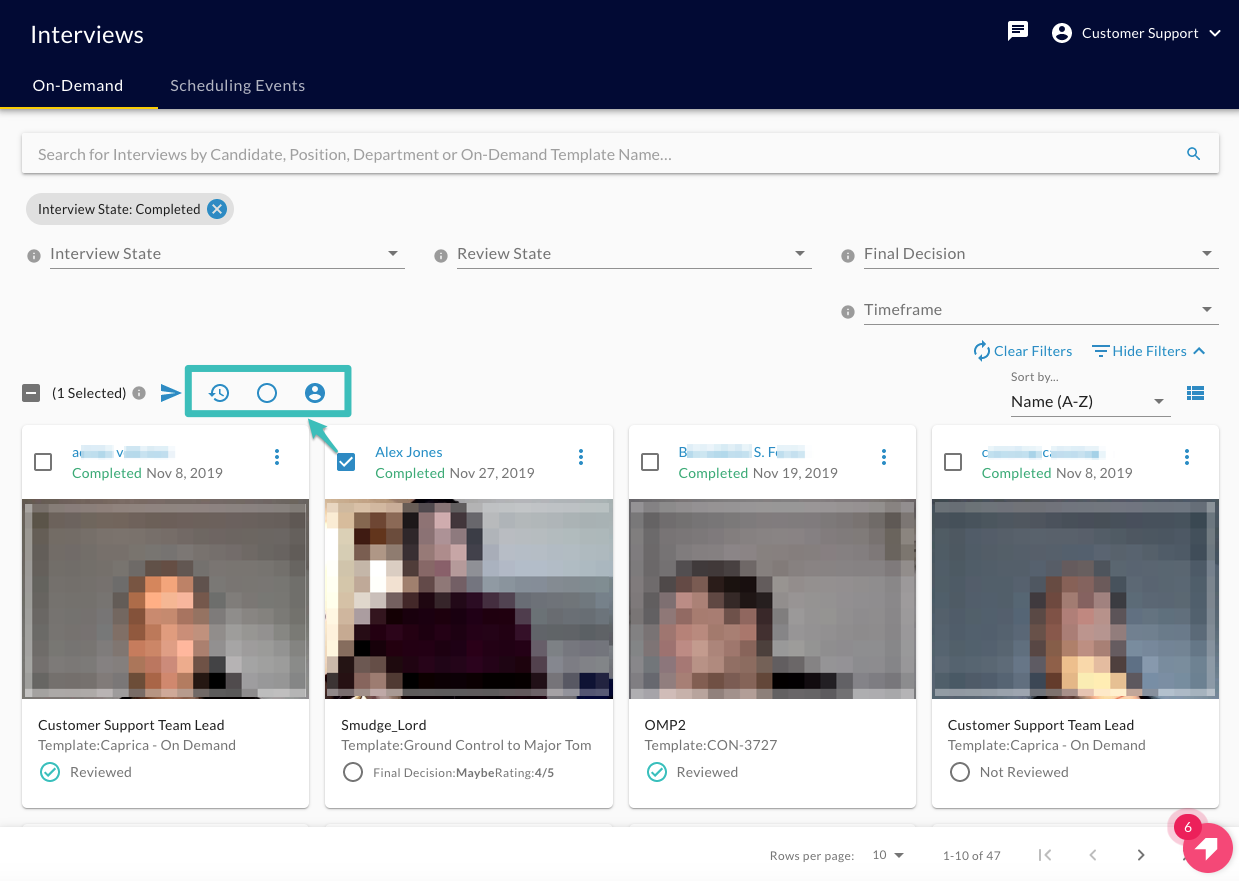
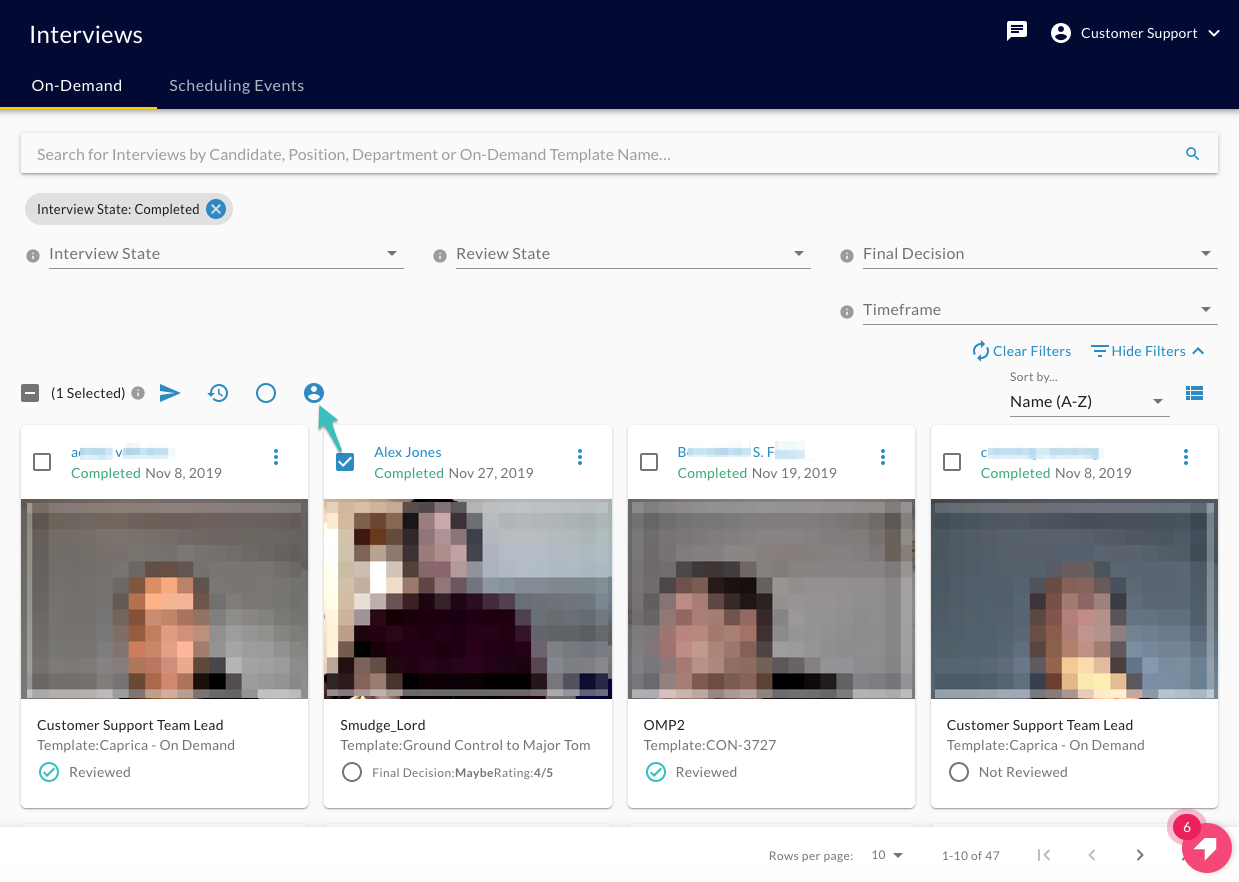
When you select a particular interview (check the top left-hand side square field of an individual interview), you will also see the available actions for that interview on the top of the interview grid or list.
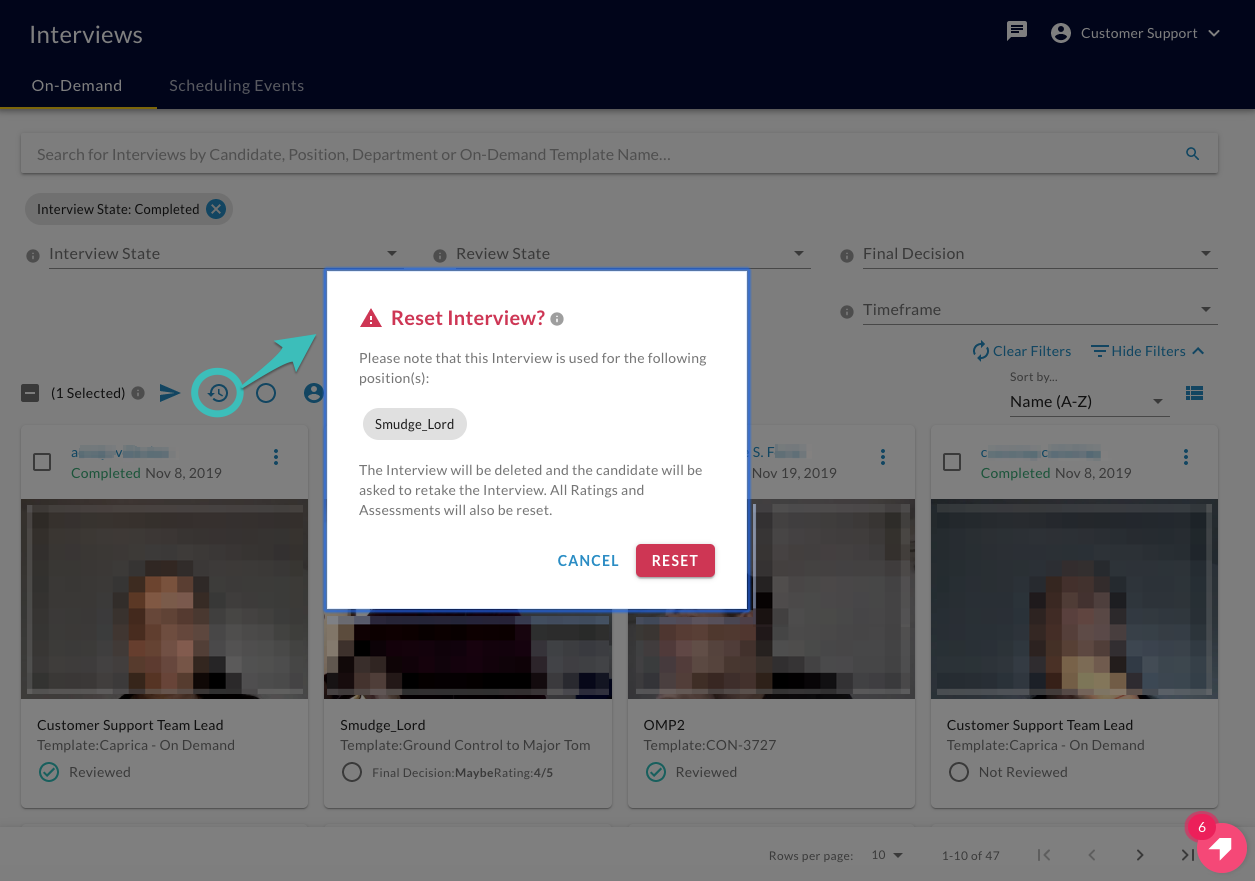
If you click on a clock with an arrow icon, the window to confirm the reset of the selected interview will appear.
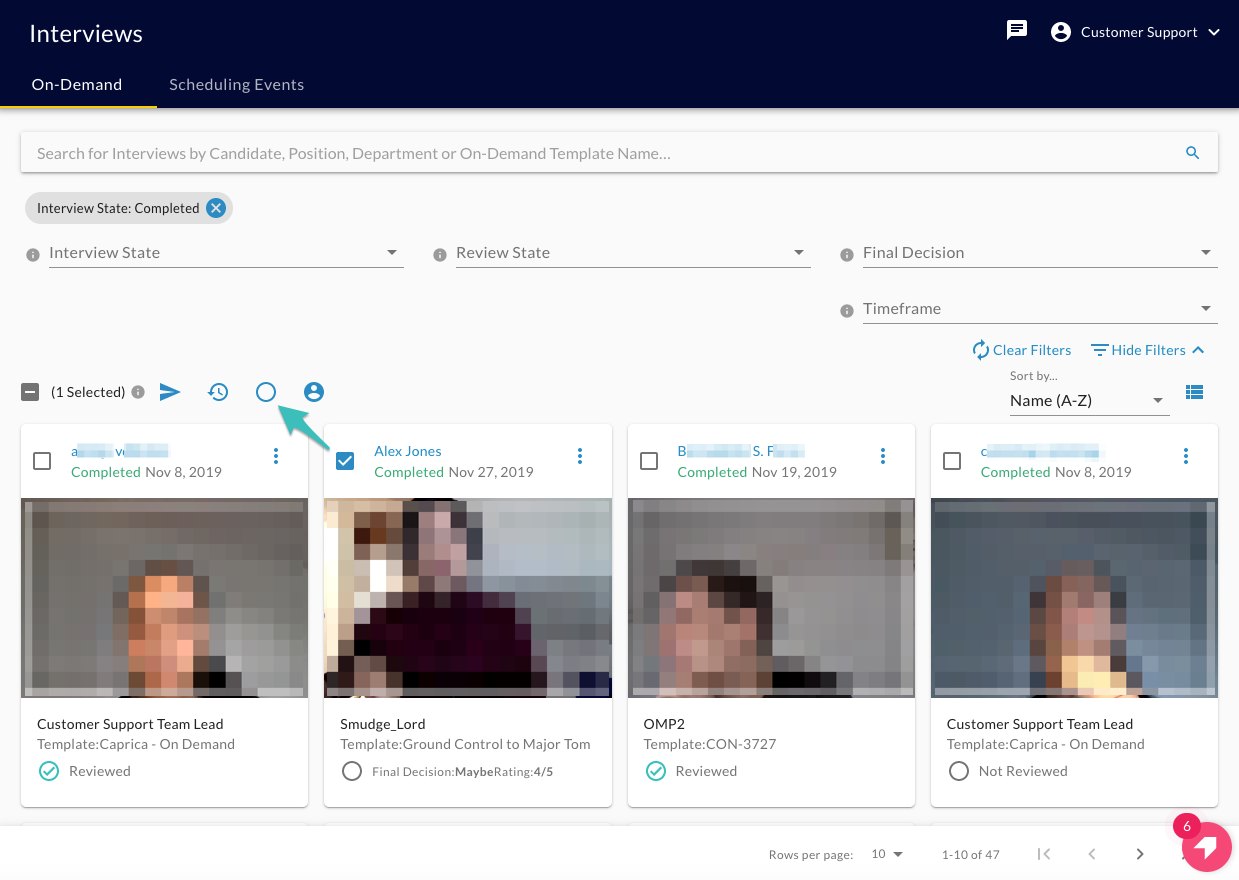
When you click on a circle icon, you will make the selected interview "Uncheck as Reviewed" (when the circle has a checkmark in it) or "Check as Reviewed" (when the circle icon is empty).
The icon with a silhouette will lead you to the profile of the candidate that has submitted the selected interview.
The interviews that are in state "In Progress" and "Not Reviewed" will have the option to cancel them (the circle icon with a diagonal line).