Creating Your Account with ConveyIQ
Registration
As a new user, you will be invited to Register to Convey and you will be asked to complete the registration of your account. Your company admin will send you an invitation email to get started.
From the Invitation email you will be redirected to the "Registration" page:
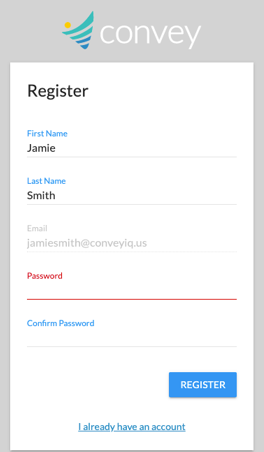
Register form
To ease the process of registration, the below information will be populated by your Company Admin:
- First Name
- Last Name
- Email Address
The First and Last Name fields can be edited, but cannot be left blank - this is a required section.
The Email field cannot be edited, as you can only register with the same email that the invitation was sent to.
Password
Please create a password with following password complexity rule:
- At least 8 characters
- At least one uppercase letter
- At least one lower case letter
- At least one number
- No more than two consecutive identical characters:Example: Passsword1 / Password1
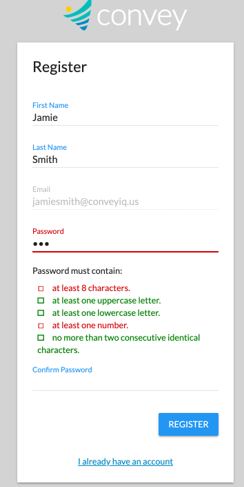
Registration Success
Once you fill in all the required fields with valid data, you can confirm registration. After confirmation, you will get a 'Registration Complete' notice and be able to continue to login to your account.
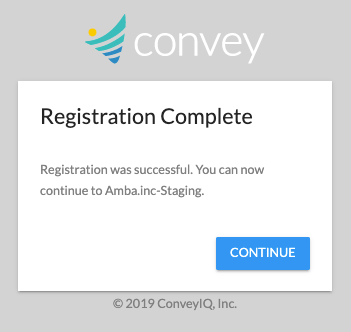
By continuing, you will be signed in and land on the Home page of the Convey application.
Your permission settings will have been set by your Company Admin, and only that person can edit your permission level & system access.
When signing in to your account, you will be able to check the option to remember your login information on that device for 28 days.
Invitation no longer valid
The Invitation that you receive through email has a validity period of 24 hours. Also, once you have confirmed the invitation by registering or signing in with an existing account, the Invitation becomes invalid and can no longer be used.
In case of the above, if you click on the link to Register from the email, instead of the Register form, the following page will be displayed:
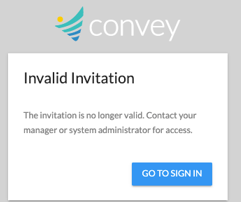
The Admin user is able to track which invitations have expired from the User Management page. For more details go to the "User Management" tab.