How to Set Up Resume Upload
If you would like to get to know your candidates better, Resume Upload feature will allow you to collect more information about your candidates, by allowing them to upload their resume during their digital interview.
Recruiters can configure an On-Demand template to include or not to include the Resume Upload Step as part of the interview. The configuration can be different for each template so that, depending on the position(s) the interview is used for.
Resume Upload Configuration
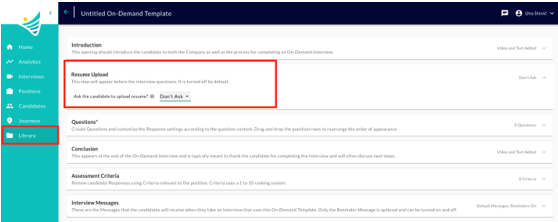
Navigate into your Library to create a new template or edit an existing one. After Introduction section you will see the Resume Upload section where you can decide whether you want your candidates to upload a resume or not:
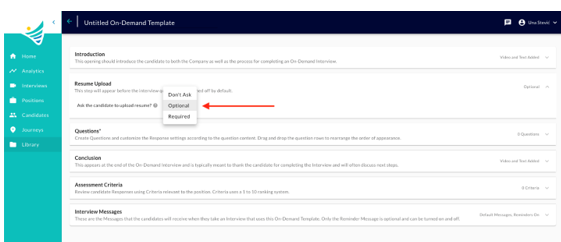
The setting also allows to make the resume step optional or required, allowing the candidate to skip it or enforce a document upload:
Track uploaded resumes
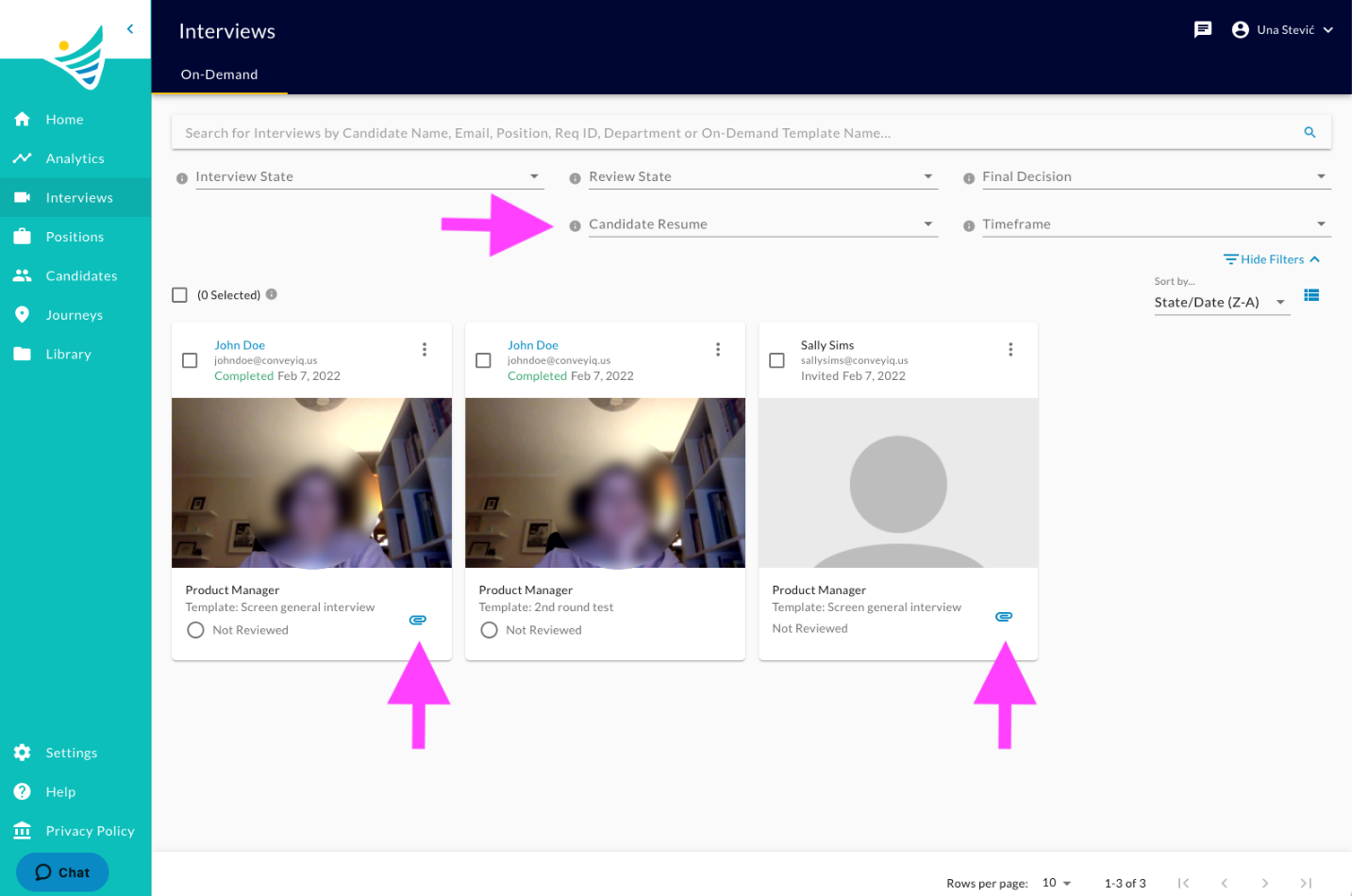
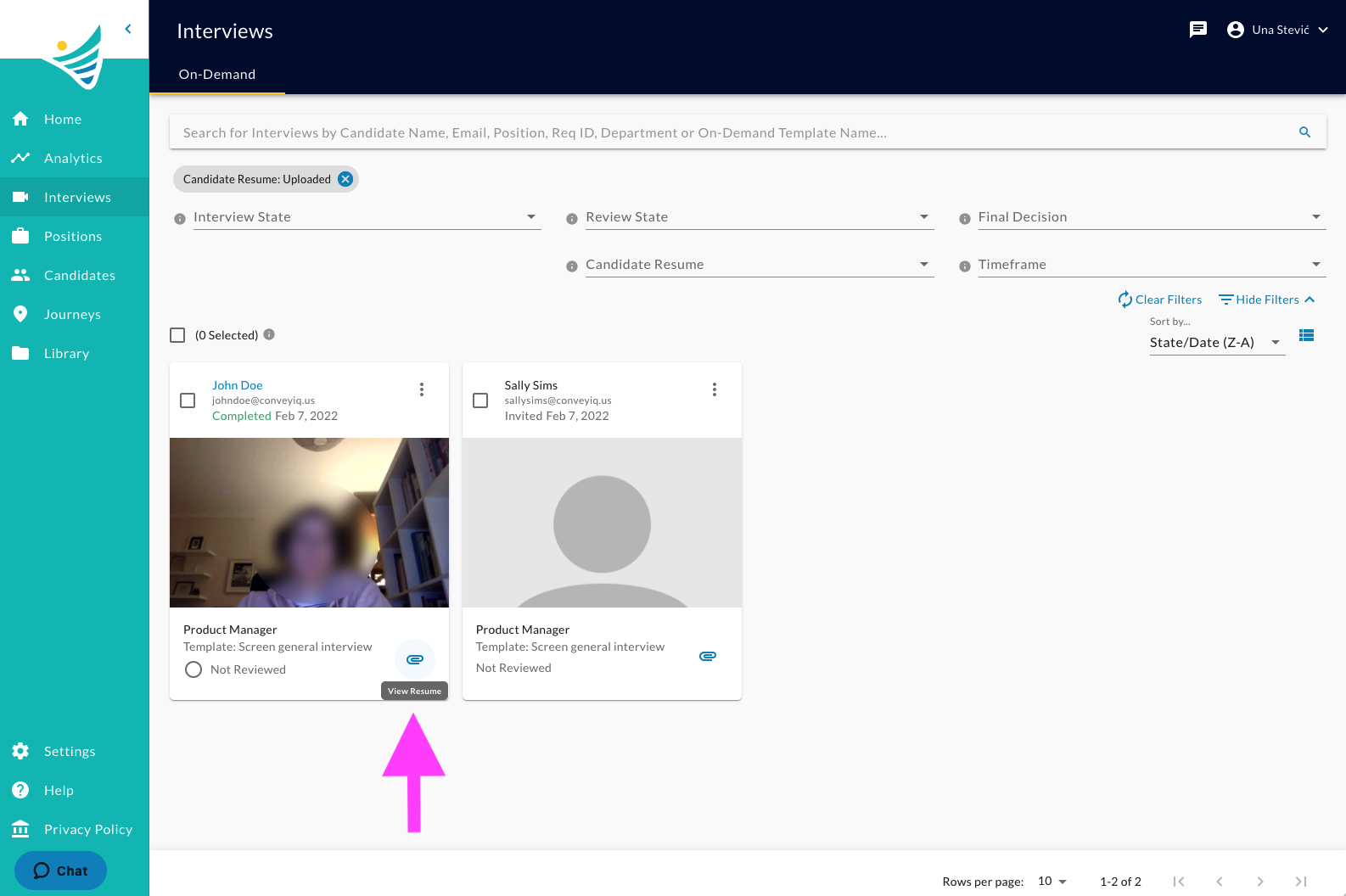
The recruiter is able to use the Interviews > On-Demand list page to track which interviews have a resume uploaded vs. those that don’t have it.
By applying the filter called: 'Candidate Resume - Uploaded', the list will only show interviews that have a resume uploaded by the candidate.
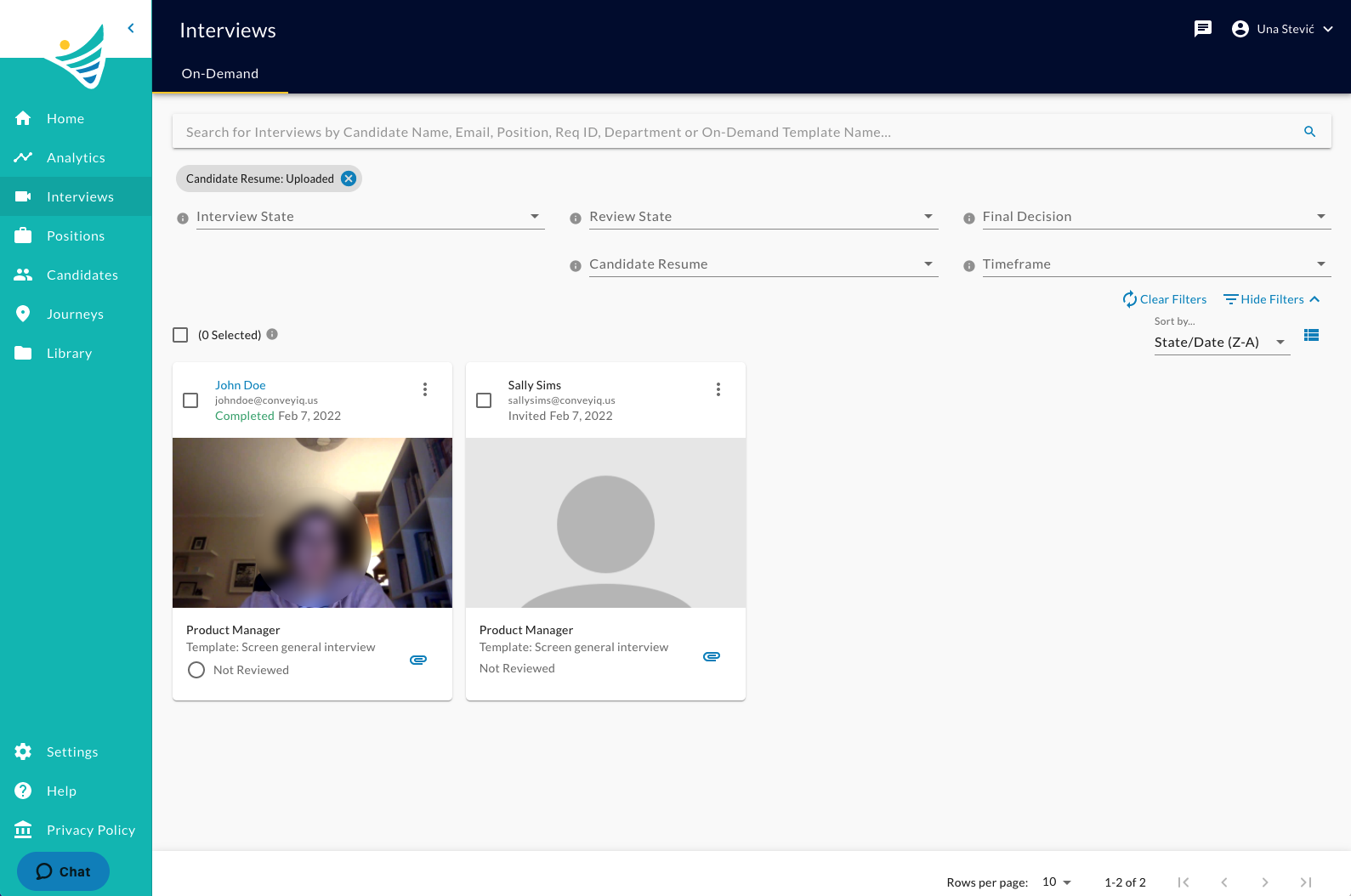
- Additionally, recruiters can narrow down the list by applying an Interview State like Completed to only view completed interviews with a resume uploaded.
- By filtering based on Interview State Invited, the list will show interviews that have not been completed but where candidates have already uploaded a resume.
Open resume to review
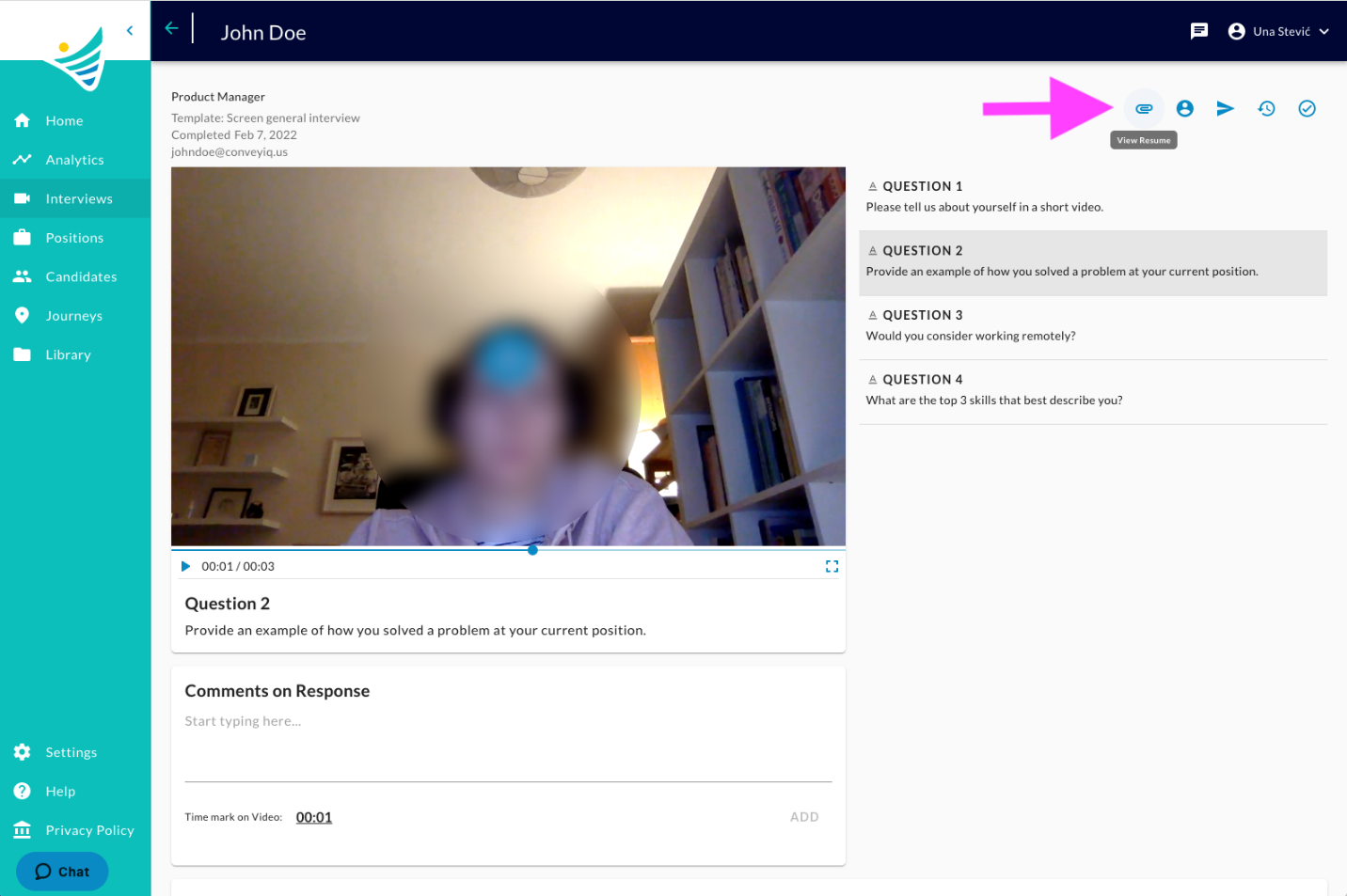
By clicking on the ‘attachment’ icon from the interview card in the list or from the interview details page, the resume file will be auto opened in a new tab, in the default browser document viewer:
Share Interview with resume
The existing share interview functionality now includes the resume file too, if one has been uploaded by the candidate.
- When a recruiter shares the interview with an existing user, the user will see the same interview review page that includes the resume attachment.
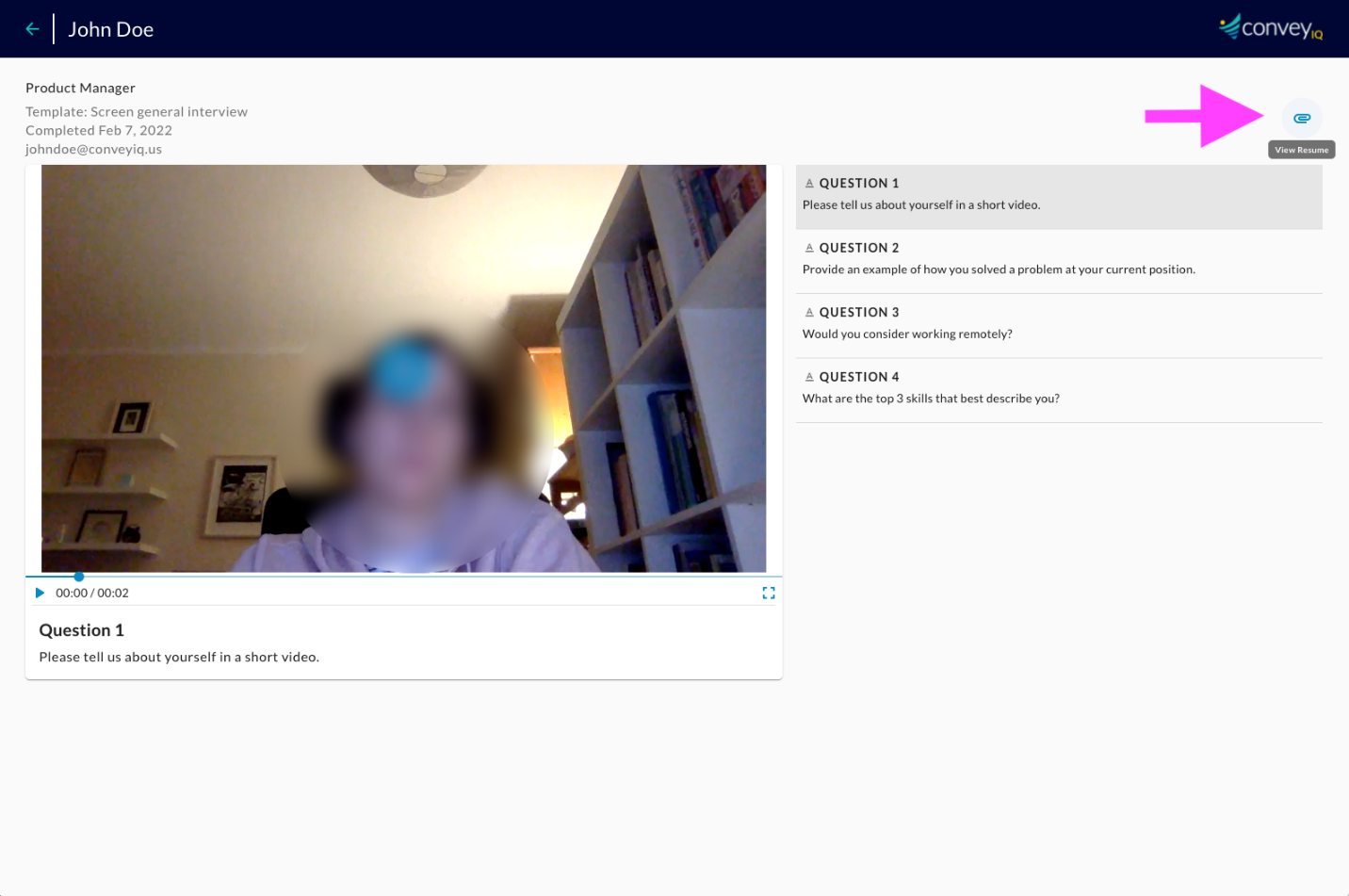
- When a recruiter shares the interview with an external user like Hiring Manager, through a Public share link, the user will open the public review page that includes access to the resume attachment:
Interview reset with uploaded resume
If a completed interview is reset, using the existing Reset action, along with the responses the resume file will also be deleted. The candidate will receive an invitation to complete the interview again, in which case they can upload the resume again too.