Performing Actions on an Interview
There are a couple of actions available for you to perform on an On-Demand interview:
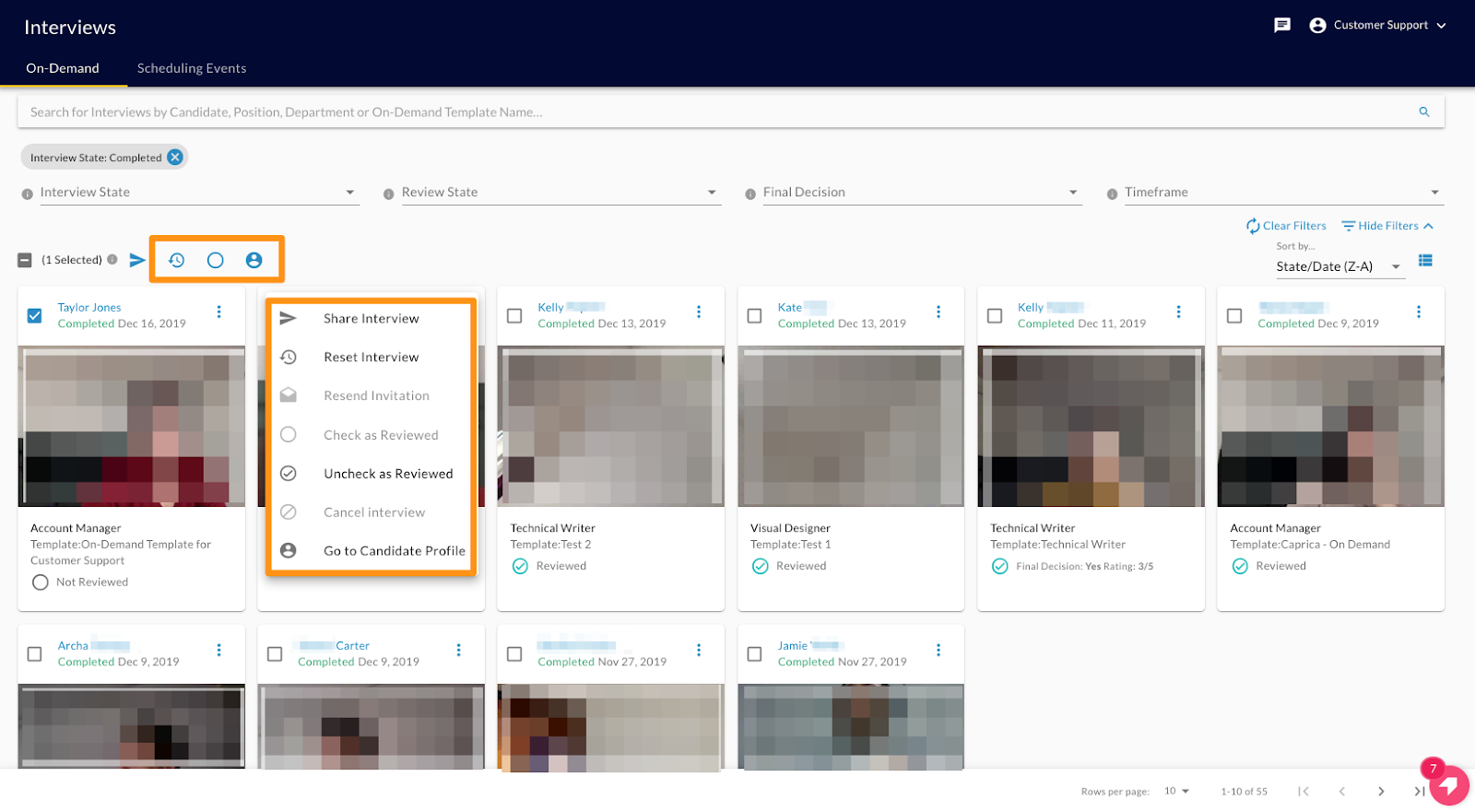
- Select the interview
- Choose from either the icons at the top ORclick the menu options icon
- For a completed interview, the immediate actions available are:
- Send the candidate a link to take the interview again. You can use this action is when a candidate's video is not viewable due to technical issues.
- Share the interview with your colleagues and have them review and provide feedback on the candidate.
- Reset the interview for candidates who need a retry.
- Uncheck as Reviewed ORCheck as Reviewed
- For an interview that has not been completed or started (in the invited status), you can:
- Resend Invitation
Reviewing an On-Demand Interview
To review responses to an interview:
- Click on the image of an interview. All of the questions, as well as the candidate responses, will appear.
- You will see their name, position applied and template used to invite them for the interview, as well as the date completed.
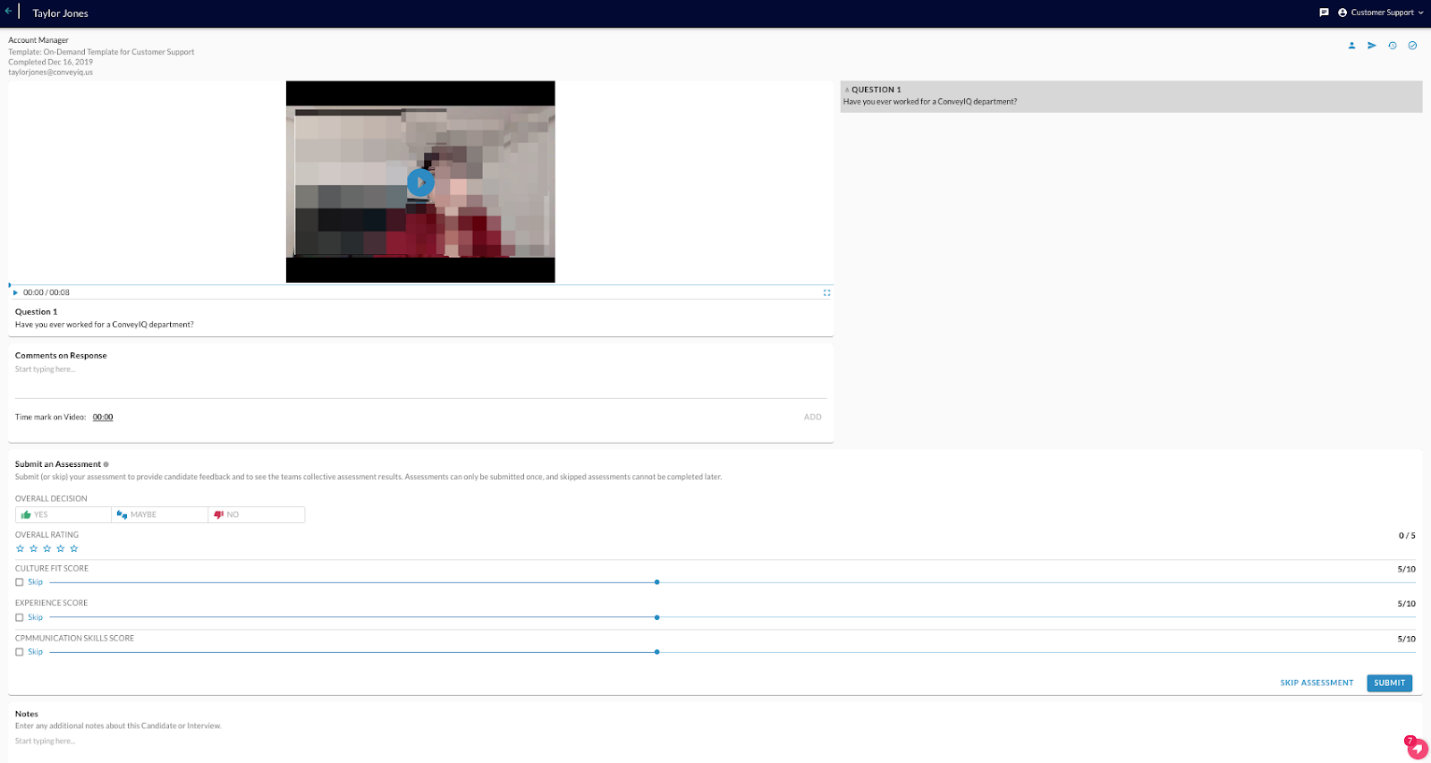
- For questions that require a video response, the video answer will appear. Click on the play icon in the middle of the image in order to view the video response.
- For questions that require a text response, the text answer will appear.
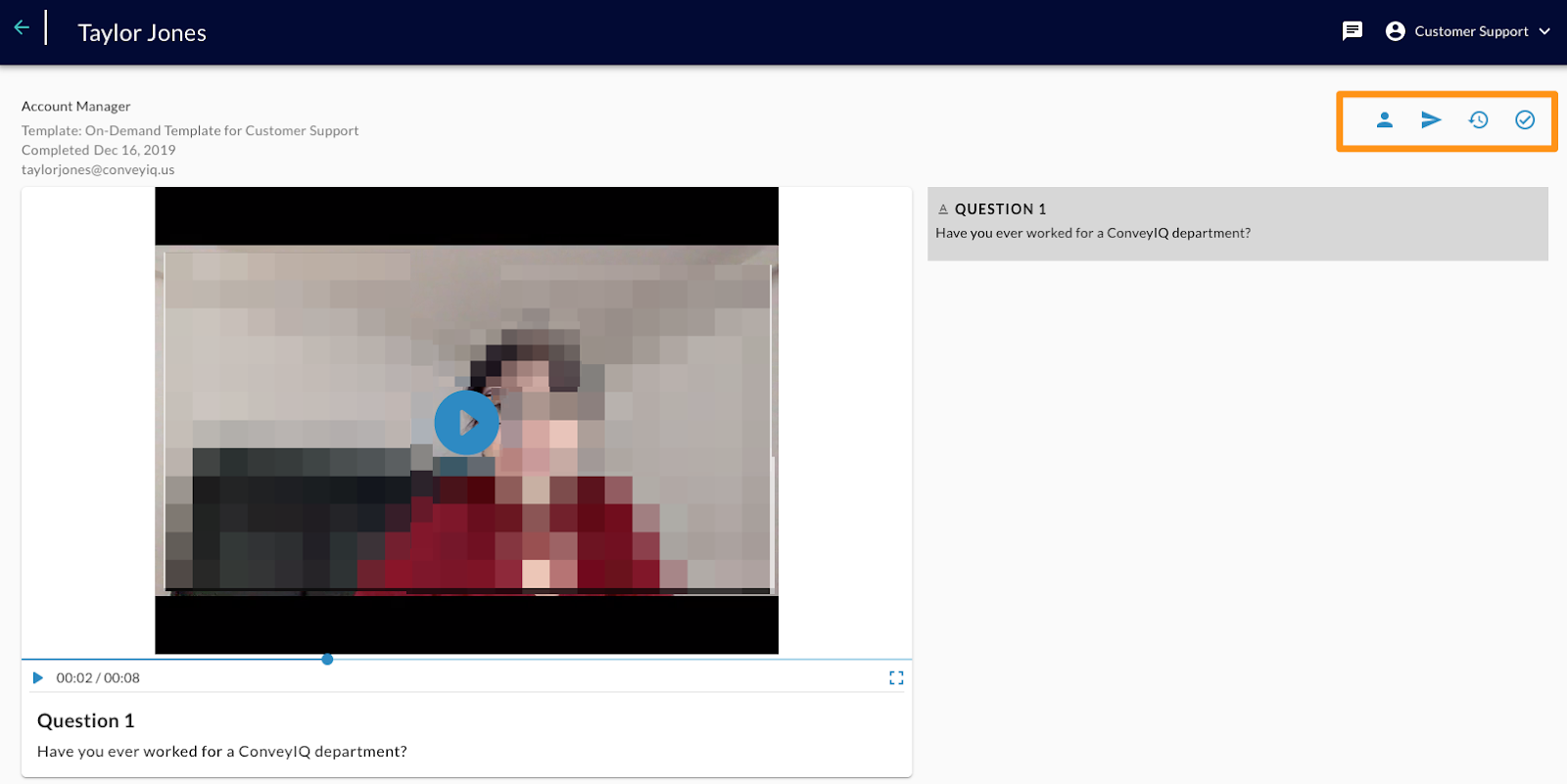
On the top right-hand side of the module, you will again see the option to:
- Re-send the candidate a link to take the interview again.
- Share the interview with your colleagues.
- Reset the interview.
- Uncheck it as Reviewed or Check as Reviewed
- Submitting Candidate Feedback (Comments and Assessment Criteria)
Comments
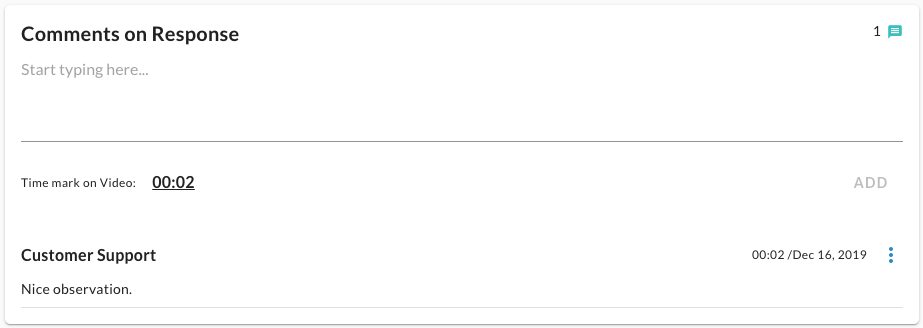
- You can comment on the interview on each individual question. The comments will appear with the commenter's name, comment, and a time/date stamp.
Assessment Criteria
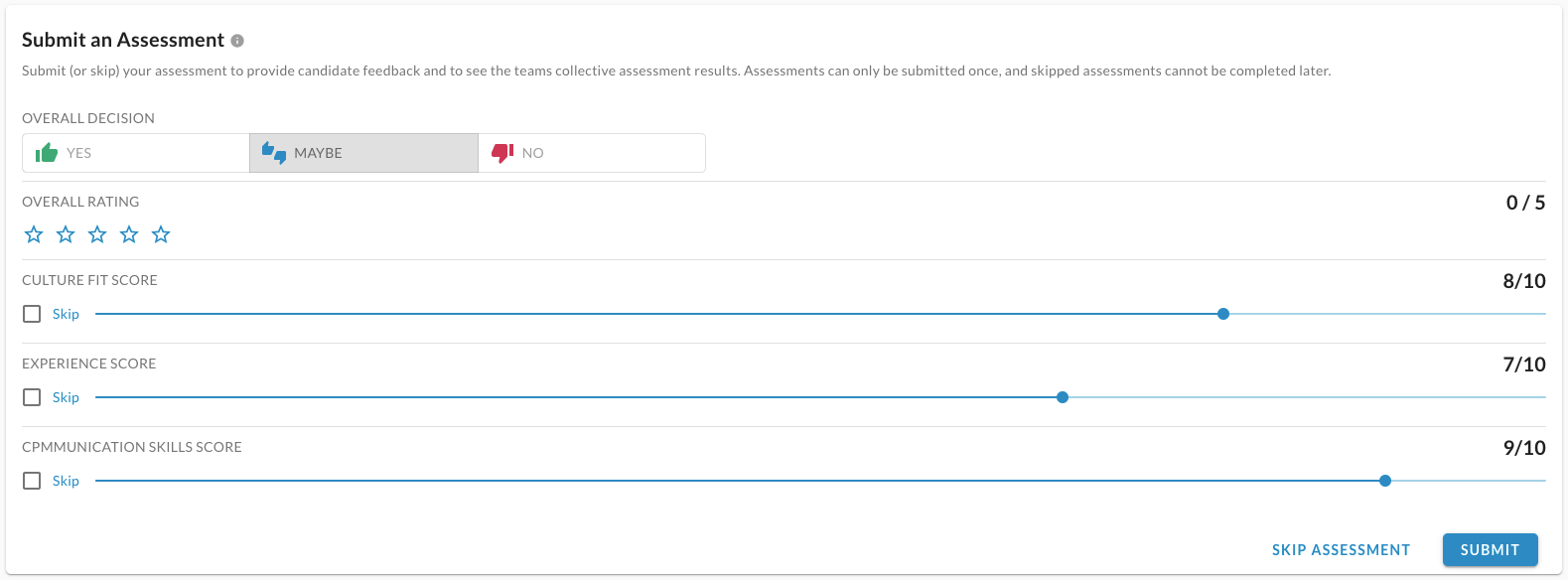
- The assessments that are required with your On-Demand template will appear underneath the Comments section.
- Here you can set:
- Overall Decision (Yes, Maybe, No)
- Overall Rating (1- 5 stars)
- Fill in your score for each assessment criteria (from 1-10 ORskip the criteria).
- Once assessments have been completed, click on the blue SUBMIT button at the bottom right-hand corner.
- After multiple users score the assessment criteria, an average score will appear in the top right of each assessment criteria.
- If you skip an assessment criterion, it cannot be completed later. Assessment criteria cannot be modified after the initial submission.
Notes
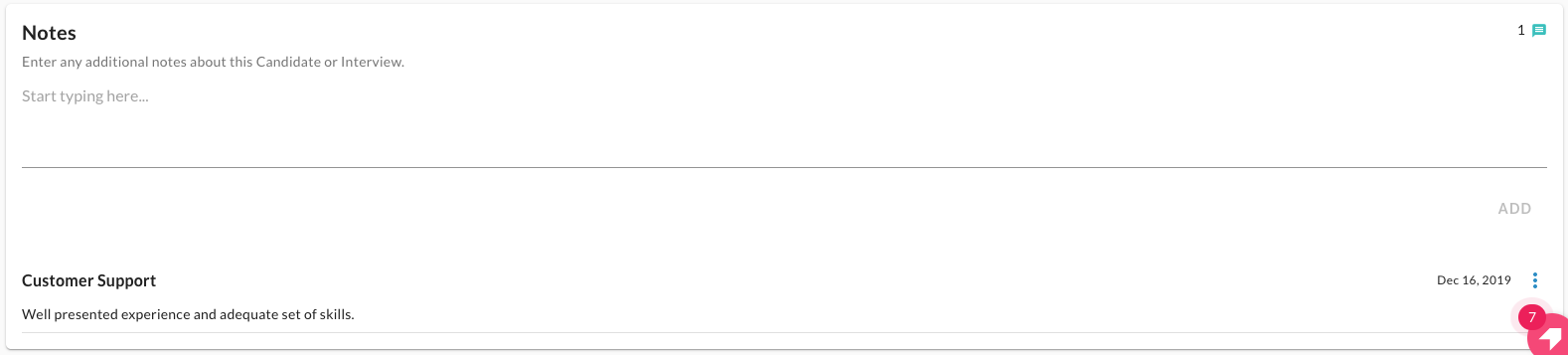
- If you would like to add any general notes that may not be related to a specific interview question, there is a notes section available. As with the comments, the notes will be labeled with the user who created the note, as well as a date stamp.
- Notes can be edited or deleted by the user who created them.
Reviewed Interviews
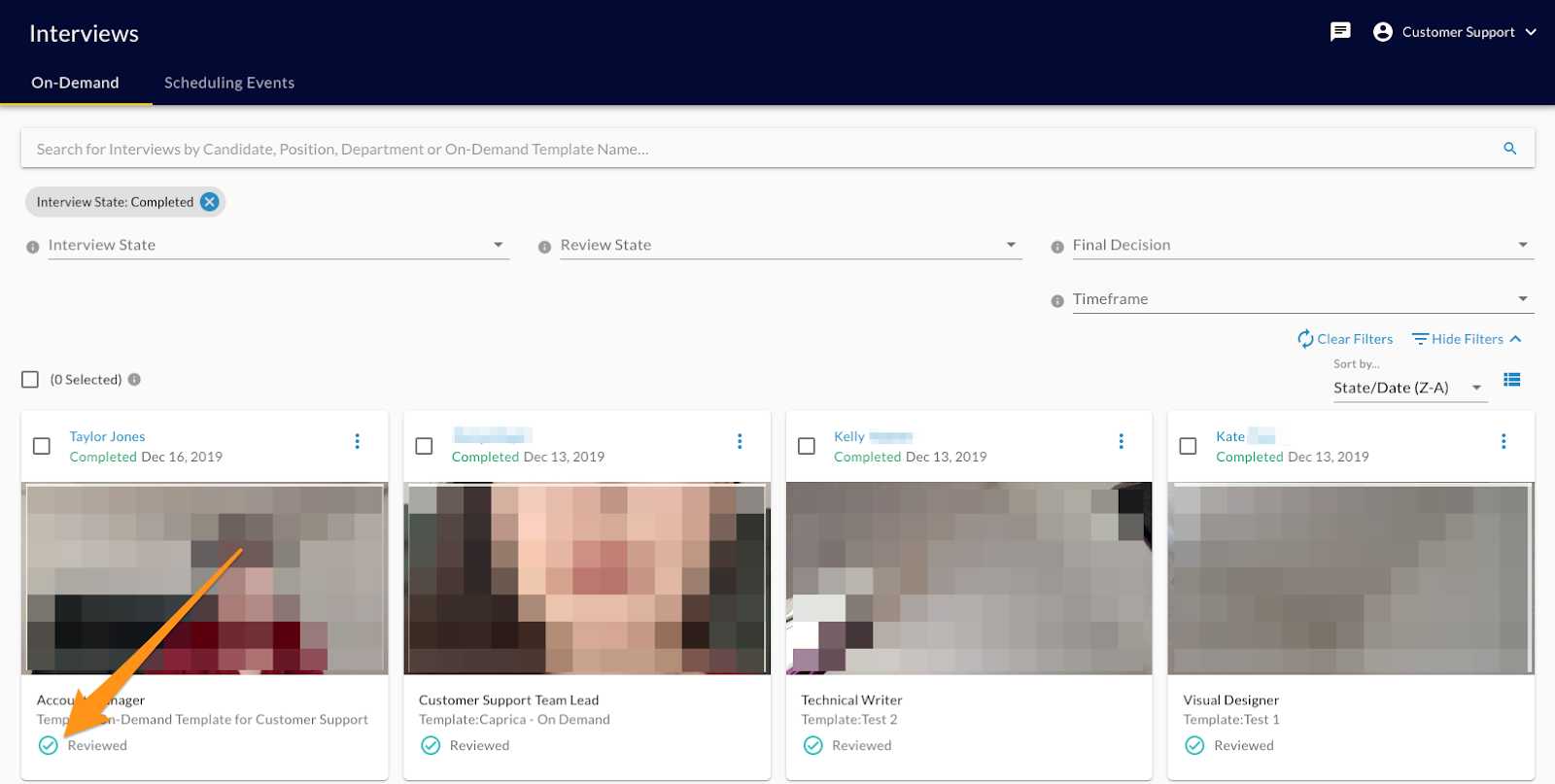
Reviewed interviews will appear with a green checkmark in a green circle on the main "Interviews" page. Within a few seconds of being on the interview page, it will automatically be marked reviewed. This can be un-checked as reviewed.